Have you accidentally deleted files from your hard drive or found that your HDD is no longer accessible?
This guide explains how to recover data from a hard drive, including deleted files, formatted drives, corrupted partitions, and inaccessible HDDs. Whether your hard drive is an internal disk, external HDD, SSD, or USB hard drive, we will show you three proven recovery methods—from built-in Windows tools to professional hard drive recovery software.
If the drive is still detected by your computer, you have an excellent chance of recovering your files before they are permanently overwritten.
Your Content Goes Here
When Do You Need Hard Drive Data Recovery?
Hard drive data recovery is usually needed when files become inaccessible because of accidental deletion, formatting errors, partition problems, or hardware failures.
Common situations where you may need to recover data from a hard drive include:
– Accidentally deleted files or folders
– Formatted HDD or SSD
– Corrupted or damaged partitions
– Hard drive showing RAW file system
– External hard drive not detected by Windows
– Failed hard drive with important files
In these cases, using professional data recovery software can help scan the drive and recover lost files before they are permanently overwritten.
You may not have to look any further because we will help you overcome these concerns with the best and free solutions.
There are several scenarios that are both accidental and inadvertent when you lose data from a hard drive. These scenarios include:
Hardware Failure:
This can be a somewhat inevitable scenario when you lose data on a hard drive. Hard drives can automatically fail at the end of their lifespans. However, failure can also happen in situations like mishandling, power surges, fire, or water that can damage its internal components or make the drive dead.
Formatting:
When you format your PC while installing Windows or format a non-boot volume or external hard drive, this can happen.
Corruption:
This happens when an internal hard drive gets corrupted. In such cases, boot won’t happen because of damage to the master boot record or boot configuration data.
Deletion:
This is one of the most common scenarios when you can lose data. for example, You deleted certain files like a document, photo, video, email message, audio, or archive file that go to the Recycle the Recycle Bin but hit the Deleted Key without peeking into these files.
Method 1: Recover Deleted Files from the Recycle Bin
This is a common and easy method to recover data from the recycle bin. As we delete files from our laptop or computer, they go directly to the recycle bin instead of being permanently deleted. The only time this doesn’t happen is when the file is too large to be sent there or the recycle bin is already full.
So, this is a viable option to check the recycle bin before moving on to any other data recovery solutions:
Open the Recycle Bin on your computer.
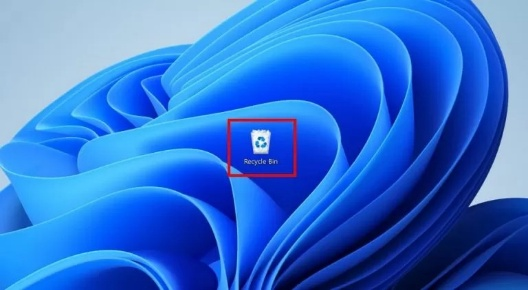
As it opens, you can see all the deleted files there. Right-click your file and select “Restore” to retrieve files back to other drives. If you want to recover multiple files, hold Ctrl and select all desired files before clicking right to recover them.
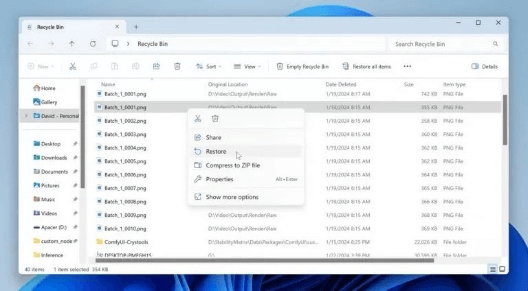
All the deleted files will be delivered back to their original locations as soon as you click on Restore. Alternatively, you can also drag all the files from the recycle bin to a location of your choice. Try the next method if you are unable to recover files from the recycle bin.
Method 2: Restore Files from Windows Backup
This is another easy method to Recover Hard Drive Data files. Of course, this method is only viable if you have a backup to recover the data from. Windows equips you with the backup utilities to back up your data, which require you to configure them. File History is one such tool that takes snapshots of your files. It enables you to restore a working version of them.
If you have enabled File History, you can make a copy of your files by following these simple steps:
First of all launch the Start menu, and type “file history” in the search bar. Select File History from the Control Panel search result.
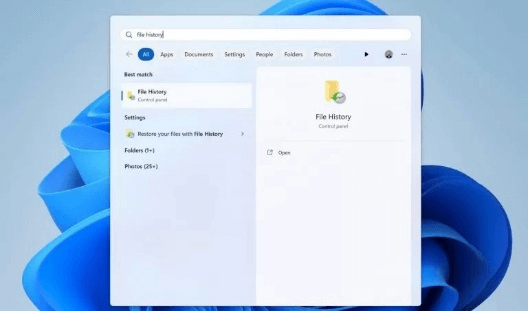
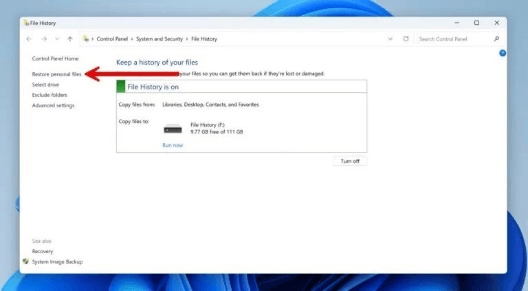
Then click on the Restore personal files option from the File History Control Panel window.
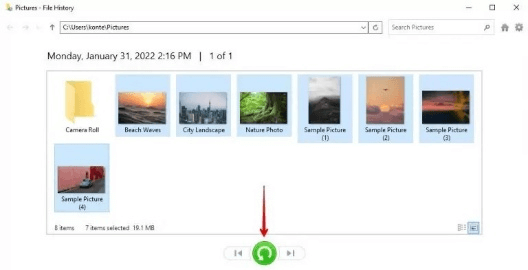
Navigate to the location where files were stored. Use the navigation arrows to point to a point in time where files were stored in the folder. Select which files you want to recover. Then, click on the restore button. As the restore process completes, all the files will be back in the folder.
Method 3: Recover Lost Hard Drive Data with iFinD Data Recovery
The iFinD Data Recovery tool is a comprehensive solution to Recover Hard Drive Data. Whether you are dealing with recovering lost photos, videos, documents, or other file types, this versatile tool covers everything.
Step 1: first of all, Go to the official website of iFinD Data Recovery Software, download it, and install it on your device. The installation process is a breeze. You can easily get started even with little knowledge. Users can take services of the software for up to 1 GB data free of cost.
Step 2: next Several recovery modes will appear when you launch the software. You’ll need to choose an appropriate mode depending on the type of data loss. These modes include:
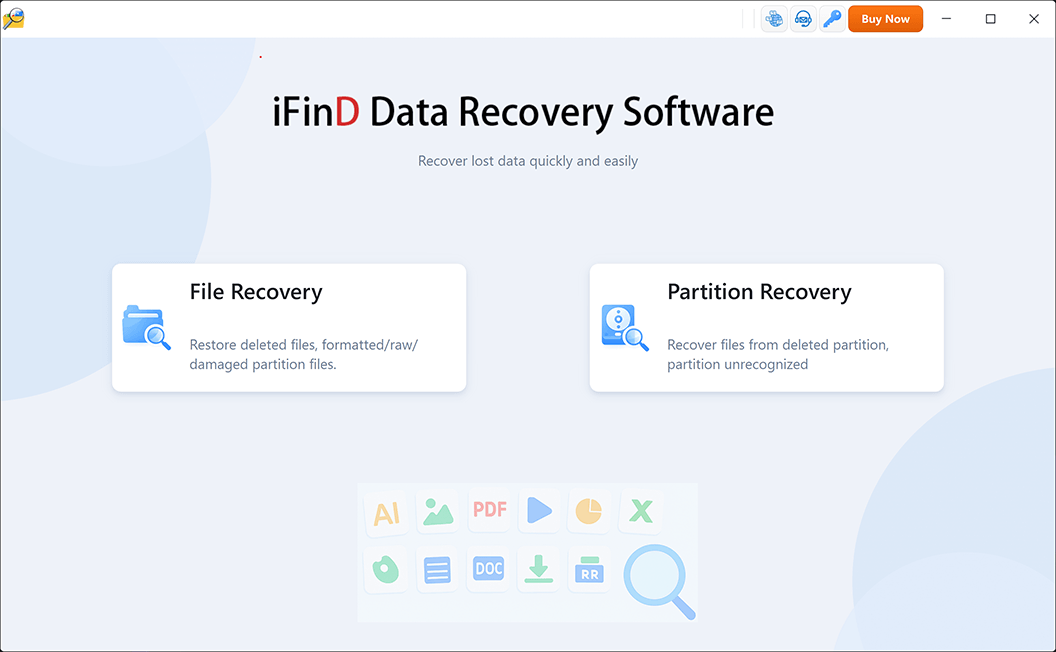
File Recovery: If files are accidentally deleted or lost, this is an ideal mode for you. The partition remains intact and usable throughout the process.
Partition Recovery: This mode is for you if your partition has been damaged or corrupted. This mode enables the recovery of data from damaged or inaccessible partitions, allowing data recovery even in the most challenging circumstances. Recover Hard Drive Data from a lost partition disk.
Resume: This is a great mode for those who have to pause the process and then later continue it. Resume mode helps you save the scan and recovered results. This mode enables you to pick up where you left off immediately without starting from the beginning again.
Step 3: A list of partitions or storage devices connected to your system will display when you choose the appropriate recovery mode. Here, you will have to make a careful selection of the hard drive from the display list.
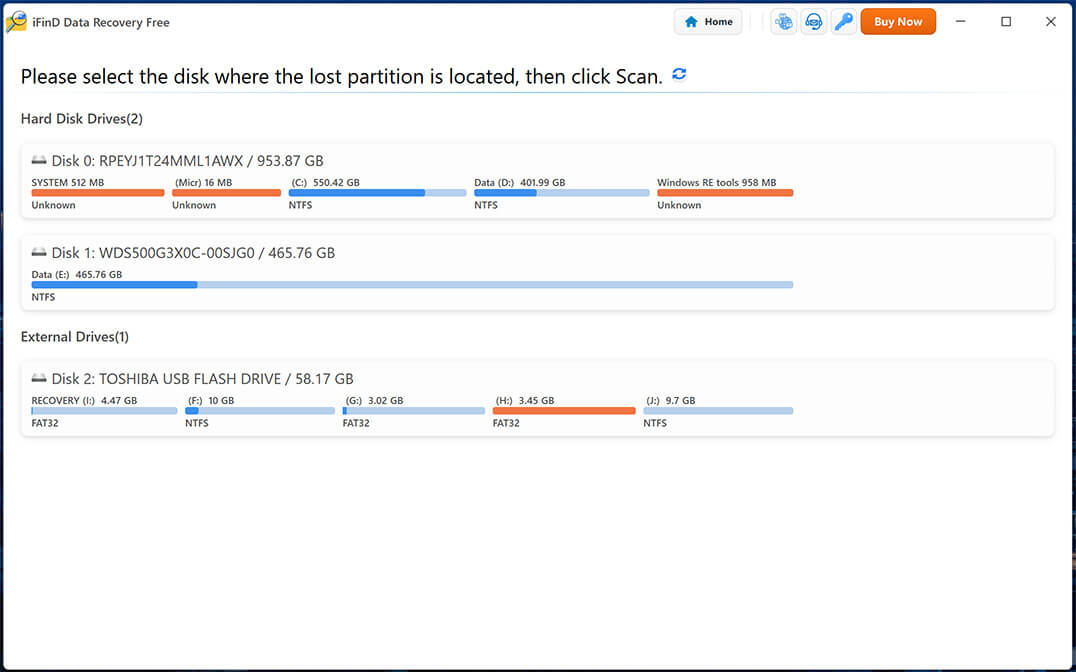
Step 4: It is time to scan the selected storage device. iFinD Data Recovery software thoroughly scans the selected device, employing advanced algorithms and techniques. This process leaves no stone unturned to locate lost files.
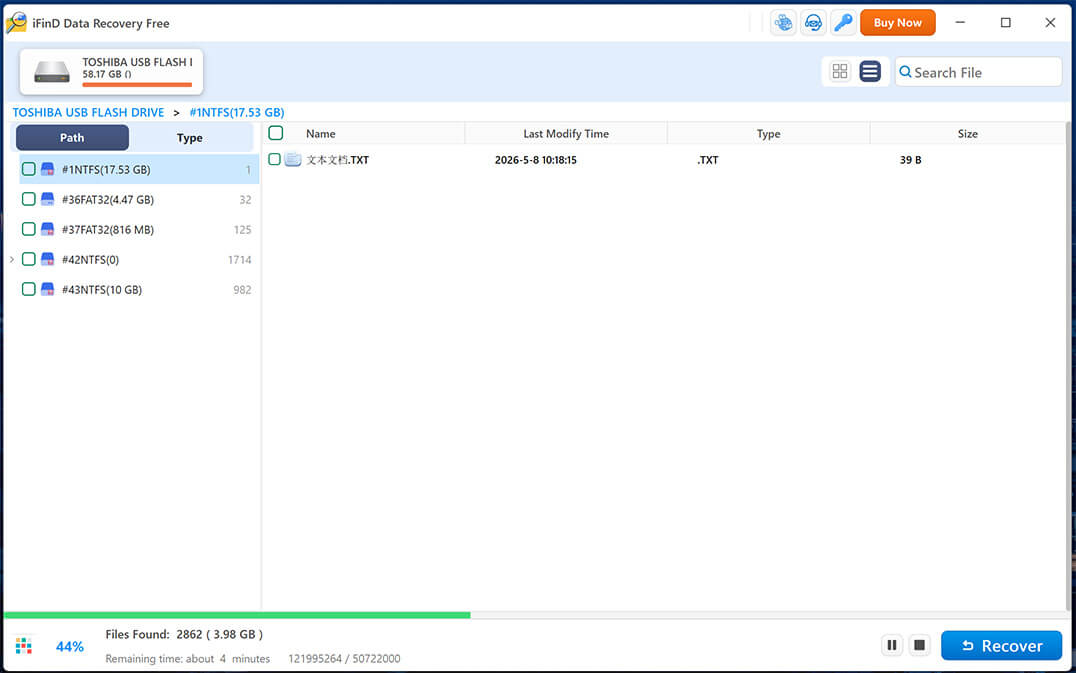
Several options will be at your disposal during the whole process.
Pause: Click on the “Pause” button and temporarily halt the process. Any files up to this will be displayed, and you can check if the desired files have been located. Click on the “Resume” button to continue the process if desired files have been located, so you can scan additional files.
Cancel: This mode enables you to terminate the scanning process and go back to the device selection screen. Be careful with this process because it will abort the recovery process.
Real-time Display: You will see a real-time display of the number of files found as the scanning process proceeds. This will display different categories of files, such as pictures, media, compressed files, and documents.
Step 5: Once you are done with the scanning process and have located all the desired files, It is time to retrieve your precious data. Simply click the “Recover” button, and retrieval of the desired files will be initiated. if you want to Recover Hard Drive Data, please click “Recover” button.
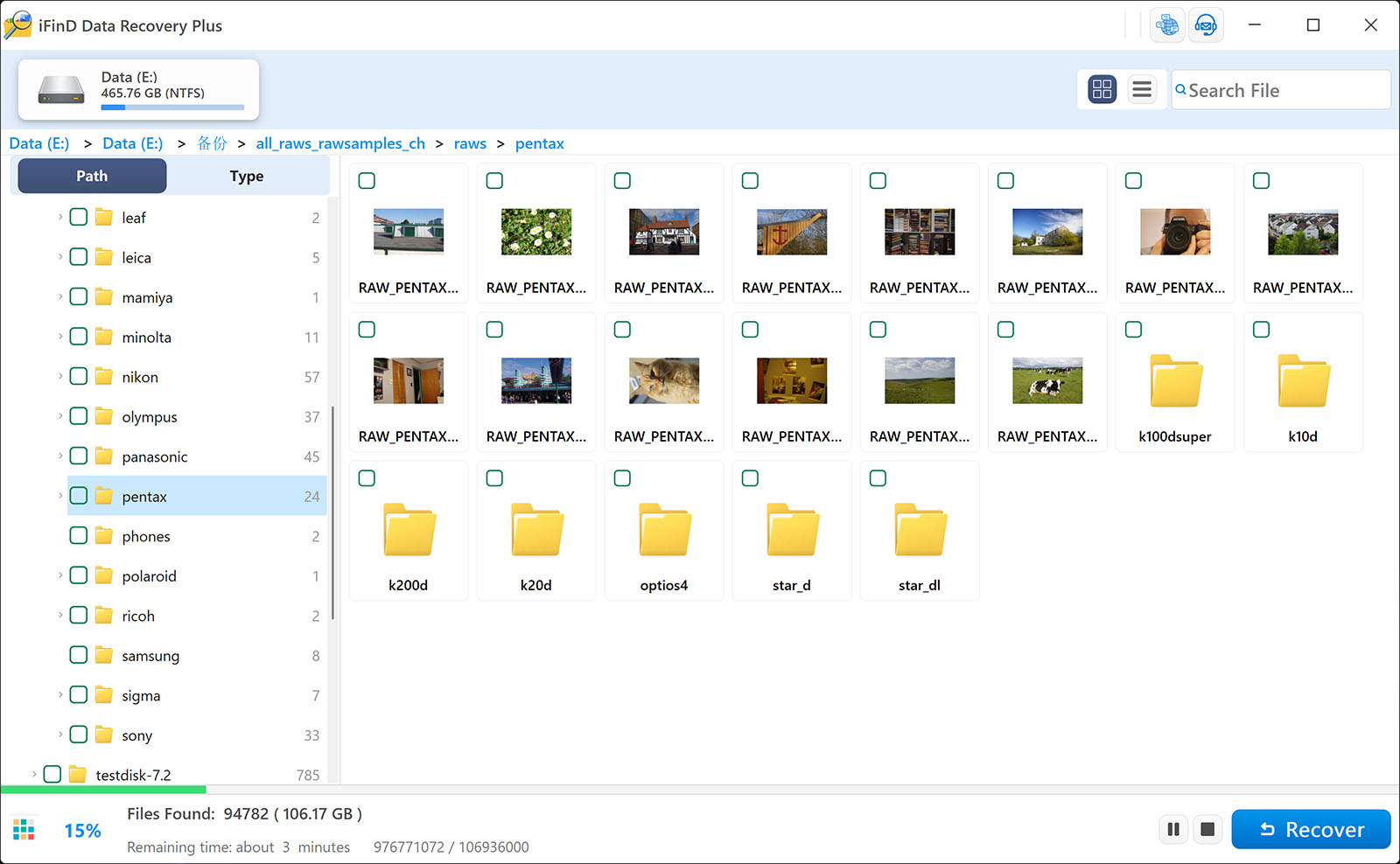
Remember, it is prudent to avoid restoring data back to the same device from which it was originally deleted or lost. This can overwrite or corrupt the recovered data.
iFinD Data Recovery Software Features
iFinD is a reliable source to recover lost files without spending even a penny. There are several reasons to choose iFinD software:
- You can effectively recover documents, folders, emails, and videos, including 2000+ types of files.
- Recover permanently lost data on multiple devices and sources like cameras, recycle bins, trash, HDDs, partitions, etc.
- Restore accidentally deleted data from a formatted drive, system crash, virus attack, etc. with just a few clicks.
- Data recovery history is saved in each use for future purposes.
How to Prevent Hard Drive Data Loss
Although deleted files can often be recovered, preventing data loss is always easier than recovering it. Here are some practical tips to protect your hard drive data:
- Back up important files regularly using Windows Backup or cloud storage.
- Avoid formatting a drive unless you have confirmed that all important data has been copied.
- Stop using a hard drive immediately after accidental deletion to prevent overwritten files.
- Keep your operating system and antivirus software updated.
- Monitor your hard drive’s SMART status to detect potential hardware failures early.
- Consider creating a recovery drive or system image for emergencies.
Following these practices can significantly reduce the risk of permanent data loss and improve your chances of successful recovery if problems occur.
Frequently Asked Questions (FAQs)
How can I recover a formatted hard drive using CMD?
The Windows File Recovery tool can help you recover a formatted hard drive if you have access to a Windows computer. Below is a step-by-step process:
- Install Windows File Recovery.
- Launch CMD.
- Enter a recovery command in the winfr source-drive: destination-drive: [switches] format.
You can also get more information about the process from Microsoft’s website. You will find several more ways that you can copy and paste.
Which is the most effective way to recover data from a formatted hard disk without software?
Recovery of a formatted hard disk without using software is a highly challenging task. you want to Recover Hard Drive Data without software, However, the most effective way is to have a previously created backup of your important files. however Contacting a data recovery lab near you becomes the next viable option if you have no backup and data loss is critical.
How is it possible to recover a formatted external hard drive?
Recovering data from a formatted external hard drive is a straightforward process. This is similar to recovering formatted internal hard drives. However, the trick you need to apply is to begin the data recovery process before the deleted data becomes overwritten. Use a reliable data recovery software application like iFinD Data Recovery Software to ensure the whole process remains easy and steadfast.
Final Thoughts
All these methods are capable of delivering great results. However, we highly recommend iFinD Data Recovery Software because of its versatile nature and ability to help you recover any sort of hard drive data.
The iFinD Data Recovery Free tool is a powerful and comprehensive solution to recover hard drive-lost data. it can help you to Recover Hard Drive Data, It is a robustly designed formula with a user-friendly interface, advanced recovery algorithms, and comprehensive file support that makes it a standout solution on the market. This is an efficient service to choose when you seek to recover personal files or are a business professional dealing with critical data loss.
Retrieving your lost or deleted data from a hard drive is a breeze with these detailed data recovery methods. We have reviewed these methods:
- Check the recycle bin.
- Restore Data from a Backup
- iFinD Data Recovery Software