Last Updated on July 30, 2026 by andy woo
- 01 1. How to Recover Data from a USB Flash Drive That Is Not Recognized
- 02 2. Can You Recover Data from an Unrecognized USB Flash Drive?
- 03 3. Check Whether Your USB Flash Drive Is Recoverable
- 04 4. How to Recover Data from an Unrecognized USB Flash Drive with iFinD Data Recovery
- 05 5. Other Free Ways to Recover USB Data
- 06 6. Why Choose iFinD Data Recovery for USB Recovery?
- 07 7. Frequently Asked Questions
1. How to Recover Data from a USB Flash Drive That Is Not Recognized
When a USB flash drive is not recognized by Windows, the files stored on the device may become inaccessible. However, in many cases, the data is not immediately deleted and may still remain on the USB drive until overwritten by new data.
The first step is to avoid writing new data to the USB drive and check whether the device can be detected by Windows. If the drive appears in Disk Management or recovery software, choose the appropriate recovery path based on your scenario below:
USB Drive Is Detected but Files Are Missing
If your USB flash drive appears in File Explorer or Disk Management but your files are missing, deleted, or inaccessible, use File Recovery mode in iFinD Data Recovery.
This mode scans the selected USB drive to search for deleted files. It is also the recommended option if you need to recover data from a formatted drive or extract other inaccessible content.
USB Drive Partition Is Missing or Not Showing Up
Sometimes a USB flash drive may appear in Disk Management, but the original partition is missing or shown as unallocated space. In this situation, standard file scanning may not retrieve the entire directory structure.
Choose Partition Recovery to search for lost partition tables and restore access to the files stored on the USB drive.
USB Flash Drive Is Completely Not Recognized
If Windows does not recognize the USB flash drive at all or shows driver errors, check the USB physical connection, try a different USB port, and verify whether the device appears in Device Manager or Disk Management.
If the USB drive can still be detected by recovery software, you can scan it directly to recover lost files. Avoid formatting or performing repair operations before recovery, as these actions may overwrite or damage recoverable data.
2. Can You Recover Data from an Unrecognized USB Flash Drive?
Yes, data recovery from an unrecognized USB flash drive is often possible if the storage device is not physically damaged and the lost data has not been overwritten.
A USB drive that cannot be opened in Windows does not always mean that the files are permanently deleted. In many cases, the data remains stored on the flash memory, but Windows cannot access it because of file system errors, partition corruption, driver issues, or other logical failures.
When USB Data Recovery Is Usually Possible
USB recovery is usually possible in the following situations:
- The USB drive is detected in Disk Management but cannot be opened in File Explorer.
- The files disappeared after accidental deletion or formatting, requiring you to recover deleted files from USB.
- The USB partition is missing or appears as unallocated space.
- Windows displays errors such as "You need to format the disk before you can use it."
When USB Data Recovery May Be Difficult
Recovery may become significantly more difficult if the USB flash drive suffers from severe physical damage, such as a broken USB connector, a damaged NAND memory chip, or complete circuit board failure.
If the USB drive is physically damaged and cannot be detected by any computer or data recovery software, professional hardware repair or lab recovery services may be required.
Before attempting recovery, stop using the USB flash drive immediately and avoid formatting or executing repair operations. Minimizing new data operations will significantly increase your chances of successful recovery.
3. Check Whether Your USB Flash Drive Is Recoverable
When a USB flash drive becomes unrecognized, it usually appears as an abnormal or inaccessible partition in "This PC" (File Explorer), often prompting you to format it before use.
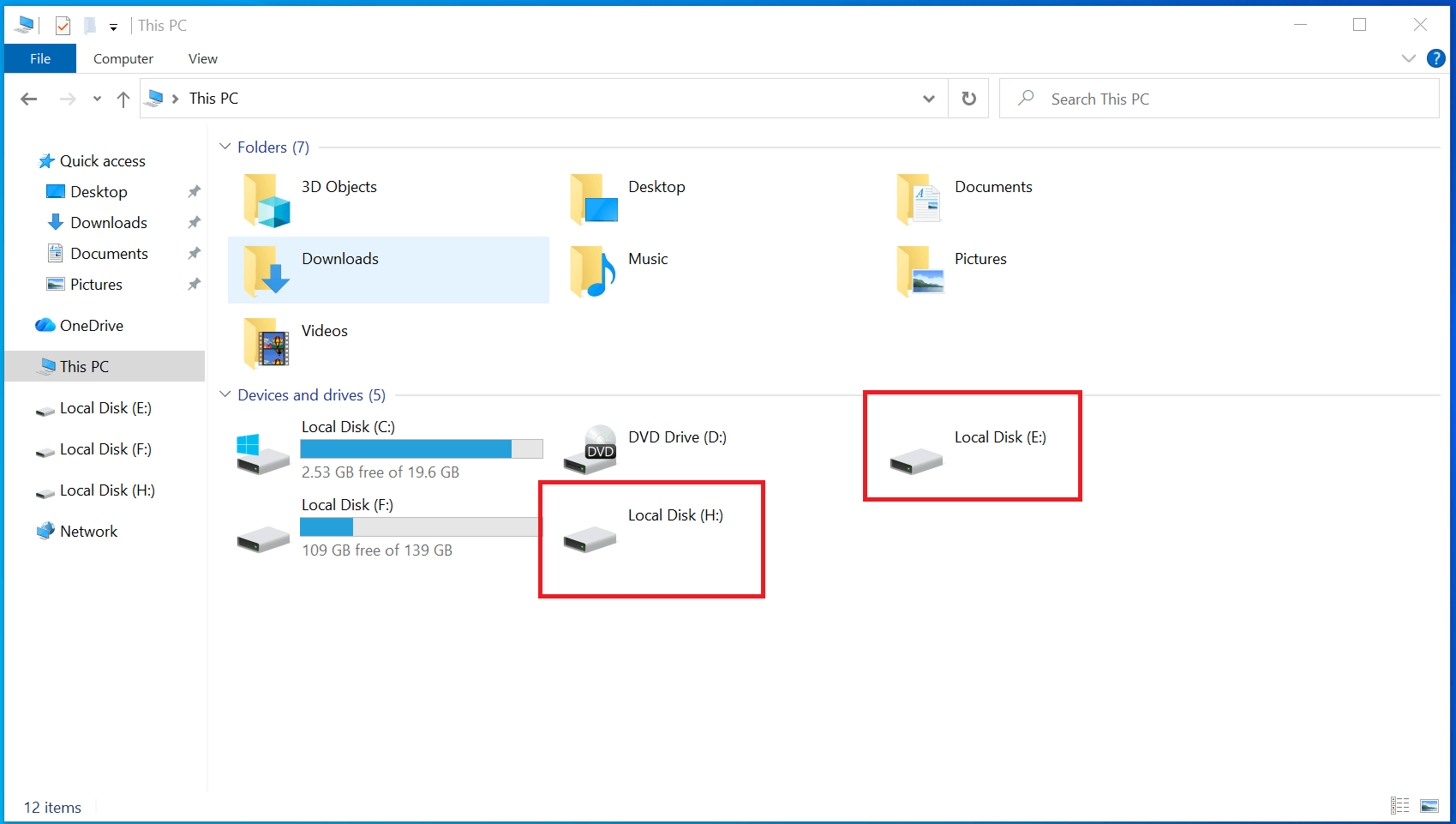
Before trying any data recovery methods, you need to verify the actual physical and logical status of the drive. The most reliable way to diagnose this in Windows is by using the built-in Disk Management tool.
If the drive appears in Disk Management with its correct storage capacity, data recovery software can usually scan it, even if the drive letter is missing or the file system is corrupted.
How to Check Your USB Drive in Disk Management
Step 1: Connect the unrecognized USB flash drive directly to your computer's motherboard port (avoid using external USB hubs).
Step 2: Right-click the Windows Start button (or press Win + X) and select Disk Management.
Step 3: Scroll through the list of connected storage devices and look for your USB drive. It is usually labeled as "Removable".
Based on what you see in Disk Management, you can accurately determine if the data is recoverable:
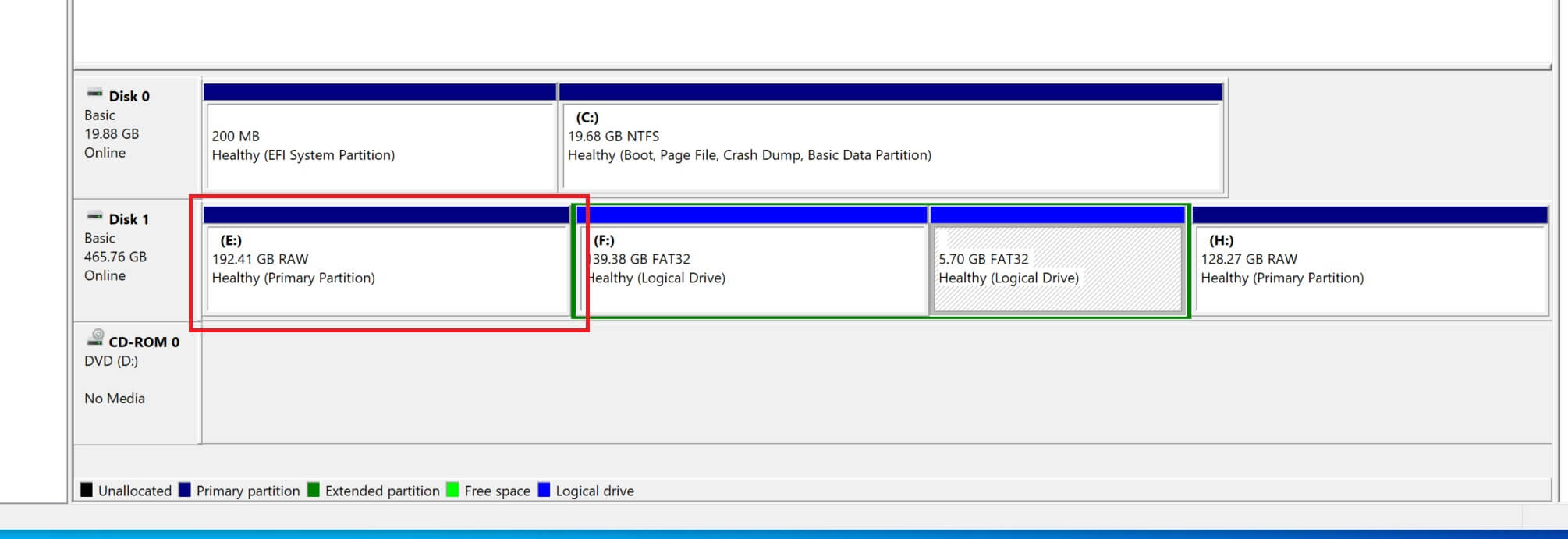
Scenario A: The Drive Appears as RAW or Unallocated
If the USB drive shows up, but the storage space is marked as Unallocated or the file system is listed as RAW, it means the partition table or file system structure is damaged. Windows cannot read the files, but the underlying data remains intact on the flash memory chip. Logical recovery is highly possible using data recovery software.
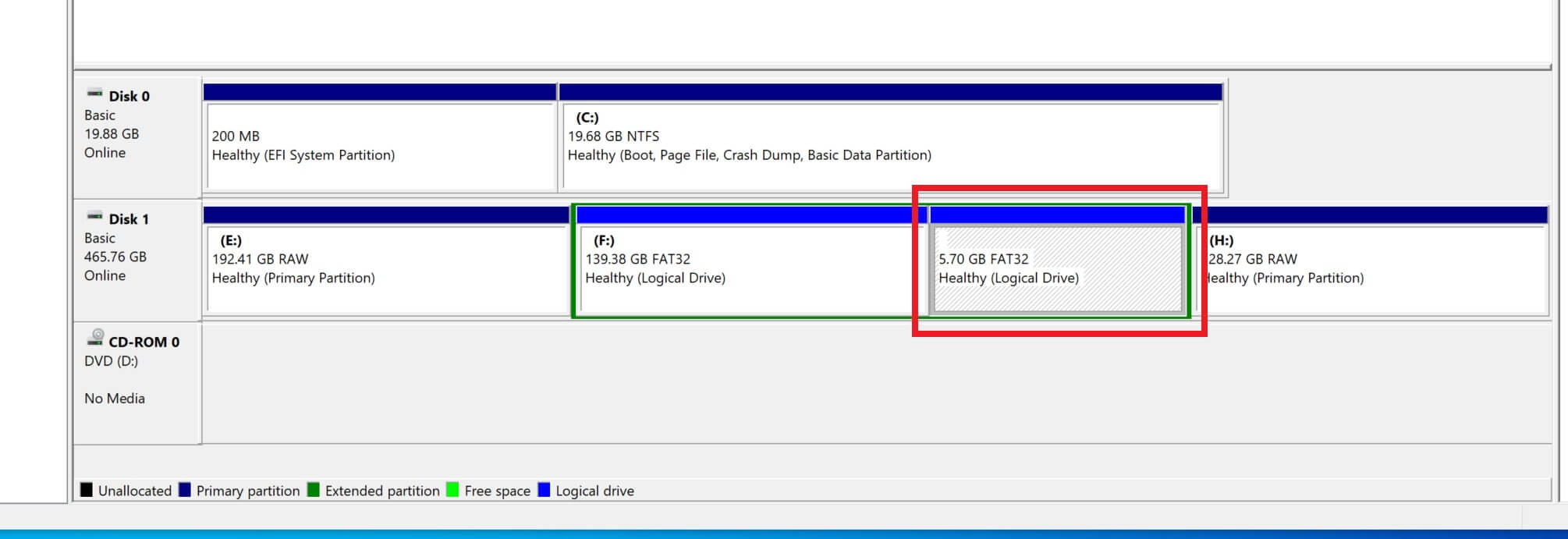
Scenario B: The Drive Shows Capacity but No Drive Letter
If the drive displays its correct capacity and shows a healthy partition but lacks a drive letter (like E: or F:), Windows File Explorer will not display it. You can often fix this directly by right-clicking the partition in Disk Management and selecting "Change Drive Letter and Paths". If Windows returns an error during this process, recovery software can easily bypass the system block and extract the files.
Scenario C: The Drive Is Completely Invisible in Windows
Sometimes, a USB flash drive may not appear in Disk Management at all, or it remains completely invisible in "This PC". In this specific situation, it is still recommended to open iFinD Data Recovery. There are cases where professional recovery software can bypass system limitations and successfully detect the drive even when Windows cannot.
However, if iFinD Data Recovery also fails to recognize the device, and the USB drive's indicator light does not turn on when plugged in, you should consider it a physical hardware failure. This could be caused by a dead controller chip, a broken connector, or a burnt circuit. In this scenario, standard data recovery software cannot solve the problem, and you will need to contact professional data recovery services for hardware-level repair.
4. How to Recover Data from an Unrecognized USB Flash Drive with iFinD Data Recovery
When Windows fails to recognize a USB flash drive, the internal files often remain intact on the flash memory chip. If Disk Management or the recovery software can detect the device, iFinD Data Recovery can bypass system errors, scan the raw data, and help extract your inaccessible files.
STEP 1 Connect the Unrecognized USB Drive and Avoid Formatting
Connect the unrecognized USB flash drive directly to your computer’s motherboard port. If Windows displays an error message such as “You need to format the disk before you can use it,” do not format it. Formatting or running repair tools may overwrite the original file structure and cause permanent data loss.
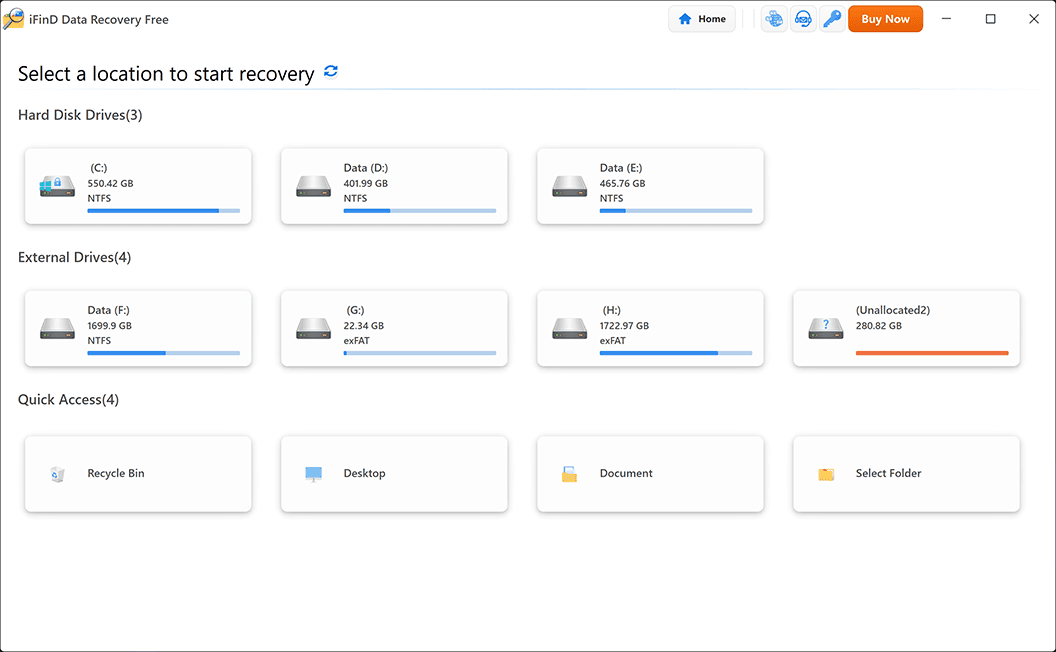
STEP 2 Launch iFinD Data Recovery and Check Device Detection
Launch iFinD Data Recovery on your computer. Check the device list to see if the software can recognize your USB drive, even if it is currently invisible or inaccessible in Windows File Explorer.
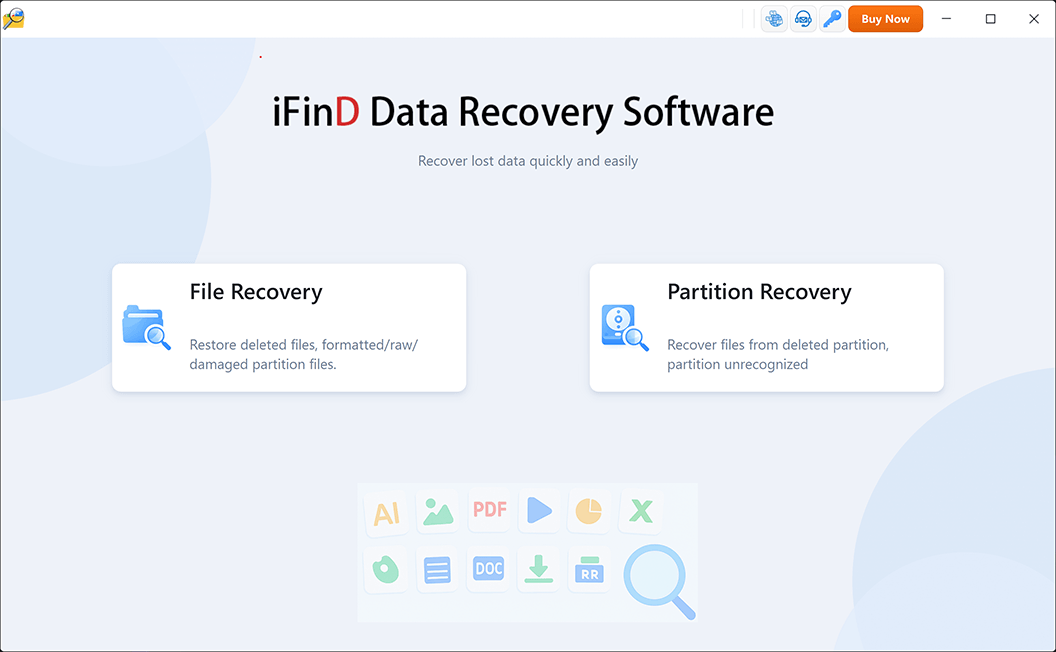
STEP 3 Choose File Recovery or Partition Recovery Mode
Select the appropriate recovery mode based on how your USB drive appears in the software or Disk Management:
Option 1: File Recovery
If the USB partition is still visible but you cannot open it, or if files simply disappeared from the drive, choose File Recovery. This mode scans the existing partition to extract inaccessible or deleted files.
Option 2: Partition Recovery
If the USB drive shows as RAW or Unallocated, or if the original partition is completely missing, choose Partition Recovery. This mode will search for the damaged partition table and restore access to the file directory.
STEP 4 Scan the Unrecognized USB Drive
Select your unrecognized USB flash drive from the list and start scanning. iFinD Data Recovery will perform a deep analysis of the storage device to locate recoverable files trapped inside the corrupted file system.
STEP 5 Preview and Recover Your Files
Once the scan is complete, preview the detected files to ensure they are intact. Select the photos, documents, or videos you want to restore, and click the Recover button.
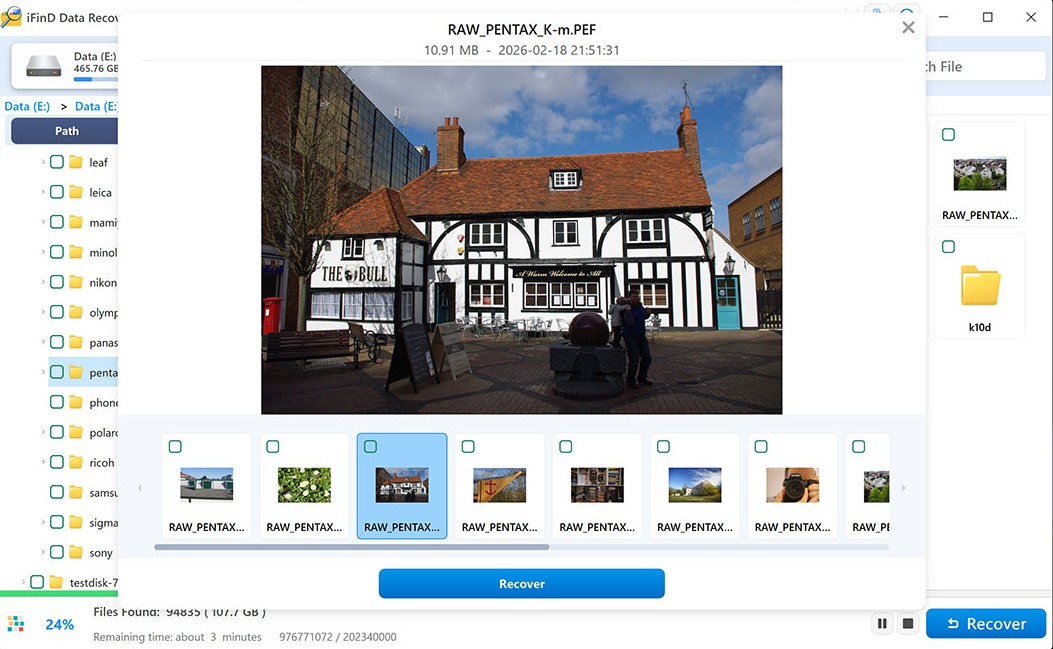
⚠️ Important: Do not save the recovered files back to the unrecognized USB drive. Always select a healthy local hard drive or a different external storage device to prevent data corruption.
5. Other Free Ways to Fix and Recover USB Data
If iFinD Data Recovery successfully recovered your files, or if you want to try fixing the unrecognized USB drive without third-party software, Windows provides several built-in tools. However, please note that some repair commands can alter the file system and permanently overwrite lost data.
⚠️ Important: We strongly recommend recovering your important files first before attempting the repair methods below.
Method 1: Reinstall USB Drivers via Device Manager
Sometimes, Windows fails to recognize a USB flash drive due to outdated, corrupted, or conflicting USB drivers. Reinstalling the driver can force Windows to detect the device properly.
Step 1: Press Win + X and select Device Manager.
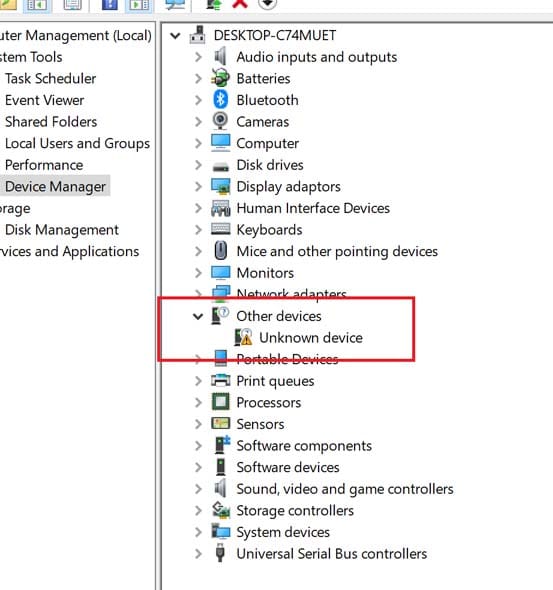
Step 2: Expand the Disk drives or Universal Serial Bus controllers category. Look for an "Unknown device" or a device with a yellow warning icon.
Step 3: Right-click the problematic USB device and select Uninstall device.
Step 4: Safely unplug the USB drive, restart your computer, and plug the drive back in. Windows will automatically reinstall the correct drivers.
Method 2: Assign a New Drive Letter
As mentioned in the diagnosis section, if your USB drive appears in Disk Management as a healthy partition but doesn't show up in File Explorer, it simply needs a drive letter.
Step 1: Open Disk Management.
Step 2: Right-click the healthy partition of your USB drive and choose Change Drive Letter and Paths...
Step 3: Click Add, select a new drive letter from the drop-down menu (e.g., G: or H:), and click OK. The drive should now become accessible.
Method 3: Run the CHKDSK Command (Use with Caution)
CHKDSK (Check Disk) is a Windows command-line utility that can fix logical file system errors and bad sectors. While it can make an unrecognized RAW USB drive readable again, it may delete corrupted files during the repair process.
Step 1: Type cmd in the Windows search bar, right-click Command Prompt, and select Run as administrator.
Step 2: Type the command chkdsk X: /f /r (replace X with your USB drive's letter) and press Enter.
Step 3: Wait for the process to complete. If successful, you will be able to open the USB drive normally.
Method 4: Use Windows File Recovery
Windows File Recovery is a free command-line tool provided by Microsoft. It does not have a graphical interface, which makes it challenging for beginners, but it can help you recover deleted files in Windows 11/10, including data from USB drives.
Step 1: Download and install Windows File Recovery from the Microsoft Store.
Step 2: Launch the application. You will see a command prompt window.
Step 3: Type a recovery command, such as winfr E: C:\RecoveryFolder /extensive (where E: is your USB drive and C:\RecoveryFolder is the destination) and press Enter.
6. Why Choose iFinD Data Recovery for USB Recovery?
When a USB flash drive becomes unrecognized, the file system (usually FAT32 or exFAT) is often severely corrupted. Standard undelete tools rely on reading the existing file directory, which means they will fail when the directory is missing.
iFinD Data Recovery is designed with advanced data extraction technologies specifically optimized for logic failures and corrupted storage structures.
1. Advanced Deep Scan Algorithm for RAW Drives
When your USB drive turns RAW or loses its partition, our software doesn't just look at the damaged file allocation table. The Deep Scan engine reads the flash memory block by block, identifying unique file signatures to rebuild and recover your documents, photos, and videos from the ground up.
2. Native Architecture and Stable Performance
Unlike resource-heavy recovery applications that can crash during intensive operations, iFinD Data Recovery is built on a highly optimized, native architecture. This ensures stable memory management and fast scanning speeds, allowing you to process large-capacity USB drives without draining your system's CPU resources.
3. Dedicated Partition Recovery Module
Most free tools only offer basic file recovery. iFinD provides a dedicated Partition Recovery mode that actively searches for deleted, lost, or hidden partition boundaries on your USB drive, significantly increasing the chances of recovering the original folder structure intact.
4. Safe, Read-Only Extraction
Safety is critical when dealing with a failing USB drive. iFinD Data Recovery operates in a strict read-only mode. It will never attempt to write data or force repair the corrupted file system on your unrecognized USB drive, ensuring your original data remains 100% untouched during the extraction process.
7. Frequently Asked Questions
Why does my USB drive say "Please insert a disk into USB drive"?
This error usually occurs when the computer's USB controller can detect the flash drive's hardware, but cannot read the memory chip inside. It is often caused by a completely corrupted partition table, firmware failure, or a damaged memory controller. If the drive still shows the correct capacity in Disk Management, you can try scanning it with iFinD Partition Recovery. If it shows 0 bytes, the hardware is likely dead.
Will formatting my unrecognized USB flash drive fix it?
Formatting might make the USB drive usable again by creating a brand new, empty file system, but it will also erase the references to your lost data. If you have important files on the drive, never format it when prompted by Windows. Always use data recovery software to extract your files first, and only format the drive after your data is safe.
Can I recover files from a physically broken USB flash drive?
If the USB connector is physically bent, snapped, or the circuit board is cracked, software cannot help. The device will not establish a data connection with the computer. In these cases, you need to send the drive to a professional hardware repair lab where engineers can solder a new connector or read the memory chip directly using specialized equipment.
What is the difference between File Recovery and Partition Recovery?
In iFinD Data Recovery, File Recovery is designed for logical errors where the partition still exists (like a RAW drive or accidental deletion). Partition Recovery is an advanced mode used when the entire partition structure is missing, causing the USB drive to show up as "Unallocated Space" in Disk Management. Choosing the right mode speeds up the scanning process and improves data reconstruction accuracy.
Professional Data Recovery Shouldn’t Cost a Fortune.
iFinD delivers the exact same industry-leading recovery rates as the most expensive competitors, but at the market’s most affordable price. Start free with 1GB, and upgrade for less.