Last Updated on July 20, 2026 by andy woo
Have you accidentally deleted important videos from your computer, camera, SD card, or external storage device?
Deleted videos are not always permanently lost. If the storage space has not been overwritten, you may still be able to recover them using professional video recovery software.
This guide explains how to recover deleted videos, including videos removed accidentally, lost after formatting, or missing from corrupted storage devices.
It would be a very miserable experience if you lost the important videos someday, Of cause, we hope that never happens, but beyond that, you need to know the why, what and how about video recovery.
- 01 1. Can Deleted Videos Be Recovered?
- 02 2. Common Reasons Why Videos Are Lost
- 03 3. Method 1. Recover Deleted Videos Using iFinD Data Recovery
- 04 4. Method 2. Recover Deleted Videos from Backup
- 05 5. Method 3. Recover Deleted Videos from SD Cards and Cameras
- 06 6. How to Prevent Video Loss in the Future
- 07 7. Frequently Asked Questions
1. Can Deleted Videos Be Recovered?
1. Before deletion: video is accessible
Actual video frame data on disk
2. After deletion: only the index entry is removed
Blocks are marked "free" but content is untouched
3. Recovery: software rescans disk, rebuilds index
The video can be restored if not yet overwritten
When you delete a video file, the operating system usually removes the reference to that file instead of immediately erasing the actual data.
As long as the deleted video space has not been overwritten by new files, recovery software can scan the storage device and restore the lost video.
2. Common Reasons Why Videos Are Lost
- The storage device loses connection during file transfer.
- Delete directly or empty the recycle bin by mistake.
- Virus or malicious code attack.
- External devices damage like the well known “Formatting Error” or “USB Device not Recognized”, you can check our External Hard Drive Recovery tips.
- The quality of the storage device itself causes file system corruption.
3. Method 1. Recover Deleted Videos Using iFinD Data Recovery
Step 1 Install iFinD Data Recovery
The first step is to run the software iFinD Data Recovery on your computer; its easy-to-use interface will help you complete your task successfully from the beginning to the end.
Unmatched Price-to-Performance
Professional Data Recovery Shouldn’t Cost a Fortune.
iFinD delivers the exact same industry-leading recovery rates as the most expensive competitors, but at the market’s most affordable price. Start free with 1GB, and upgrade for less.
Step 2 Select File or Partition Recovery
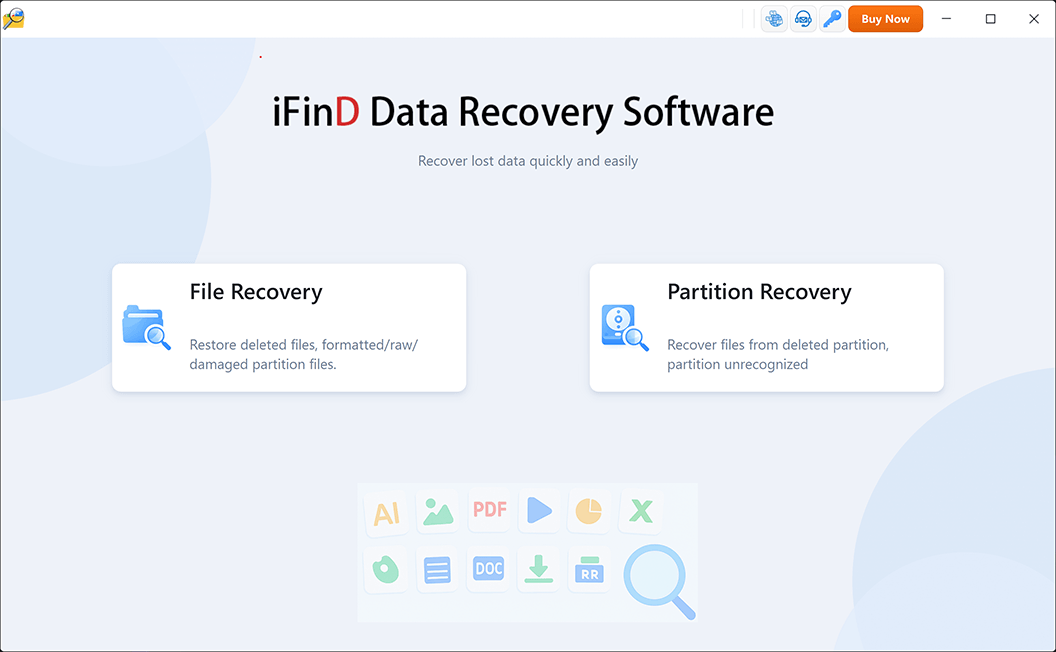
Your data recovery choices are “File Recovery” or “Partition Recovery.”
If the partition where your files were stored is still visible and can be recognized by Windows, choose “File Recovery” mode.
This mode is designed to scan the selected drive or partition for deleted files and recover files that are no longer accessible but have not been overwritten.
However, if the partition or drive is missing, damaged, or cannot be detected by Windows, choose “Partition Recovery” instead.
In this situation, your first goal is not to recover individual files, but to restore the lost partition structure. Once the missing partition is recovered, you can access and recover the files stored on it.
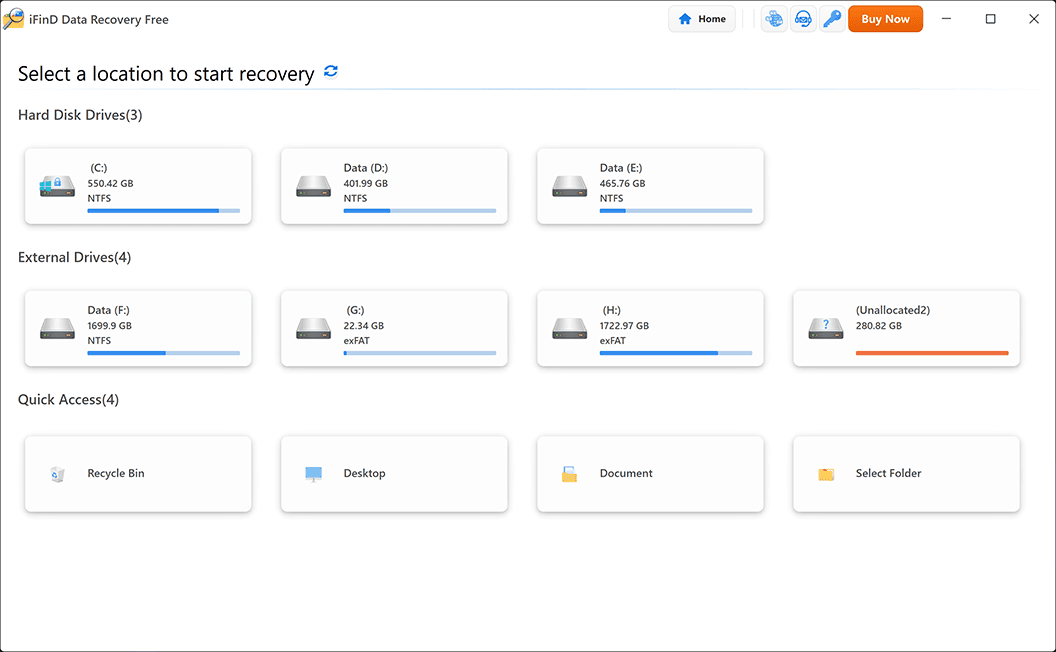
Step 3 Select the Location Where Videos Were Lost
Next, locate and choose the drive or external device where your deleted photos were saved – such as USB flash drives or digital camera memory cards – where they were stored. iFinD Data Recovery supports many devices to ensure smooth recovery due to compatibility issues.
Step 4 Scan and Preview Deleted Files
iFinD Data Recovery can recover not only deleted videos but also photos, documents, audio files, and other lost data from the same storage device.
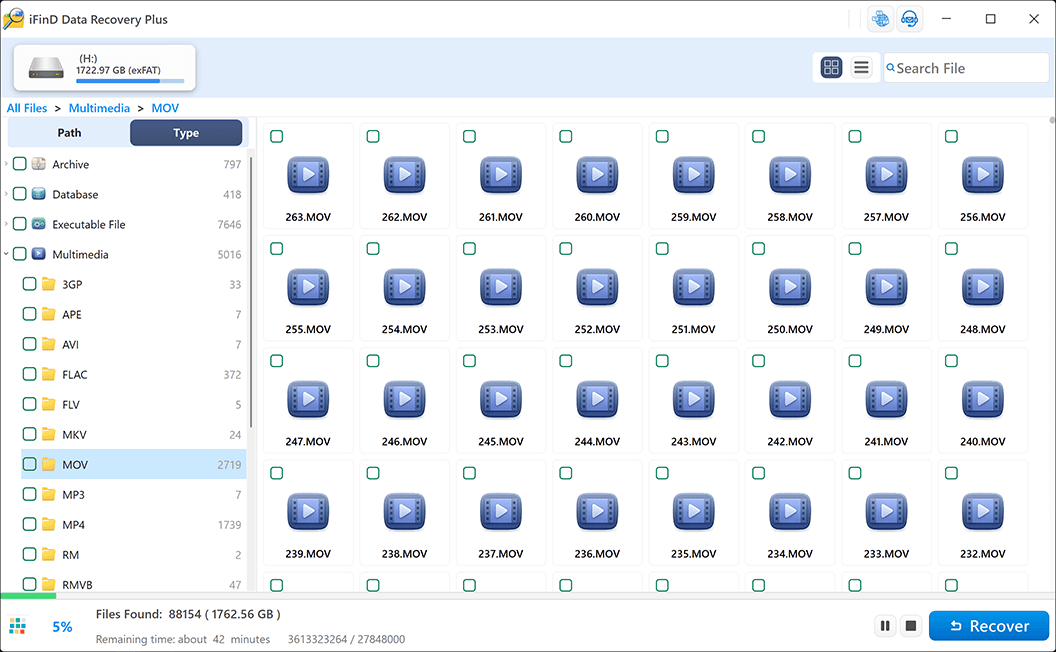
Step 5 Recover Lost Files to a Safe Location
After previewing and selecting the videos you want to recover, click the Recover button and choose a safe location to save the recovered files.
Important: To avoid overwriting other lost data, do not save the recovered videos back to the same drive or storage device where they were originally lost. For example, if you are recovering videos from an SD card, save them to your computer’s hard drive or another external storage device instead.
Once the recovery process is complete, you can open the selected folder and check your recovered videos.
Supported Video Formats and Storage Devices for Recovery
iFinD Data Recovery supports a wide range of video formats and storage devices, making it possible to recover deleted or lost videos from different situations, including accidental deletion, formatting, and storage device errors.
Supported video formats include:
MP4, MOV, AVI, MKV, WMV, MPEG, FLV, 3GP, ASF, and more. Similar to video recovery, deleted RAW images may still be recoverable before new data overwrites the storage device. Many users also need SD card recovery software to restore deleted videos from cameras and drones.
Supported storage devices include:
- Internal hard drives (HDD and SSD)
- External hard drives and USB drives
- SD cards, microSD cards, CF cards, and other memory cards
- Digital cameras and camcorder storage devices
Whether your videos were stored on a computer, external drive, SD card, or camera, iFinD Data Recovery can scan the device and help recover deleted video files when the data has not been overwritten.
4. Method 2. Recover Deleted Videos from Backup
If you have created a backup before losing your videos, restoring from the backup is usually the fastest solution.
You can check:
- Windows File History
- Cloud backups
- External drives
5. Method 3. Recover Deleted Videos from SD Cards and Cameras
If your videos were lost from an SD card, camera, or action camera, the recovery process may be slightly different.
For detailed steps, please check our guide:
6. How to Prevent Video Loss in the Future
- backup regularly
- safely eject devices
- avoid recording when storage is full
- keep multiple copies
Frequently Asked Questions
Can deleted videos be recovered permanently?
Yes, deleted videos can often be recovered if the storage space where the videos were saved has not been overwritten by new data.
When a video is deleted, the operating system usually removes the file reference instead of immediately erasing the actual data. Professional video recovery software like iFinD Data Recovery can scan the storage device and locate recoverable video files.
However, the chances of recovery depend on how much new data has been written to the device after deletion. To improve recovery success, stop using the storage device as soon as possible.
Where do deleted videos go?
When you delete a video from a computer, the file is usually moved to the Recycle Bin first. If you empty the Recycle Bin or permanently delete the video, the file is no longer visible in the file system.
However, the deleted video data may still remain on the storage device until it is overwritten by new files. This is why deleted video recovery is possible with data recovery software.
Can I recover videos from a formatted SD card?
Yes, you can recover videos from a formatted SD card in many cases.
Formatting an SD card usually removes the file system information instead of immediately deleting all stored data. If new files have not overwritten the previous video data, recovery software can scan the SD card and restore lost videos.
For better recovery results, avoid saving new photos or videos to the formatted SD card before recovery.
What video formats does iFinD Data Recovery support?
iFinD Data Recovery supports a wide range of video formats, including common formats such as MP4, AVI, MOV, MKV, WMV, FLV, and more.
It can recover deleted or lost videos from various storage devices, including hard drives, SSDs, USB drives, memory cards, and cameras.
The software also supports recovery of other file types, including photos, documents, and audio files.
Can iFinD recover corrupted videos?
iFinD Data Recovery can help recover video files lost due to storage problems, accidental deletion, formatting, or file system errors.
However, if a video file is physically damaged or severely corrupted, recovery success may depend on the condition of the storage device and the level of file damage.
For corrupted videos caused by SD card or camera issues, it is recommended to stop using the device and perform recovery as soon as possible to avoid further data loss.
Professional Data Recovery Shouldn’t Cost a Fortune.
iFinD delivers the exact same industry-leading recovery rates as the most expensive competitors, but at the market’s most affordable price. Start free with 1GB, and upgrade for less.
iFinD Data Recovery has powerful recovery capabilities for video files. We can find and recover all kinds of videos in various situations.
Through the above article, we know what is the mainstream video file, the reasons for the loss of video file, and how to quickly find the lost video file through the data recovery software. Hope to help you solve the problem.