Last Updated on July 21, 2026 by andy woo
Accidentally deleting important files from a Windows computer can be frustrating, especially when those files contain personal photos, work documents, or other valuable data. Fortunately, deleted files are not always permanently lost. In many cases, you can recover deleted files if the storage space has not been overwritten by new data.
When a file is deleted in Windows, the system usually removes its reference from the file system instead of immediately erasing the actual data. This means the original file content may still remain on the drive until new information replaces it.
This guide explains how to recover deleted files in Windows 11, Windows 10, Windows 8, and Windows 7. You will learn how to restore files from the Recycle Bin, use Windows backup features, and recover permanently deleted files with iFinD Data Recovery.
1. Can Deleted Files Be Recovered?
Yes, deleted files can often be recovered if the storage space they occupied has not been overwritten by new data. When you delete a file in Windows, the system usually does not immediately erase the actual file content. Instead, it removes the file entry from the file system and marks the occupied space as available for new data.
As long as new files are not written to the same storage location, recovery software can scan the drive, locate the remaining file information, and restore the deleted data. This is why you should stop using the storage device as soon as you notice accidental deletion.
However, the recovery result depends on several factors, including how the file was deleted, whether new data has overwritten the original content, and the condition of the storage device.
- Deleted files from the Recycle Bin: Usually have a higher chance of recovery if no new data has overwritten them.
- Files removed with Shift + Delete: They bypass the Recycle Bin, but the actual data may still remain on the drive.
- Files lost after formatting: Recovery is possible through advanced scanning methods, although the original folder structure may not always be preserved.
- Files overwritten by new data: Recovery becomes difficult or impossible because the original content has been replaced.
2. Check the Recycle Bin First
Before using recovery software, the first thing you should do is check the Windows Recycle Bin. When you normally delete a file by pressing the Delete key or selecting “Delete” from the right-click menu, Windows usually moves the file to the Recycle Bin instead of removing it permanently.
If the deleted file is still in the Recycle Bin, you can restore it without any additional tools. Simply open the Recycle Bin on your desktop, select the files you need, right-click them, and choose Restore. Windows will return the files to their original location.
However, this method only works in certain situations. Files deleted with Shift + Delete, files removed after emptying the Recycle Bin, or files deleted from external storage devices may not appear there. In these cases, you may need a dedicated file recovery tool to scan the storage device.
How to Restore Deleted Files from the Recycle Bin
If your deleted files are still stored in the Windows Recycle Bin, you can restore them in just a few clicks without using any recovery software.
- Open the Recycle Bin from your Windows desktop.
- Browse the deleted files and select the items you want to recover.
- Right-click the selected files and choose Restore.
- Windows will return the files to their original folder. Open that location to confirm that your files have been recovered.
Keep in mind that the Recycle Bin only stores files deleted through normal deletion methods. If you have emptied the Recycle Bin, used Shift + Delete, or deleted files from an external storage device, the files may no longer be available here. In these situations, a professional file recovery tool may be required.
💡 If you deleted files from an SD card or USB drive, check our dedicated recovery guides.
3. Recover Deleted Files Using Windows Backup Features
If you have created backups before losing your files, Windows provides several built-in options to restore deleted data without installing additional recovery software. These methods are useful when your files were previously protected by Windows backup features.
The available recovery option depends on how your backup was created. Windows File History and Previous Versions are two common methods that may help you restore deleted or modified files. You can learn more about these Windows backup features from Microsoft's official documentation.
Restore Files Using File History
Windows File History automatically saves copies of files stored in selected folders if the feature was enabled in advance. You can use it to restore previous versions of documents, photos, and other personal files.
- Open Control Panel and go to File History.
- Select Restore personal files.
- Browse available backup versions and choose the files you want to recover.
- Click the green restore button to return the files to their original location.
Restore Files Using Previous Versions
Windows Previous Versions allows you to restore earlier versions of files or folders when restore points or backups are available. This feature can be helpful if a file was accidentally deleted, modified, or corrupted.
- Open the folder where the deleted file was originally stored.
- Right-click the folder and select Properties.
- Open the Previous Versions tab.
- Select an available version and click Restore.
💡 However, Windows backup features only work if they were enabled before data loss occurred. If you do not have a backup, or if the deleted files were permanently removed, you may need a professional data recovery tool to scan your storage device.
4. How to Recover Deleted RAW Photos with iFinD Data Recovery
STEP 1
Install iFinD Data Recovery
The first step is to run the software iFinD Data Recovery on your computer; its easy-to-use interface will help you complete your task successfully from the beginning to the end.
Professional Data Recovery Shouldn’t Cost a Fortune.
iFinD delivers the exact same industry-leading recovery rates as the most expensive competitors, but at the market’s most affordable price. Start free with 1GB, and upgrade for less. Download and install iFinD Data Recovery on your Windows computer. To avoid overwriting deleted files, install the software on a different drive if possible.
STEP 2
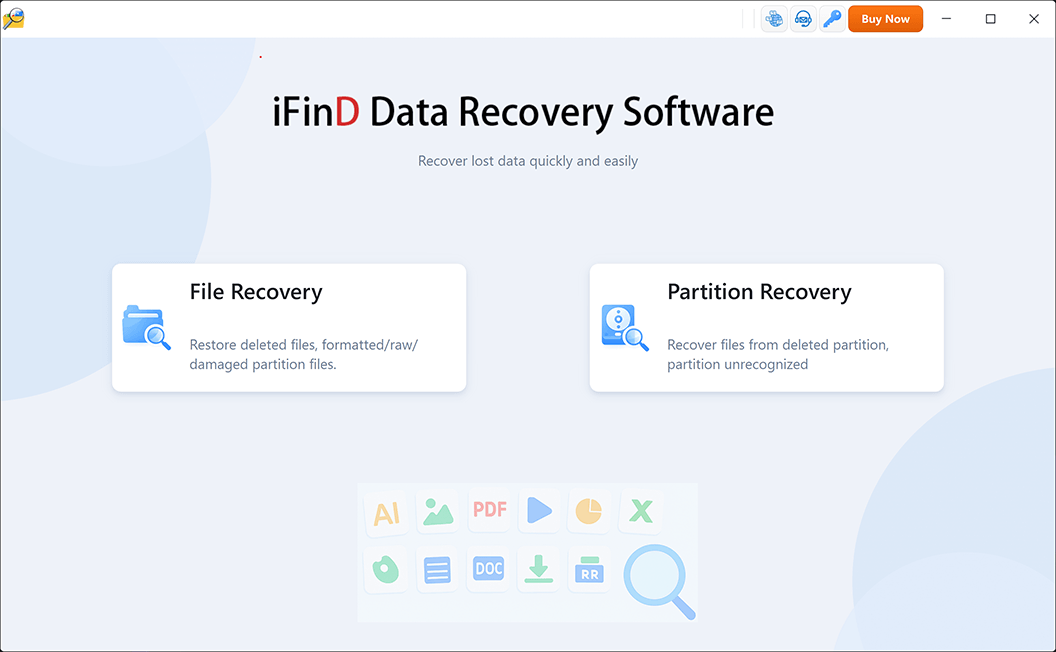
Select File or Partition Recovery
Your data recovery choices are “File Recovery” or “Partition Recovery.” Launch iFinD Data Recovery and choose File Recovery to scan the drive where your deleted files were stored.
This mode is suitable when the storage device is still detected by Windows but files are missing, deleted, or inaccessible.
STEP 3
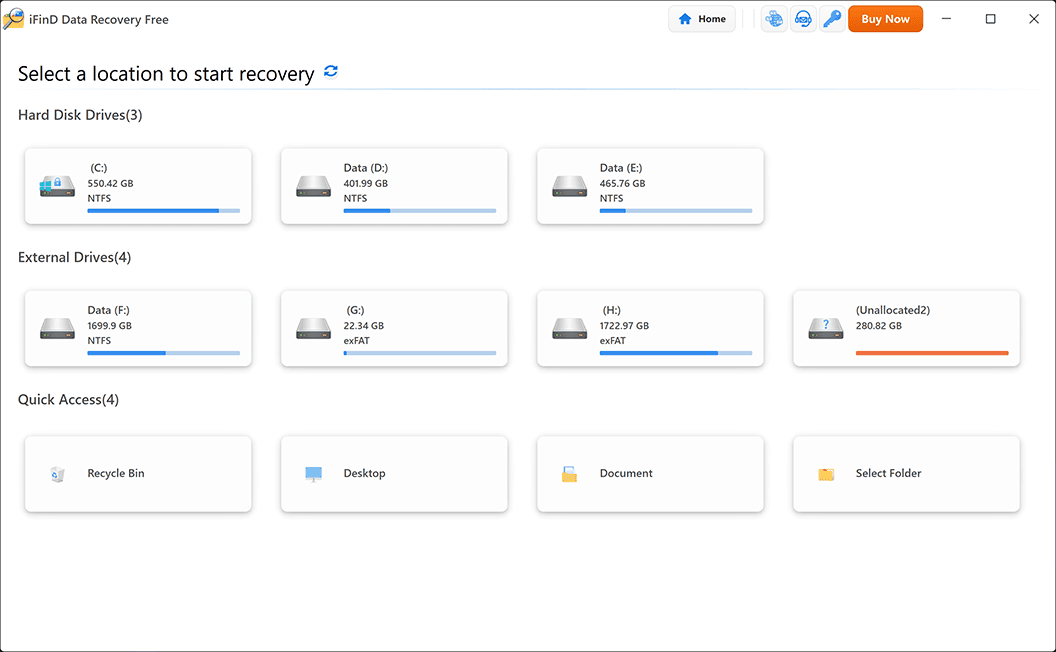
Scan the Drive for Deleted Files
iFinD Data Recovery provides multiple scanning methods to locate lost files. The software can perform a quick scan for recently deleted files and use deeper scanning methods to find files that are harder to recover.
For permanently deleted files, a deep scan is recommended because it searches the storage device more thoroughly and can identify files based on their signatures.
STEP 4
Preview and Recover Your Files
After scanning is complete, browse the recovery results and preview available files before recovery. Select the files you need and save them to another location to avoid overwriting the original data.
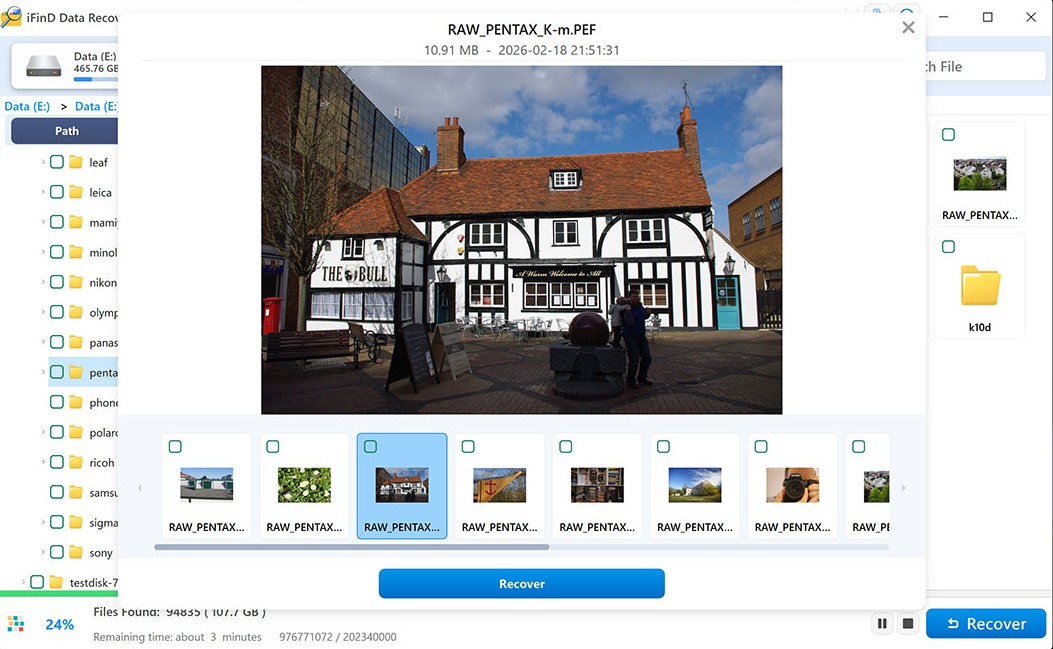
💡 Smart File Structure Recovery: iFinD Data Recovery can analyze available Recycle Bin metadata and reconstruct deleted files with their original names and folder information when possible. This makes it easier to identify recovered files compared with results that only contain randomly generated file names.
STEP 5
Recover Deleted Files to a Safe Location
After previewing and selecting the files you want to recover, click the Recover button and choose a safe location to save your recovered data.
⚠️ Important Notice: To prevent overwriting other deleted files, do not save the recovered files back to the same drive where the data was lost. For example, if you are recovering files from your C: drive, save them to another partition, external hard drive, or USB device instead.
Once the recovery process is complete, open the destination folder and check whether your files have been successfully restored. iFinD Data Recovery preserves the recovered file content while helping you organize the recovered data more efficiently.
5. Tips to Prevent Future Data Loss
Although data recovery software can help restore deleted files in many situations, preventing data loss before it happens is always the best approach. The following tips can help protect your important files and reduce the risk of accidental deletion.
- Back up important files regularly: Keep copies of important documents, photos, and videos on another drive, external storage device, or cloud backup service.
- Check files before deleting: Before emptying the Recycle Bin or permanently deleting files, make sure you no longer need the selected data.
- Avoid using damaged storage devices: If a hard drive, USB drive, or SD card shows errors, stop using it and back up your data as soon as possible.
- Keep multiple copies of valuable data: Following the 3-2-1 backup strategy can help protect files against accidental deletion, hardware failure, and other unexpected issues.
6. Frequently Asked Questions About Deleted File Recovery
Can Deleted Files Be Recovered Permanently?
Yes, permanently deleted files can often be recovered if the storage space they occupied has not been overwritten by new data. When you delete a file, Windows usually removes the file reference instead of immediately erasing the actual data. Data recovery software like iFinD Data Recovery can scan the storage device and locate recoverable files.
Where Do Deleted Files Go After Emptying the Recycle Bin?
After you empty the Recycle Bin, Windows removes the file information that points to the deleted data. However, the actual file content may still remain on the storage device until new data overwrites it. This is why recovery software can sometimes restore files even after the Recycle Bin has been emptied.
Can I Recover Files Deleted with Shift + Delete?
Yes. Files deleted using Shift + Delete bypass the Recycle Bin, but the data may still exist on the storage device. If the deleted files have not been overwritten, a professional recovery tool can scan the drive and attempt to recover them.
Does iFinD Data Recovery Recover Files from Formatted Drives?
Yes. iFinD Data Recovery can scan formatted drives and search for lost files when the original file system information is damaged or removed. For formatted drives, SD cards, or partitions, a deeper scan may be required to locate files based on their remaining data structures.
Can Recovered Files Keep Their Original Names and Folder Structure?
It depends on the condition of the storage device and the remaining file system information. When enough metadata is available, iFinD Data Recovery can help reconstruct original file names and folder structures. In other cases, files may be recovered through file signature scanning with limited original information.
What Should I Do After Accidentally Deleting Files?
Stop using the storage device as soon as possible to reduce the chance of overwriting deleted data. Avoid installing new programs or saving new files to the same drive. Then check the Recycle Bin, available backups, or use data recovery software to scan for lost files.