
Last Updated on July 23, 2026 by andy woo
- 01 How to Find and Recover Deleted YouTube Videos
- 02 Can You Recover Deleted YouTube Videos?
- 03 Method 1. Recover Deleted YouTube Videos Using the Wayback Machine
- 04 Method 2. Recover Deleted YouTube Videos Without a URL
- 05 Method 3. Recover Deleted YouTube Videos from Your Computer
- 06 Alternative Ways to Locate Deleted YouTube Videos
- 07 Frequently Asked Questions
- 08 Final Thoughts
How to Recover Deleted YouTube Videos
Have you accidentally deleted a YouTube video and don’t know whether it can be recovered?
The good news is that, in many cases, deleted YouTube videos can still be recovered. The best recovery method depends on whether the video was deleted from your YouTube channel, removed from your computer, or deleted without a backup.
In this guide, you’ll learn several proven ways to recover deleted YouTube videos, including YouTube Studio, the Wayback Machine, Google Cache, and If the original YouTube video was created and stored on your computer, you may be able to recover it using professional data recovery software.
| Situation | Can it be recovered? |
|---|---|
| Deleted from YouTube channel | Sometimes |
| Deleted from PC | Yes |
| Deleted SD card | Yes |
| Deleted permanently | Maybe |
Can You Recover Deleted YouTube Videos?
Online content is vast, and YouTube videos can result in the unintentional loss of cherished moments. You don’t have to worry, as we are about to begin a comprehensive investigation of five ways, each offering a unique approach to reviving your digital treasures and even deleted videos recovery.
Method 1. Recover Deleted YouTube Videos Using the Wayback Machine
Your primary recourse in resurrecting erased YouTube videos resides within the expansive repository of [archive.org](https://archive.org/web/). Let’s dissect the steps:
- Visit the Archive.org website: Navigate to (https://archive.org/web/).
- Obtain the URL of the deleted YouTube video: Identify the specific URL of the YouTube video you aim to recover.
- Insert the video’s URL into the Archive.org address bar: Copy and paste the video’s URL into the designated section on the Archive.org website.
- Click “Browse”: Initiate the search process by clicking on the “Browse” button.
- Explore the accessible archived versions: Once the search concludes, delve into the various versions available to pinpoint and retrieve the deleted video.
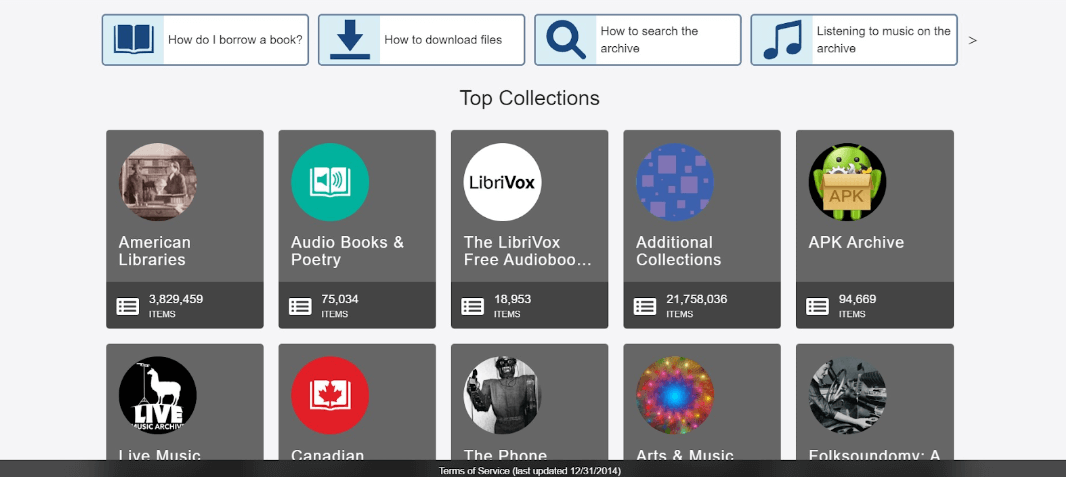
Note: For supplementary choices, examine the Deleted YouTube Videos Collection on Archive.org at [https://archive.org/details/DeletedYoutubeVideosCollection](https://archive.org/details/DeletedYoutubeVideosCollection). Bear in mind that success hinges on the existence of archived versions.
Embark on a journey to the past with the Wayback Machine:
- Retrieve the URL to the eradicated video: Scrutinize diverse sources like your YouTube history, liked videos, playlists, messages, or social media posts for the URL.
- Visit [archive.org/web](https://archive.org/web) in a web browser: Launch a web browser and navigate to the Wayback Machine.
- Insert the obliterated video’s URL into the address bar: Copy the video’s URL and paste it into the Wayback Machine’s search bar.
- Click “Browse History”: Commence the search by clicking on the “Browse History” button.
- Explore a date when the video was still online: Utilize the calendar feature to discover a date when the video was still accessible.
- Click a date: Opt for a specific date to view the video before its deletion.

Method 2. Recover Deleted YouTube Videos Without a URL
If you encounter the absence of the video URL, fret not; there are still avenues to reclaim your vanished content:
- Discover Deleted YouTube Video Title:
– Visit [RecoverMy.Video](https://www.recovermy.video/): Enlist on the website and obtain video titles through email.
- Retrieve Deleted YouTube Videos Without URL:
– Option 1: Employ WayBack Machine: If armed with the title, leverage the WayBack Machine.
– Option 2: Reclaim from mirror sites: Probe for the video title on alternative platforms.
– Option 3: Probe video title on Reddit at [/r/tipofmytongue](https://www.reddit.com/r/tipofmytongue/): Investigate the Reddit forum for potential leads.
Bear in mind, that these methods present varying degrees of success, with tenacity potentially serving as the linchpin.
Tip: The majority of YouTube URLs exhibit a format like [https://www.youtube.com/watch?v=XXXXXXXXXXX](https://www.youtube.com/watch?v=XXXXXXXXXXX).
In the elaborate fabric of resurrecting deleted YouTube videos, these methodologies function as priceless strands, intertwining possibilities for the resurgence of your digital recollections. Keep these instruments within reach, and let the expedition of rediscovery commence.
Method 3. Recover Deleted YouTube Videos from Your Computer
The anguish of losing a beloved YouTube video is palpable, and this sorrow extends beyond the confines of the online world. Occasionally, solace may be sought in downloading videos, only to accidentally erase them from your system. So here iFinD Data Recovery, a guiding light in the digital recovery terrain, comes.
iFinD Data Recovery – A Savior Among Competitors
Amidst the ocean of data recovery applications, iFinD Data Recovery emerges as a steadfast comrade. What distinguishes it from rivals is its extraordinary proficiency in retrieving any video format, boasting an impressive success rate of 99%. In our journey through the complex realm of digital recovery, iFinD Data Recovery establishes itself as a dependable ally. If the video was deleted from an SD card, USB drive, or hard drive, iFinD can scan the storage device and recover lost videos.
How to Use iFinD Data Recovery: A Step-by-Step Guide
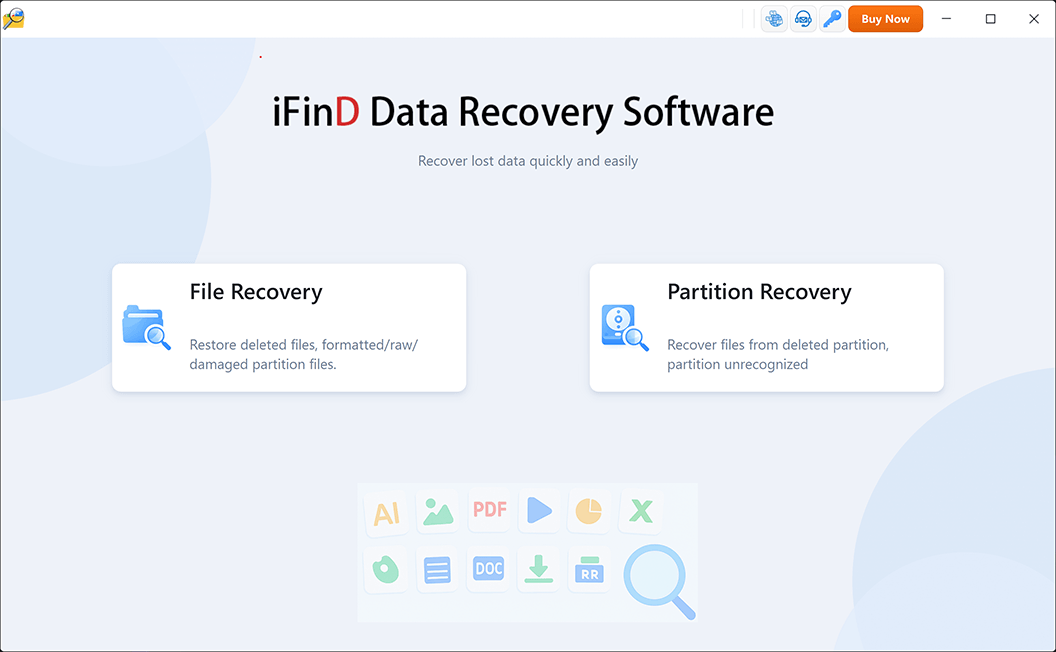
- Swift Scan or Thorough Scan: iFinD Data Recovery presents two scanning alternatives – File Recovery Mode and Partition Recovery Mode. Select for the mode that aligns with your requirements. File Recovery Mode is used to recover deleted files from a healthy partition. Partition Recovery Mode is used to recover deleted files from your hard drive.
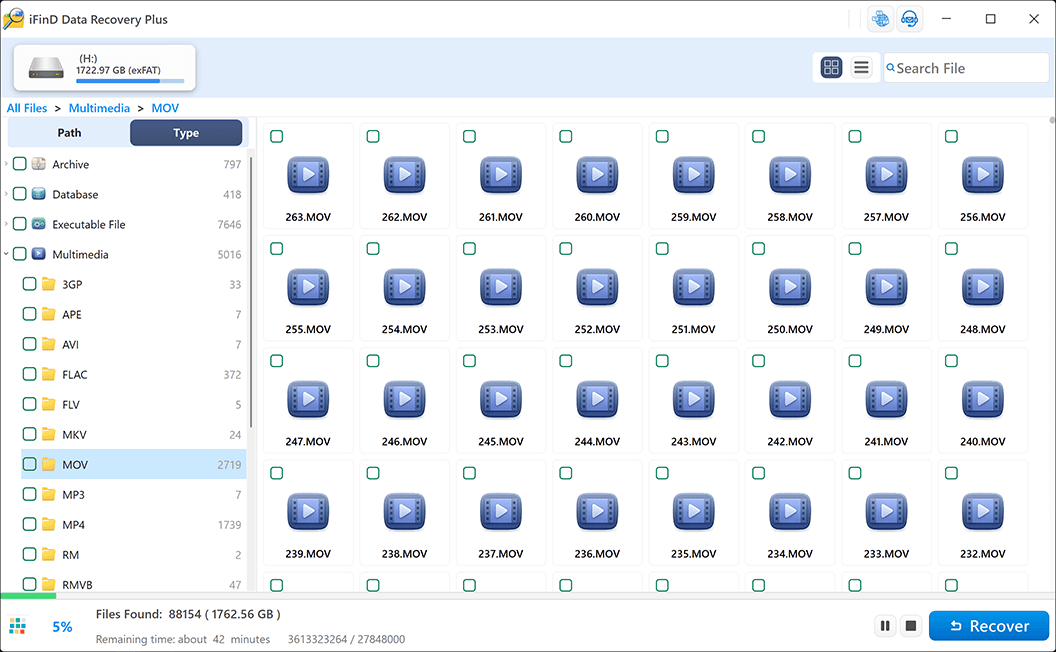
- Opt for Erased Files from the Conclusive Scan Catalog: Following the completion of the scan, a comprehensive catalog of retrieved files will be displayed. Recognize and choose the videos you intend to reclaim.
- Preview Before Recovery: iFinD Data Recovery allows previewing files before initiating the recovery process. This functionality ensures you can evaluate the integrity of the file.
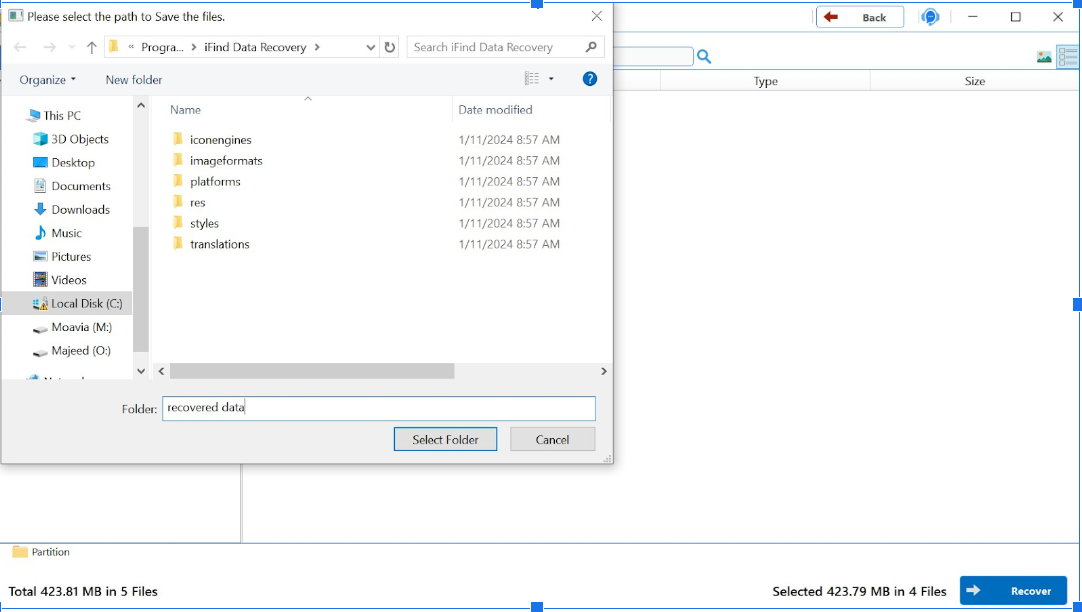
- Retrieve and Open the Restored Files: Click the “Recover” button to finalize the last step. Your files will be reinstated with no compromise in quality.
Pro Tips: iFinD Data Recovery Free allows you to successfully recover up to 1GB, addressing the urgent needs of most scenarios.
Alternative Ways to Locate Deleted YouTube Videos
Use Google Search Cache
Although Google Search Cache no longer stores full web page snapshots as it did in the past, Google Search can still help you locate information about deleted YouTube videos.
Try searching using the video’s title, channel name, or related keywords. Sometimes Google search results still display the page title, video description, or even the original YouTube URL. If you can find the URL, you may be able to recover additional information using the Wayback Machine or other web archive services.
Tips:
- Search the exact video title in quotation marks.
- Add your YouTube channel name to narrow the results.
- Copy the video URL if it still appears in Google Search.
Check Browser History
If you previously watched or uploaded the deleted YouTube video on the same computer, your browser history may still contain the original video link.
Open your browser’s history (Chrome, Microsoft Edge, Firefox, or other browsers) and search for keywords related to the video’s title or visit your YouTube browsing history. Once you locate the original URL, you can use it with the Wayback Machine or other online tools to recover additional information about the deleted video. If the browser history no longer contains the video, try recovering deleted browser data from your computer.
This method is especially useful if the video was deleted recently.
Check YouTube Studio
If the video was recently removed from your YouTube channel, sign in to YouTube Studio before trying other recovery methods.
Although permanently deleted videos cannot usually be restored through YouTube Studio, you may still find useful information such as:
- Video title
- Video description
- Thumbnail
- Analytics reports
- Video ID
- Publishing history
This information can help you search for archived copies of the video or identify the original file stored on your computer or external storage device.
Search by Video ID
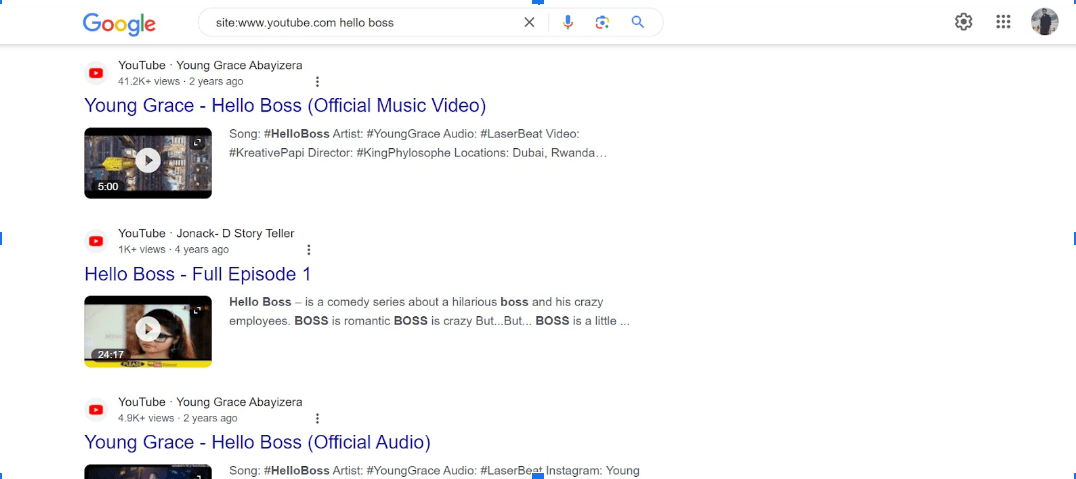
Adrift in a sea of numerals? Employ the watch ID:
- Extract the final 11 digits from the YouTube video URL following “v=”: Discern the distinctive watch ID.
- Insert the watch ID into Google: Seek information or locate another functional video using the watch ID.
Frequently Asked Questions
Q: Can I recover permanently deleted YouTube videos?
A: Usually yes, if the original file still exists on your computer or backup.
Q: Can I recover deleted YouTube videos without the URL?
A: Yes. You can try Google Search, browser history, or the Wayback Machine.
Q: Does YouTube keep deleted videos?
A: No. Once permanently deleted, YouTube does not normally restore them.
Q: Can I recover deleted YouTube Shorts?
A: Yes. Shorts use the same recovery methods.
Q: Can I recover deleted YouTube videos from my phone?
A: Yes, if the original video still exists on your Android or iPhone.
Final Thoughts
Bringing back deleted YouTube videos is easy with the right tools and know-how. Following the steps outlined, you can easily find and enjoy deleted videos on YouTube’s website and recover lost downloads on your computer. Whether you explore the vast archives of Archive.org, use the time-travel features of the Wayback Machine, or try out the advanced features of iFinD Data Recovery, getting back your digital memories is doable. It also enables you to restore deleted files like documents, images, audio, and photos. Try out these methods and see your favorite videos return, proving that finding lost treasures in the digital world is possible for everyone.