Last Updated on July 23, 2026 by andy woo
Formatted SD card recovery can help restore lost photos, videos, and other files after accidental formatting. Although formatting removes the file system structure, the original data may still be recoverable before it is overwritten.
Accidentally formatting an SD card can be stressful, especially when it contains important photos, videos, or documents. However, formatting does not always permanently erase your files. With professional SD card recovery software, you may still recover lost data before it is overwritten.
- 01 1. Can Data Be Recovered from a Formatted SD Card?
- 02 2. What Happens When You Format an SD Card?
- 03 3. Common Reasons Why SD Cards Are Formatted
- 04 4. How to Recover Data from Formatted SD Card with iFinD Data Recovery
- 05 5. Formatted SD Card Recovery Test
- 06 6. Why Choose iFinD for Formatted SD Card Recovery?
- 07 7. Tips to Avoid Data Loss After Formatting
- 08 8. FAQ
1. Can Data Be Recovered from a Formatted SD Card?
Yes, data can frequently be restored from a formatted SD card—especially if the storage media underwent a standard Quick Format and no subsequent data has been written to the flash sectors.
Executing a format sequence on an SD card typically removes the file allocation table that directs your system to stored files. However, the actual binary file payloads remain intact in the underlying memory clusters until newly saved files overwrite them. For example, if a camera memory card containing photos and videos is accidentally formatted, the original data clusters usually exist in a raw, orphaned state awaiting recovery.
Key Factors Influencing Formatted SD Card Recovery:
- Type of Formatting: A standard "Quick Format" merely clears indexing maps and leaves file signatures recoverable, whereas a "Full Format" or zero-fill erase permanently purges all storage blocks.
- Volume of New Data Written: Continued media recording after formatting forces new writes directly onto unindexed clusters, permanently destroying the original file structures.
- Recovery Engine Intelligence: Advanced carving algorithms can directly parse raw sector signatures, successfully reconstructing complex video streams and proprietary camera RAW formats.
⚠️ Critical First Step: If you accidentally formatted your SD card, stop using the device immediately and do not capture new photos or transfer new files to it. Deploying a specialized sector scanner like iFinD Data Recovery as soon as possible will allow you to parse the formatted drive and safely rescue lost files before irreversible overwriting occurs.
2. What Happens When You Format an SD Card?
1. Before formatting: file system is intact
2. Quick format: a new, empty table is written
3. Full format: storage sectors may be overwritten
A Quick Format usually removes only the file system information and creates a new empty file table, while the original data blocks remain on the storage device until they are overwritten. This is why professional data recovery software can often recover files after a quick format.
However, a Full Format performs additional low-level operations such as writing data directly to storage sectors, which can permanently destroy the original file content and make recovery much more difficult or impossible.
When an SD card undergoes a format operation, the operating system completely rebuilds the underlying file system framework (typically FAT32, exFAT, or NTFS). This process resets the master file allocation records, effectively destroying the index maps that tell system devices where specific files and folders reside.
- Metadata Index Wipe: Formatting clears the directory tree structure, severing the active connection between file names, folder paths, and physical memory sectors.
- Durable Data Payload: Although the indexing map is gone, the actual binary file content remains securely stored inside the flash memory clusters until newly written files overwrite those sectors.
Because standard formatting damages the original directory indexing, entry-level recovery tools often struggle to rebuild original folder organization. When scanning formatted media, basic tools rely solely on brute-force raw signature carving—exporting recovered photos and videos into generic, automatically generated folders without original names.
⚡ Dual-Engine Architecture Advantage: Advanced recovery suites like iFinD Data Recovery seamlessly combine deep File System Analysis with sector-level File Signature Recognition. By parsing surviving directory fragments alongside raw hex signatures, iFinD significantly improves reconstruction yields and actively preserves original folder structures whenever possible.
3. Common Reasons Why SD Cards Are Formatted
SD cards serve as the primary storage backbone across digital cameras, smartphones, drones, and handheld video rigs. In routine operations, formatting is a standard administrative task to refresh media for a new shoot. However, unforeseen accidents or system prompts often lead users to format an SD card unexpectedly, risking critical photos, videos, and project files.
Understanding the root triggers behind SD card formatting helps identify data recovery chances and prevent future loss:
1. Preparing a New SD Card for Use
Factory-fresh memory cards require initial partition setup to align with specific host hardware architecture. Formatting builds a localized, compatible file table so the device can write and index data efficiently.
- DSLR and mirrorless cameras requesting initial card initialization before shooting.
- Action cameras or commercial drones prompting format configuration upon inserting new media.
- Host devices partitioning the card to enforce custom sector sizes or specialized file layouts.
2. Accidental Formatting by Users
User error remains one of the single most frequent causes of sudden data loss in fast-paced production environments.
- Mistakenly selecting "Format" instead of "Delete" within the camera menu interface.
- Formatting the wrong drive letter when multiple SD cards or external readers are connected to a computer.
- Confirming pop-up format dialogs without verifying whether essential project files are still stored on the card.
3. SD Card Errors or Corrupted File Systems
Logical corruption, improper card ejection, or unexpected power failures can damage the file system table, rendering the card unreadable and triggering OS system error prompts.
Common System Error Messages:
Users often format the card in an attempt to clear the error state and restore card functionality, unknowingly severing access to their existing files.
4. Switching Between Different Devices
Cross-platform workflows often involve moving cards across different operating systems and camera brands, each enforcing distinct file system standards:
- Cameras defaulting to specialized FAT32 or exFAT cluster configurations.
- Computers requesting re-formatting when detecting unmapped cross-platform metadata.
- Drones requiring strict custom storage layouts to guarantee high-bitrate video recording stability.
5. Removing Viruses or Fixing Performance Problems
Formatting is frequently used as a troubleshooting step to resolve performance degradation or malware issues, such as virus infections, severe read/write speed drops, file corruption, or repeated transfer errors.
While formatting effectively resets card health, it also removes the file system directory records that point to your existing files.
💡 Key Recovery Takeaway: Regardless of why an SD card was formatted, the possibility of recovery mainly depends on what happens after formatting. If the original storage area has not been overwritten by new data, professional recovery software may still be able to locate and restore the lost files.
⚠️ Stop Usage Immediately: If you accidentally formatted your SD card or hard drive, stop using the device right away to avoid overwriting your lost files. The recovery cost depends on the storage device, amount of data, and recovery method. You can check our data recovery pricing guide to understand the factors that affect recovery costs.
4. How to Recover Data from Formatted SD Card with iFinD Data Recovery
STEP 1 Install iFinD Data Recovery
The first step is to run the software iFinD Data Recovery on your computer; its easy-to-use interface will help you complete your task successfully from the beginning to the end.
Professional Data Recovery Shouldn’t Cost a Fortune.
iFinD delivers the exact same industry-leading recovery rates as the most expensive competitors, but at the market’s most affordable price. Start free with 1GB, and upgrade for less.
STEP 2 Select the Formatted SD Card and Choose the Recovery Mode
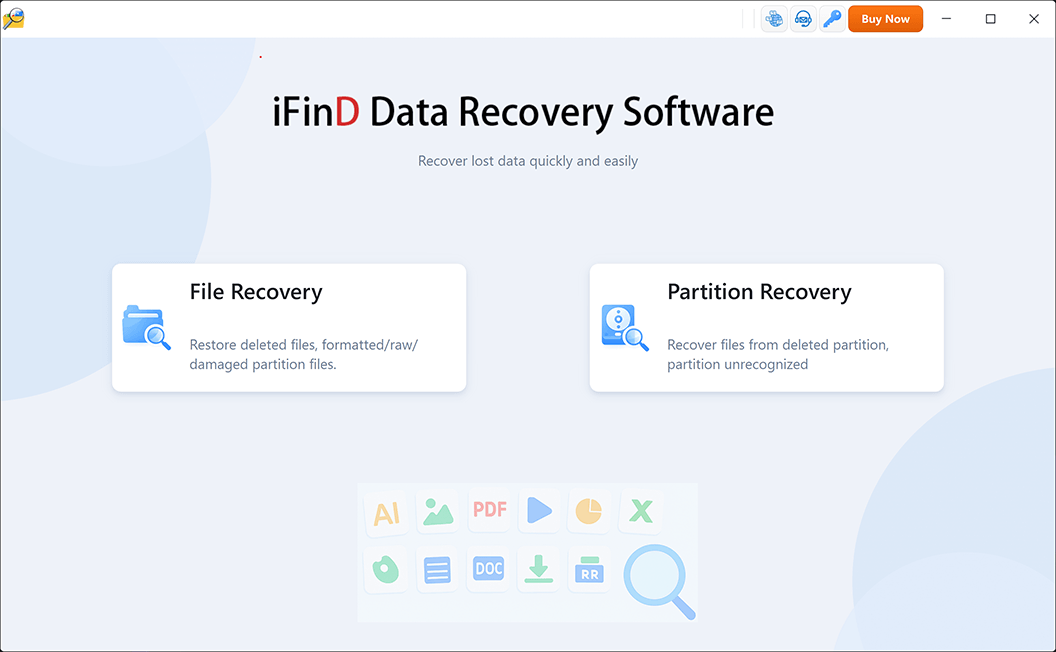
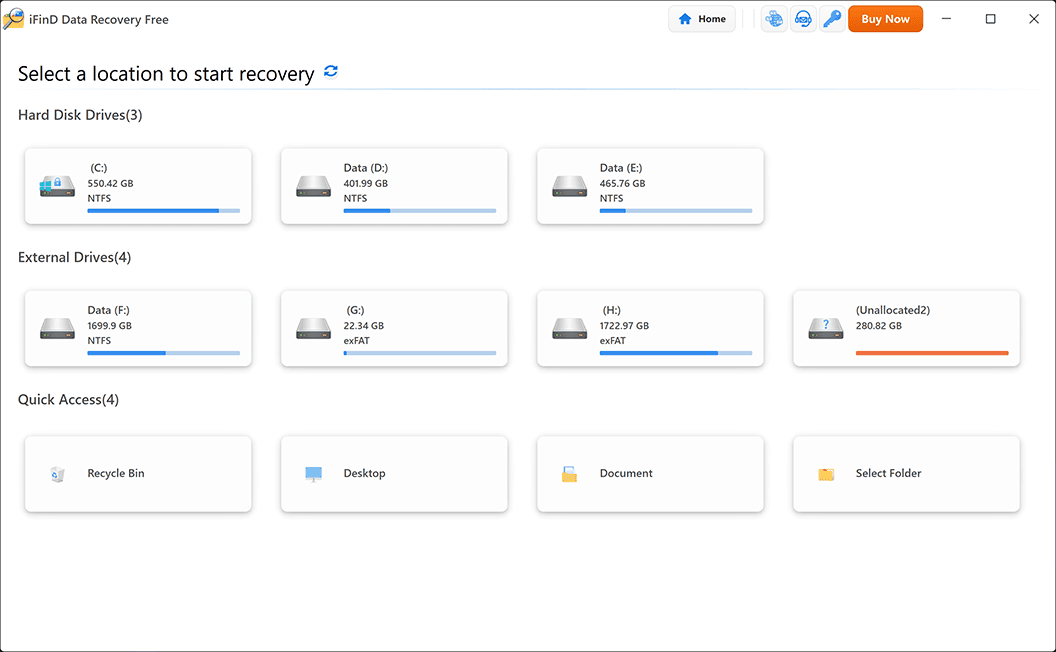
After launching iFinD Data Recovery, connect your formatted SD card and select it as the target device. For formatted SD card recovery, choose the recovery mode based on how the card appears on your computer.
Option 1: File Recovery
If the formatted SD card is still detected by Windows and appears as a normal drive, choose File Recovery mode. This mode scans the SD card directly to locate lost files after formatting. It can search for recoverable photos, videos, documents, and other file types even when the original file system information has been damaged or rebuilt.
For quick formatting cases, the original data may still exist on the storage area, allowing iFinD Data Recovery to reconstruct and restore the lost files.
Option 2: Partition Recovery
If the SD card partition has disappeared, shows an incorrect capacity, or cannot be accessed normally by Windows, choose Partition Recovery mode. In this situation, the problem is not only missing files but also damaged or lost partition information. iFinD Data Recovery will first search for lost partitions and help restore access to the data stored on them.
For most formatted SD card recovery situations, File Recovery is the recommended option. If the card is no longer recognized correctly by the operating system, try Partition Recovery first.
STEP 3 Scan the Formatted SD Card for Recoverable Files
After selecting the formatted SD card, iFinD Data Recovery will thoroughly analyze the storage device sectors and search for recoverable data. For formatted SD card scenarios, Deep Scan and File Signature Search are the two core scanning engines working concurrently:
🔍 Deep Scan Engine
Deep Scan directly parses the raw storage sectors of the SD card to locate remaining file fragments that are no longer accessible through normal operating system file tables.
Optimal Use Cases:
- The SD card has undergone an accidental quick format.
- The card’s root file system is corrupted or marked as “RAW”.
- Original folder hierarchies and file names are damaged or missing.
🧩 File Signature Search (Raw Carving)
File Signature Search identifies deleted media based on unique internal header and footer hex structures rather than relying on external file directory records. This method is crucial post-format when original directory maps have been erased.
Key Target File Formats:
PNG Images
MP4 / MOV Videos
RAW Camera Files
Documents & Archives
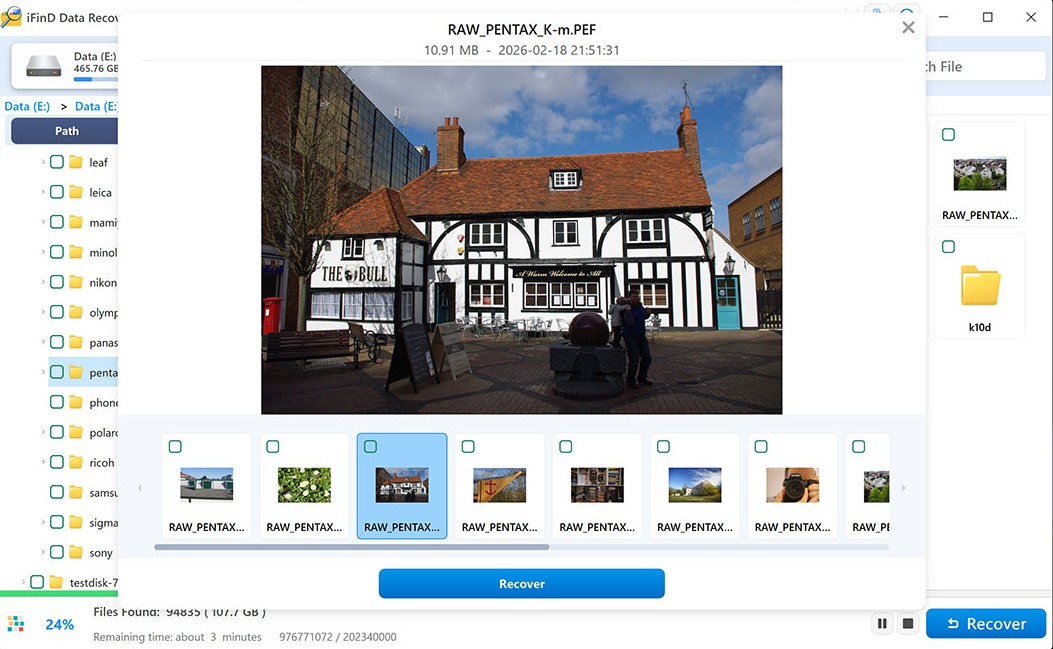
STEP 4 Scan and Preview Recoverable Files
After the scan is completed, iFinD Data Recovery will display all recoverable files found on the formatted SD card. You can seamlessly browse the scan results by file type, directory path, or use the built-in search filter to quickly locate your desired files.
Supported File Types for Formatted SD Card Recovery:
🎬 Videos (MP4, MOV, AVI)
📄 Documents
🎵 Audio Files
📦 Other Supported Formats
💡 Verification Tip: Before initiating the final recovery, utilize the built-in Preview feature to check whether your files are fully intact and recoverable. Visual verification helps confirm file integrity and avoids recovering corrupt or unnecessary data.
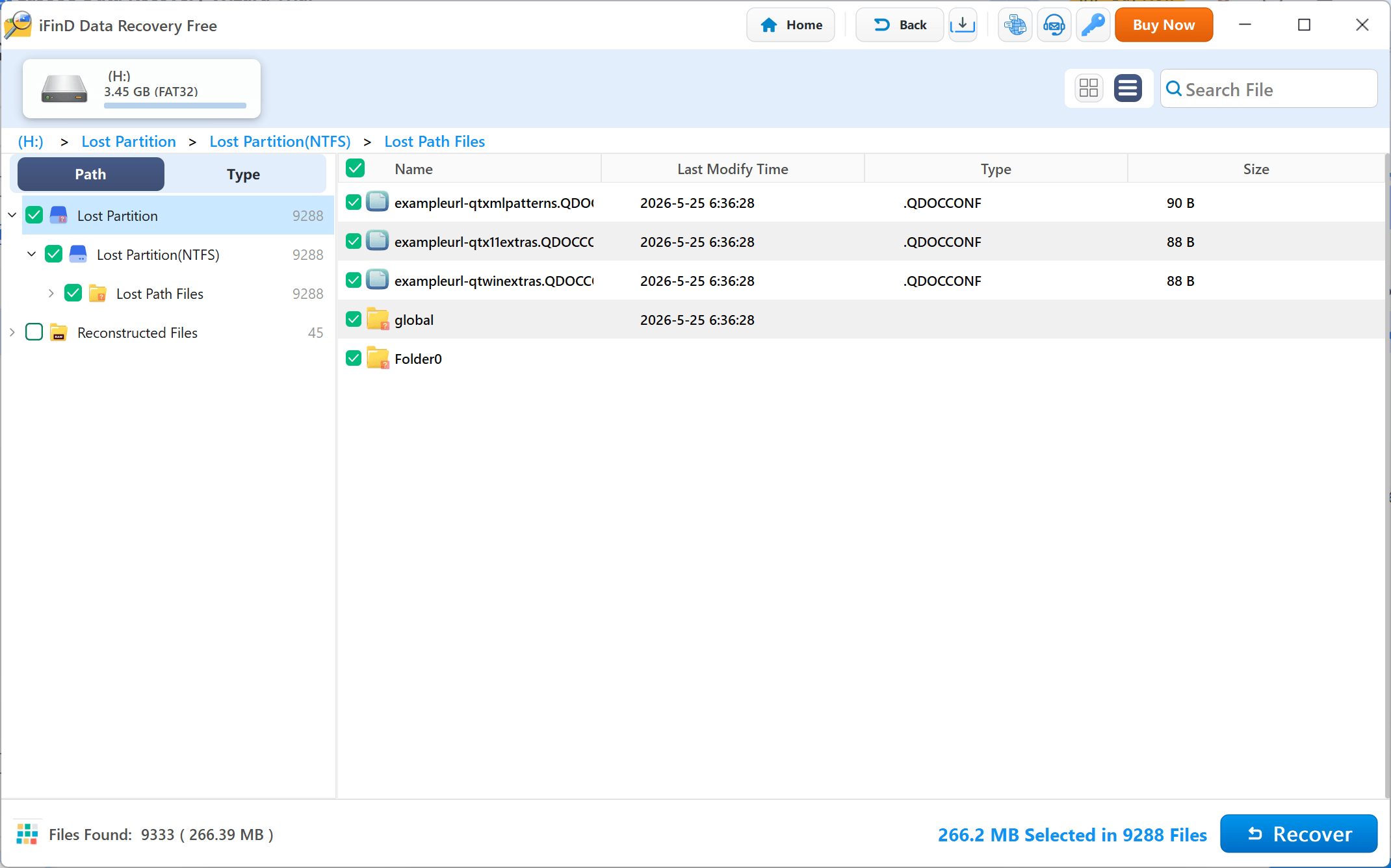
STEP 5 Recover Files from the Formatted SD Card
After selecting the required files, click the Recover button and choose a safe location on your computer to save the recovered data.
⚠️ Crucial Safety Warning: Do not save recovered files back to the same SD card, as new data may overwrite other recoverable files and drastically reduce the recovery success rate. Always save the files to your computer’s local drive or an external storage device instead.
For more information about SD card storage and file systems, you can refer to the official documentation from SD Association.
5. Formatted SD Card Recovery Test
To evaluate formatted SD card recovery performance, we performed a real-world test using the same formatted storage partition and compared the recovery results from several popular data recovery tools.
Formatting an SD card usually removes or rebuilds the file system information that manages file locations and folder structures. However, the original file data may still remain on the storage device until it is overwritten by new data. A capable recovery tool needs to analyze storage sectors and identify recoverable files even when the original file system information is no longer available.
- Test Type: Formatted SD card recovery test
- Data Loss Scenario: Storage partition formatted before recovery scanning
- Recovery Goal: Compare file detection results and recovery quality after formatting
Tested Software:
To ensure a fair comparison, all recovery tools were tested under the same formatted SD card recovery scenario using the following process:
- Prepare a reference partition containing multiple test files.
- Format the partition to simulate an accidental SD card formatting situation.
- Run each recovery tool using its available deep scanning and file recovery functions.
- Record the number of recoverable files detected by each software.
Test Results
Test Analysis & Key Findings
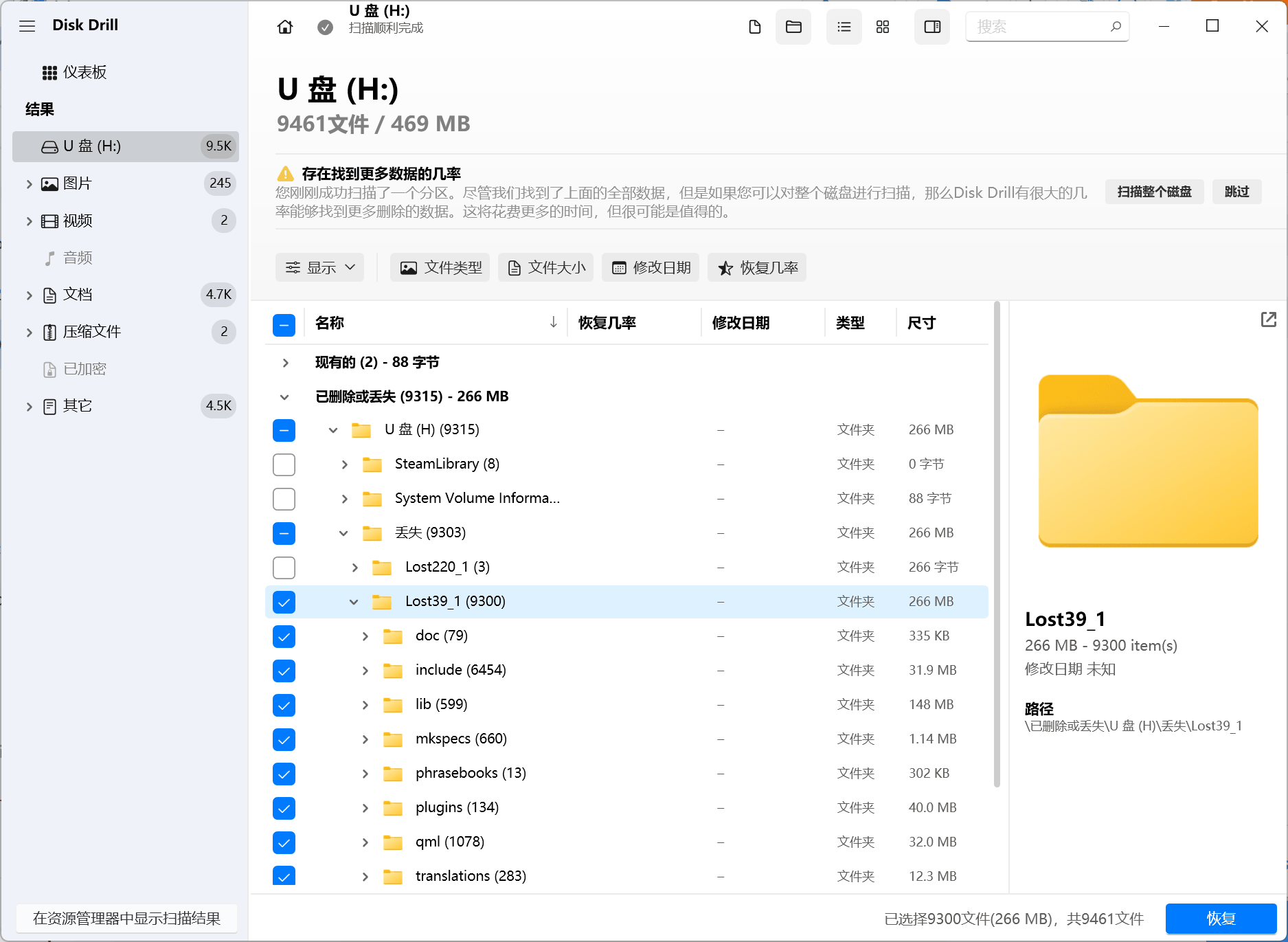
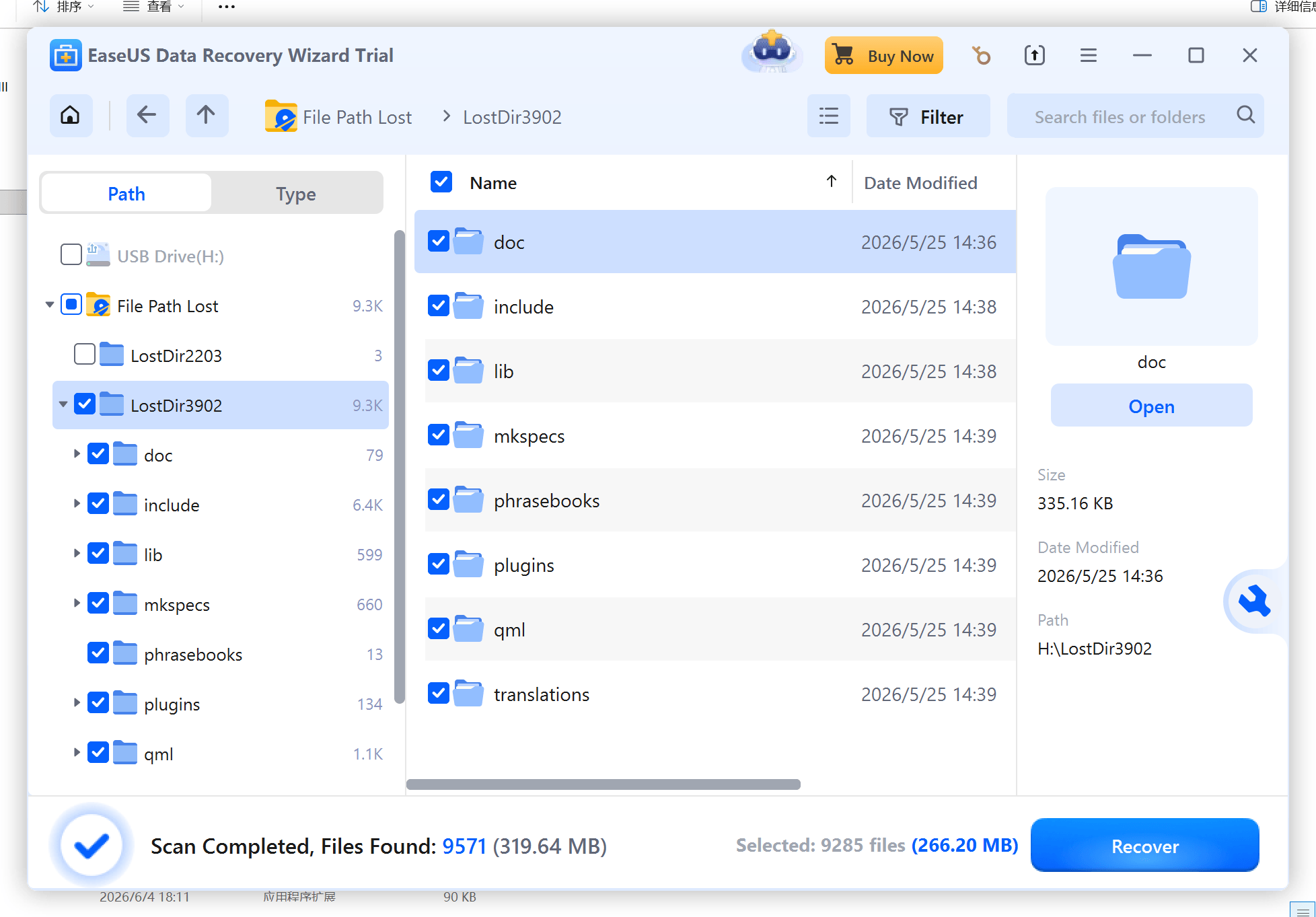
The test results show that iFinD Data Recovery achieved recovery performance comparable to other leading recovery software in this formatted SD card recovery scenario.
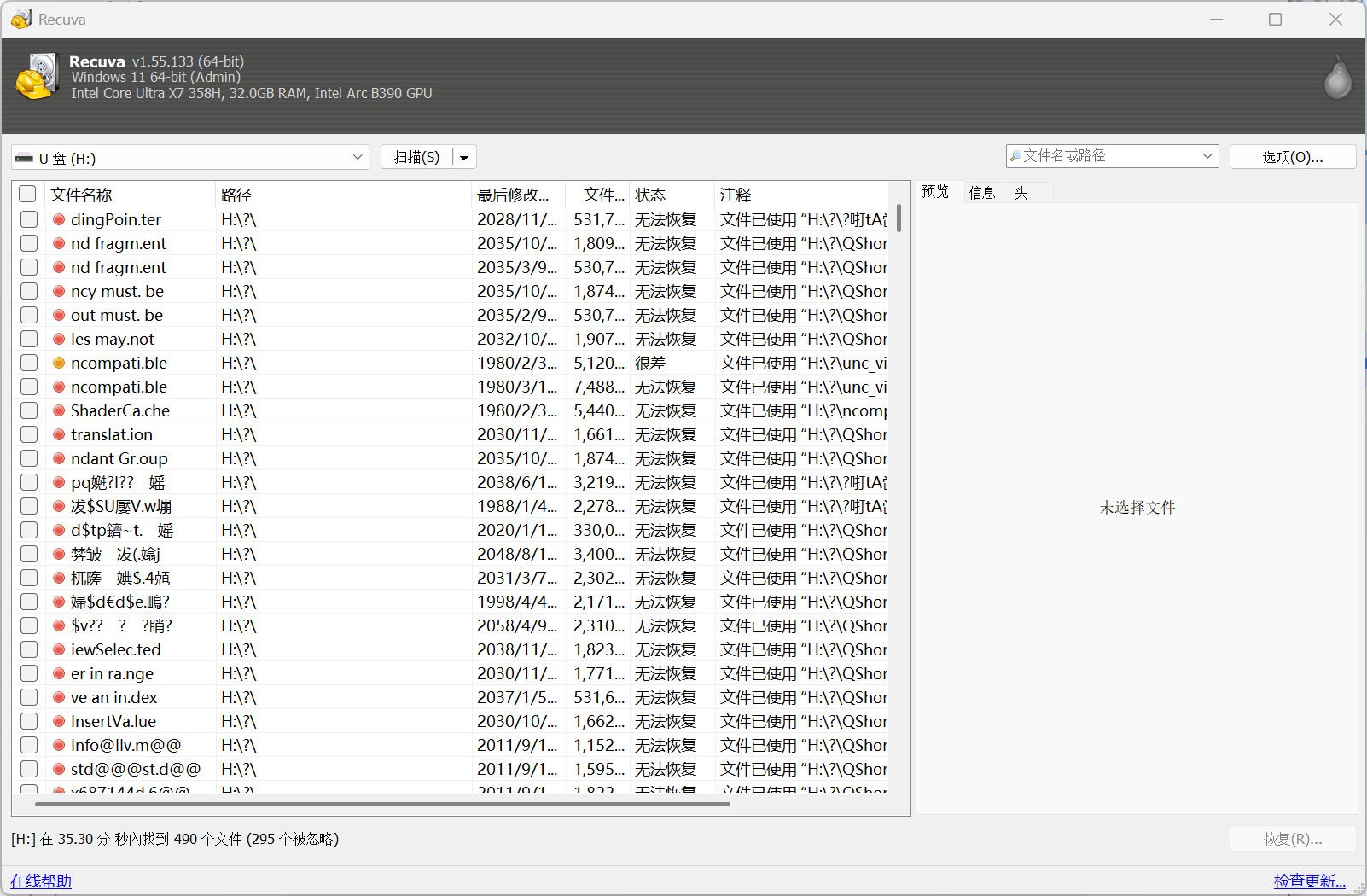
Disk Drill detected 9,300 recoverable files, while iFinD Data Recovery found 9,288 files. The difference between the two results was only 12 files. EaseUS Data Recovery Wizard produced a similar result with 9,285 detected files. In comparison, Recuva was unable to locate recoverable files during this formatted partition recovery test.
- iFinD successfully detected thousands of recoverable files after formatting.
- The recovery result was close to leading commercial recovery solutions.
- The difference between iFinD and the highest detection result was minimal in this test.
- Some free recovery tools may have limitations when recovering formatted storage devices.
Why This Matters for SD Card Recovery
Accidental formatting is a common data loss situation for camera users, photographers, drone operators, and anyone who stores important files on SD cards. A reliable recovery tool should not only detect lost files but also maintain file integrity and make recovered data easier to organize.
During this test, iFinD Data Recovery recovered a similar number of files compared with leading recovery tools. Recovery quality is also important because users need to quickly locate their recovered photos, videos, and other important files after formatting.
- Recover accidentally formatted camera SD cards.
- Restore lost photos, videos, documents, and other file types.
- Recover files even when the original folder structure is damaged.
- Support professional camera RAW image format recovery.
Recovery Scan Comparison
6. Why Choose iFinD for Formatted SD Card Recovery?
Recovering data from an accidentally formatted SD card requires far more than simply listing an overwhelming pile of raw files. A practical, high-performance recovery utility must deliver precise sector scanning accuracy, broad file extension support, and intuitive directory reconstruction to make post-recovery management effortless.
LAB TESTED PERFORMANCE
Proven Sector Scanning Efficiency: 9,288 Recoverable Files Detected
In controlled lab benchmark tests on a formatted partition, iFinD Data Recovery successfully detected 9,288 recoverable files—delivering scanning depth and sector parsing accuracy on par with industry-leading commercial tools.
1. Recover More File Types from Formatted SD Cards
SD cards operate as essential storage hubs across digital cameras, commercial drones, smartphones, and mobile recording rigs. When a format wipe occurs, users need to rescue diverse media assets far beyond simple JPEG graphics or office text documents.
iFinD Data Recovery integrates expansive signature recognition algorithms, enabling full extraction of high-bitrate 4K/8K video streams, audio logs, archives, and complex multi-media project files.
2. Maintain Better Recovery Quality and Original Folder Structure
Raw file counts mean very little if recovered media is dumped randomly across thousands of automatically generated folders. During a format operation, root file allocation maps break, forcing basic tools to lose original path information.
Structural Directory Reconstruction:
iFinD Data Recovery deploys intelligent dual-engine directory parsing to rebuild surviving file paths and parent folder hierarchies whenever possible. This allows photographers and content creators to instantly locate specific shoot folders and project directories without painstaking manual sorting.
3. Affordable Alternative to Expensive Recovery Software
Many enterprise data restoration suites demand steep recurring subscription fees or expensive one-time licenses, making them cost-prohibitive for everyday users dealing with a single emergency.
HIGH VALUE RESTORATION
Top-Tier Recovery Algorithms at a Fair Price Point
iFinD Data Recovery delivers professional-grade parsing engines and high restoration success rates without exorbitant costs, offering consumers and studios a budget-friendly yet fully dependable data rescue solution.
4. Specialized RAW Photo Recovery for Camera and Drone Users
For studio photographers, wildlife shooters, and aerial drone pilots, SD card recovery almost always revolves around uncompressed, high-dynamic-range RAW camera files rather than standard web images.
Supported Professional Camera & Drone RAW Signatures:
7. Proactive Tips to Avoid SD Card Data Loss
While professional utilities like iFinD Data Recovery provide a dependable safety net during digital emergencies, proactive prevention remains your absolute best defense. Adopting a few disciplined storage habits will drastically minimize the risk of losing critical photography projects, 4K video logs, or valuable personal files.
Essential Best Practices for SD Card Safety:
- Halt Media Usage Immediately Post-Format: The moment an accidental format occurs, unmount and remove the SD card. Capturing new photos or saving new files forces host devices to write directly over unindexed memory clusters, permanently destroying recoverable binary structures.
- Enforce a Disciplined Multi-Copy Backup Strategy: Always maintain an updated secondary copy of essential photos, camera RAW files, and video projects across an external drive, local NAS, or automated cloud storage.
- Verify Target Volumes Before Executing a Format: Double-check the exact disk label, partition size, and assigned drive letter before initiating any format command—whether in Windows Disk Management or your camera’s system menu.
- Invest in High-Grade, Authentic Storage Media: Low-quality or counterfeit memory cards exhibit significantly higher rates of controller failures, cluster corruption, and sudden RAW drive prompts. Stick to reputable flash storage brands with certified endurance ratings.
8. Frequently Asked Questions
Q1: Can data be recovered from a formatted SD card?
Yes. As long as new files have not overwritten the original storage sectors, data can usually be recovered. A standard Quick Format merely clears the directory index table pointing to your files; the actual binary data payloads remain untouched in the underlying memory clusters. Specialized tools like iFinD Data Recovery can perform deep sector scans to parse and reconstruct these orphaned files.
Q2: Does formatting an SD card permanently erase all data?
Not always. A standard "Quick Format" only rebuilds the file system structure (such as FAT32, exFAT, or NTFS) and marks space as available for new writes, leaving original data recoverable. However, executing a "Full Format" or zero-fill erase writes zeros across all storage sectors, which permanently destroys the file payloads and renders recovery impossible.
Q3: What should I do immediately after accidentally formatting an SD card?
Stop using the SD card immediately. Remove it from your camera, drone, or smartphone to prevent automated background caching or file writes. Do not capture new media or transfer new files to the card, as overwriting physical sectors permanently reduces recovery success. Then, run iFinD Data Recovery on your computer to scan and rescue your files safely.
Q4: Can iFinD Data Recovery recover photos from a formatted camera SD card?
Yes. iFinD Data Recovery fully supports formatted media recovery from digital cameras, aerial drones, action cams, and smartphones. Beyond standard JPEG/PNG images and MP4/MOV video streams, it excels at identifying professional uncompressed RAW formats, including Canon CR2/CR3, Nikon NEF, Sony ARW, Fujifilm RAF, and DJI DNG files.
Q5: Why are some original folder names or file paths missing after recovery?
Formatting often wipes or corrupts the master directory table that stores file names and folder trees. When directory metadata is destroyed, advanced scanners fall back on File Signature Search (Raw Carving), which identifies files by their internal binary headers. While this successfully extracts the complete file contents, it may place them into generic, automatically categorized folders without original naming records.
Leave A Comment