Last Updated on July 28, 2026 by andy woo
- 01 1. Can You Recover Data After Formatting a Drive?
- 02 2. What Happens When You Format a Drive?
- 03 3. Common Scenarios That Cause Data Loss After Formatting
- 04 4. How to Recover Data from a Formatted Drive with iFinD Data Recovery
- 05 5. Recover Data from Different Formatted Devices
- 06 6. How to Prevent Data Loss When Formatting
- 07 7. Frequently Asked Questions
1. Can You Recover Data After Formatting a Drive?
Yes, in many cases, data can still be recovered after formatting a drive, especially when a quick format was performed and no new files have been written to the storage device.
Formatting a drive usually removes the file system information that tells the operating system where files are stored. However, the actual data may still remain on the drive until it is overwritten by new data. This means formatted files may still be recoverable using professional data recovery software.
The chances of successful recovery depend on several factors, including the type of formatting performed, how much new data has been written to the drive, and the condition of the storage device.
Data recovery is more likely when:
- The drive was accidentally formatted rather than intentionally rewritten.
- A quick format was performed instead of a full format.
- No new files have been saved to the storage device after formatting.
- The drive is still detected by Windows File Explorer or Disk Management.
⚠️ Crucial Rule: If you accidentally formatted a hard drive, USB flash drive, SSD, or SD card, stop using the device immediately to avoid overwriting recoverable data.
The next step is to understand what happens during formatting and why quick format recovery is usually possible.
2. What Happens When You Format a Drive?
When you format a drive, the operating system rebuilds the file system structure so the storage device can be used again. During this process, the system removes the information that tells Windows where files are located, making the files appear deleted.
However, formatting does not always immediately erase the actual data stored on the drive. After a quick format, the original file content may still remain in the storage sectors until new data overwrites it.
After formatting, the recovery possibility usually depends on:
- Format type: Quick format is usually more recoverable than full format.
- New data written: New files may overwrite the original data and reduce recovery chances.
- Drive condition: Physical damage or severe corruption may affect recovery results.
⚠️ Crucial Action: This is why you should stop using a formatted drive immediately and use professional data recovery software before saving any new files to it.
3. Common Scenarios That Cause Data Loss After Formatting
Formatting a storage device is a common operation, but unexpected data loss can happen when important files are removed during the process. In many cases, users realize they need recovery only after the format has already been completed.
Accidentally Formatting the Wrong Drive
One of the most common causes of data loss is selecting the wrong drive during formatting. This can happen when multiple hard drives, external drives, or USB devices are connected to a computer.
⚠️ Action Needed: If important files were removed by mistake, stop using the formatted drive immediately to prevent new data from overwriting recoverable files.
Formatting a USB Flash Drive Without Backup
USB flash drives are frequently formatted when users need to fix file system errors or prepare the device for reuse. However, formatting without a backup can remove important documents, photos, videos, and other files.
In many cases, formatted USB drives can be scanned with data recovery software before the original data is overwritten.
Formatting a Camera SD Card Accidentally
Photographers and video creators may accidentally format an SD card containing photos or recorded footage. This situation is especially common when switching between cameras, computers, or storage devices.
If the SD card has only been quickly formatted and no new files have been saved, performing formatted SD card recovery offers the highest chance of getting your files back.
Formatting a Drive During Windows Installation
When reinstalling Windows, users may accidentally format the wrong partition or remove existing files during the setup process. If the drive was only formatted and no significant new data has been written, recovery software may still find recoverable files.
Formatting a Drive to Fix File System Errors
Windows may sometimes ask users to format a drive when it detects file system problems or corruption. Formatting may restore access to the device, but it can also remove existing files.
Before formatting a drive with important data, perform hard drive data recovery methods first to avoid unnecessary data loss.
4. How to Recover Data from a Formatted Drive with iFinD Data Recovery
After formatting a hard drive, USB flash drive, SSD, or SD card, the original files may still remain on the storage device until they are overwritten.
iFinD Data Recovery can scan formatted drives and help recover lost files including documents, photos, videos, and other data.
STEP 1 Stop Using the Formatted Drive and Connect It to Your Computer
Immediately stop saving new files to the formatted drive after accidental formatting. New data may overwrite the original file content and reduce the possibility of successful recovery.
Connect the formatted hard drive, USB flash drive, SSD, or SD card to your Windows computer. Make sure the device can be detected before starting the recovery process.
STEP 2 Launch iFinD Data Recovery and Select the Formatted Drive
Launch
iFinD Data Recovery
on your computer and select the formatted storage device from the available drives.
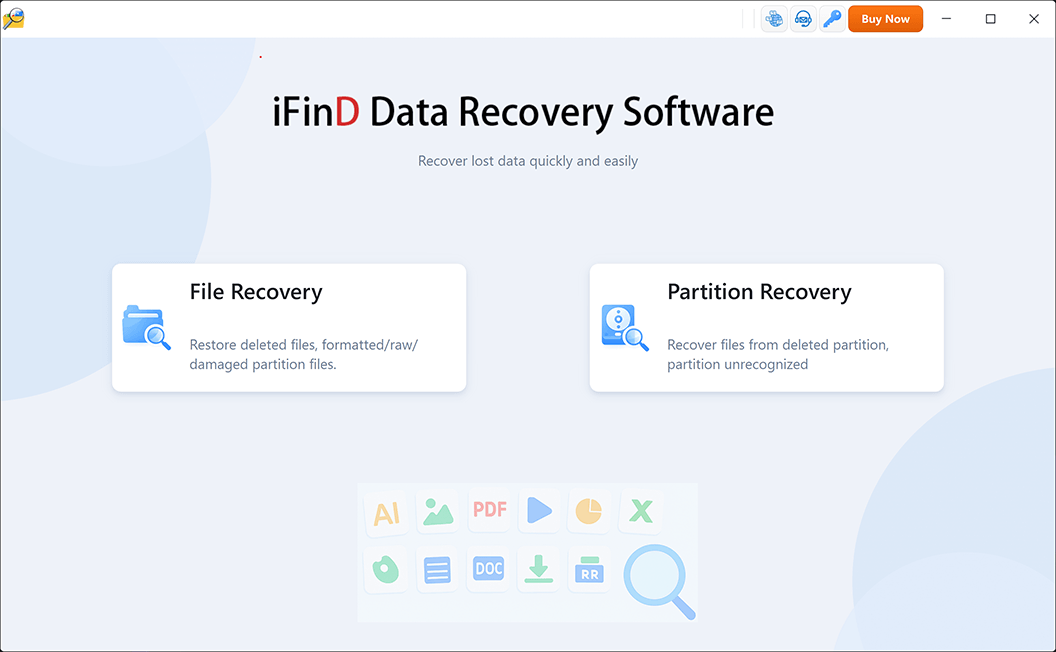
STEP 3 Choose File Recovery or Partition Recovery Mode
Select the recovery mode based on the condition of your formatted drive:
Option 1:
File Recovery
If the formatted partition is still visible in Windows and the drive has a drive letter, choose File Recovery. This mode scans the existing partition structure and searches for lost files after formatting.
Option 2:
Partition Recovery
If the partition disappeared after formatting or Windows cannot recognize the original partition, choose Partition Recovery to search for lost partitions and recover files from the damaged storage structure.
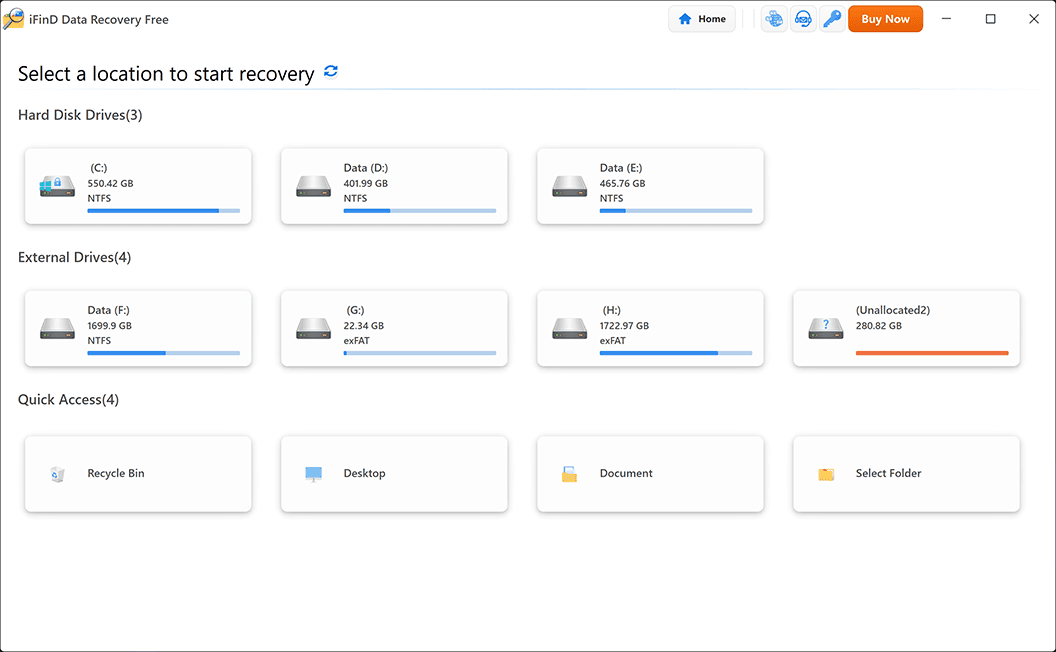
STEP 4 Scan the Formatted Drive for Recoverable Files
Select the formatted drive and start scanning. iFinD Data Recovery will analyze the storage device and search for recoverable files that remain after formatting.
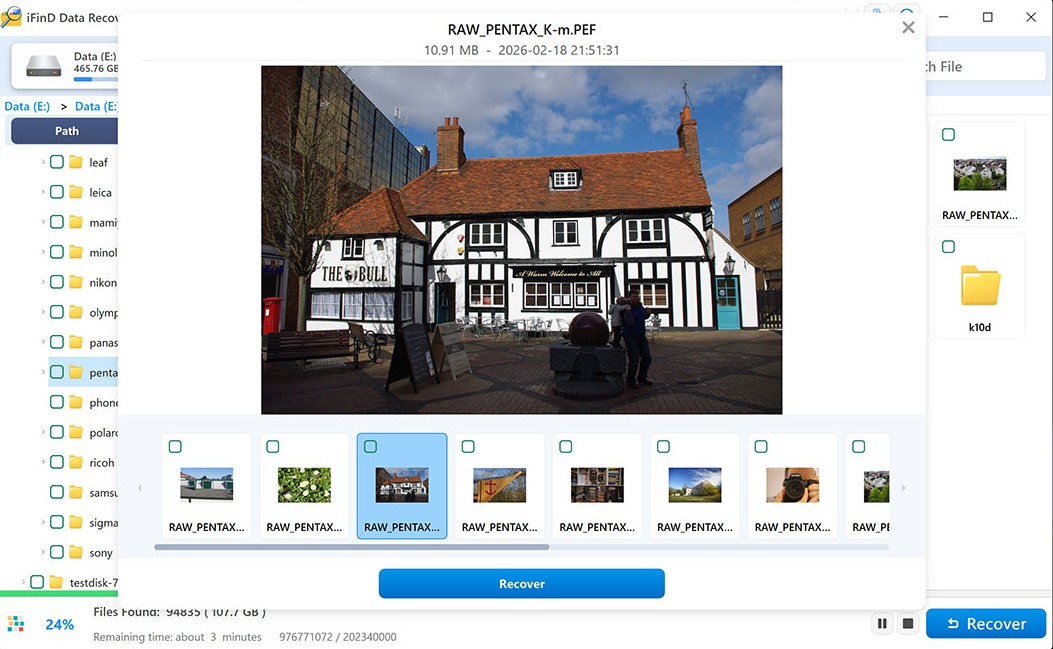
STEP 5 Preview and Recover Lost Files
After scanning is complete, preview the detected files and select the data you want to recover. iFinD Data Recovery supports recovery of photos, videos, documents, audio files, and many other file types.
⚠️ Important: Do not save recovered files back to the formatted drive. Choose another storage location, such as your computer hard drive or another external device, to avoid overwriting other recoverable data.
Professional Data Recovery Shouldn’t Cost a Fortune.
iFinD delivers the exact same industry-leading recovery rates as the most expensive competitors, but at the market’s most affordable price. Start free with 1GB, and upgrade for less.
5. Recover Data from Different Formatted Devices
Formatted data loss can happen on different types of storage devices, including hard drives, USB flash drives, SD cards, and external storage devices. The recovery process is similar, but the best recovery method may depend on the device type and how the formatting happened.
Formatted Hard Drive Recovery
Hard drives are commonly formatted when reinstalling Windows, changing file systems, or preparing a drive for reuse. If important files were removed after a quick format and no new data has been written, recovery software may still be able to locate the original files.
For serious hard drive data loss situations, see our hard drive data recovery guide.
Formatted USB Flash Drive Recovery
USB flash drives are frequently formatted to fix file system errors or prepare the device for new use. However, formatting may remove access to existing documents, photos, and other important files.
If the USB drive is still detected by Windows, iFinD Data Recovery can scan the device and search for recoverable files before they are overwritten.
Formatted SD Card Recovery
Camera and mobile device users may accidentally format SD cards containing photos, videos, and other media files. Quick formatting usually removes file system information rather than immediately deleting the stored data.
For SD card-specific recovery methods, check our formatted SD card recovery guide.
Formatted External Drive Recovery
External hard drives and portable storage devices may be formatted accidentally during troubleshooting, system cleanup, or file system repair. As long as new data has not overwritten the original files, recovery may still be possible.
No matter whether you formatted a hard drive, USB drive, SD card, or external storage device, avoid writing new data to the device before recovery. The sooner you start the recovery process, the higher the chance of retrieving your lost files.
6. How to Prevent Data Loss When Formatting
Formatting a drive is sometimes necessary for fixing file system problems or preparing a storage device for new use. However, formatting without proper preparation can result in permanent data loss. Follow these tips to protect your files before formatting any storage device.
1. Create a Backup Before Formatting
Before formatting a hard drive, USB flash drive, SSD, or SD card, always create a backup of important files. Copy documents, photos, videos, and other valuable data to another storage device or cloud backup service.
2. Check the Drive Before Clicking Format
When multiple storage devices are connected, carefully confirm the drive name, capacity, and contents before formatting. Selecting the wrong drive is one of the most common causes of accidental data loss.
3. Avoid Full Format Unless Necessary
For regular situations such as changing a file system or preparing a storage device, a quick format is usually enough. A full format may perform additional checks or write operations that can make previous data recovery more difficult.
4. Stop Using the Drive After Accidental Formatting
If you accidentally formatted a drive, stop saving new files immediately. New data may overwrite the original file content and reduce the chance of successful recovery.
5. Safely Remove External Storage Devices
Improperly removing USB drives or SD cards during file transfers may cause file system errors and increase the chance of needing a format. Always eject external storage devices properly before disconnecting them.
By keeping regular backups and carefully checking storage devices before formatting, you can avoid most formatting-related data loss situations. If files are already lost after formatting, stop using the device and start recovery as soon as possible.
7. Frequently Asked Questions
Can You Recover Data After Formatting a Drive?
Yes, formatted drive recovery is often possible if the lost data has not been overwritten by new files. A quick format usually removes the file system information instead of immediately deleting the actual data stored on the drive. Using data recovery software as soon as possible can improve the chance of recovering lost files.
Does Formatting a Drive Permanently Delete Everything?
Not always. A quick format mainly removes the file system structure that helps the operating system locate files. The original data may remain on the storage device until it is overwritten by new data. However, a full format or secure erase operation may make recovery much more difficult.
Can I Recover Files After a Quick Format?
Yes. Files lost after a quick format may still be recoverable because the original data may remain on the drive. Stop using the formatted device immediately and use recovery software to scan the storage device for recoverable files.
Can iFinD Data Recovery Recover Formatted Hard Drives?
Yes. iFinD Data Recovery can scan formatted hard drives, SSDs, USB flash drives, SD cards, and other storage devices to locate recoverable files. It supports various file types, including photos, videos, documents, and other commonly used data.
Can I Recover Data from a Formatted USB Drive or SD Card?
Yes. If a USB drive or SD card was accidentally formatted and new data has not overwritten the original files, recovery may still be possible. Avoid saving new files to the device and start the recovery process as soon as possible.
What Should I Do After Accidentally Formatting a Drive?
Stop using the formatted drive immediately, avoid copying new files to it, and do not install recovery software on the same drive. Connect the device to another computer if needed and use recovery software to scan for lost data.