Last Updated on July 23, 2026 by andy woo
Introduction
A missing or deleted partition can be a stressful situation, especially when it contains important files such as documents, photos, videos, or work data. However, a lost partition does not always mean your files are permanently gone.
In many cases, the data remains on the drive, but Windows can no longer access the partition because the partition structure, file system information, or partition table has been damaged or removed.
This guide explains why partitions become lost, how to check the problem in Windows, and how to recover lost partitions.
- 01 1. Can a Lost or Deleted Partition Be Recovered?
- 02 2. What Is a Partition Table and Why Does It Matter?
- 03 3. Common Reasons Why Partitions Become Lost or Unrecognized
- 04 4. What Should You Do When a Partition Is Missing?
- 05 5. How to Recover Lost Partition with iFinD Data Recovery
- 06 6. Tips to Prevent Partition Loss
- 07 7. Frequently Asked Questions About Partition Recovery
1. Can a Lost or Deleted Partition Be Recovered?
A lost or deleted partition does not always mean that your files are permanently erased. In many cases, the data is still stored on the drive, but Windows can no longer access it because the partition information or file system structure has been damaged, removed, or changed.
When a partition is deleted, the operating system usually removes the information that tells Windows where the partition starts and ends. However, the actual file data may remain on the storage device until new data overwrites it. This is why partition recovery software can often scan the drive, locate lost partition structures, and recover files from them.
The possibility of successful recovery depends on several factors, including:
- Whether new data has been written to the drive after the partition was lost.
- The condition of the storage device.
- Whether the partition structure or file system information can still be detected.
For example, if a partition disappears after accidental deletion, incorrect formatting, or partition table damage, you should avoid creating a new partition or saving new files to the drive. These operations may overwrite the remaining data and reduce the chance of recovery.
If the lost partition is still visible in Windows but files are missing, a regular file recovery scan may be enough. However, if the partition itself no longer appears, shows as RAW, or is marked as unallocated space, a partition recovery solution is usually a better choice.
Before: the computer shows three drives
Partition table damaged: drives can't be identified
The data underneath is still there
2. What Is a Partition Table and Why Does It Matter?
A partition table is a structure stored on a storage device that records how the disk is divided into different partitions. It contains important information about each partition, such as where a partition starts, where it ends, and which file system it uses.
For example, a hard drive may contain multiple partitions, such as:
- C: drive for Windows system files
- D: drive for personal documents
- Other partitions for backups or applications
Windows relies on the partition table to locate and access these partitions. If the partition table becomes damaged, deleted, or corrupted, the operating system may no longer recognize the partition even though the actual data may still remain on the drive.
There are two common partition table formats used by modern computers: MBR (Master Boot Record) and GPT (GUID Partition Table).
MBR (Master Boot Record)
MBR is an older partitioning standard that has been widely used for many years. It stores partition information in the first sector of the disk and supports traditional BIOS-based systems.
However, MBR has some limitations:
- It supports drives up to 2 TB in size.
- It allows a maximum of four primary partitions.
Because of these limitations, MBR is gradually being replaced by GPT on newer computers.
GPT (GUID Partition Table)
GPT is a newer partitioning standard designed for modern computers using UEFI firmware. Compared with MBR, GPT provides several advantages:
- It supports drives larger than 2 TB.
- It allows more partitions on a disk.
- It stores partition information in multiple locations, making it more resistant to partition table damage.
Why Does the Partition Table Matter for Recovery?
When a partition is deleted or becomes corrupted, Windows may lose the information needed to locate and access that partition. However, deleting a partition table entry does not immediately erase all data stored inside the partition.
This is why partition recovery software can scan the drive for remaining partition structures and file information, helping users recover data from lost, deleted, or unrecognized partitions.
3. Common Reasons Why Partitions Become Lost or Unrecognized
A partition can become lost, deleted, or inaccessible for many different reasons. In some cases, the problem is caused by accidental operations, while in others, it may result from file system errors, hardware issues, or system failures.
Understanding the possible causes can help you avoid further damage and choose the right recovery method.
Accidentally Deleted Partition
One of the most common causes of partition loss is accidental deletion. For example, users may remove the wrong partition while managing disks in Windows Disk Management or using third-party partition tools.
When a partition is deleted, Windows removes the information that identifies the partition, causing it to disappear from File Explorer. However, the data may still remain on the drive until it is overwritten.
Incorrect Formatting or Reformatting
Formatting the wrong drive or partition can also make a partition appear empty or inaccessible. This often happens when users reinstall Windows, prepare a new storage device, or accidentally select the wrong volume during formatting.
If important files are lost after formatting, avoid writing new data to the drive. You can learn more about formatted drive recovery in our guide: Format Drive Recovery.
Partition Table Corruption
The partition table stores important information about the structure of a disk. If it becomes damaged because of software errors, malware, or unexpected system problems, Windows may fail to detect the original partitions.
In Disk Management, the drive may appear as:
- Unallocated space
- RAW partition
- Unknown partition
Sudden Power Loss or Improper Shutdown
Unexpected shutdowns, power failures, or removing storage devices without safely ejecting them may interrupt disk operations and damage partition information.
This is especially common with:
- External hard drives
- USB flash drives
- SD cards
Bad Sectors or Storage Device Failure
Physical problems with a storage device can also cause partitions to disappear or become inaccessible. Bad sectors may prevent Windows from reading important disk information correctly.
If the drive shows unusual symptoms, such as slow detection, clicking sounds, or frequent disconnections, avoid repeated scans or repairs that may put additional stress on the device.
Virus or Malware Attacks
Some malware can modify or damage disk structures, including partition information. As a result, partitions may become hidden, corrupted, or unavailable.
Keeping your system protected and maintaining regular backups can reduce the risk of partition-related data loss.
4. What Should You Do When a Partition Is Missing?
When a partition disappears from Windows, the most important thing is to avoid making changes to the affected drive before attempting recovery.
Many users try to create a new partition, format the drive, or copy new files to fix the problem. However, these operations may overwrite the remaining data on the drive and reduce the possibility of successful recovery.
Follow these steps when you find that a partition is missing:
1. Stop Using the Affected Drive
Once a partition becomes missing or inaccessible, avoid saving new files, installing programs, or performing unnecessary repairs on that drive.
Although Windows may show the partition as empty, RAW, or unallocated, the original files may still exist until new data overwrites them.
2. Check the Partition Status in Windows Disk Management
Before using recovery software, check how Windows detects the drive.
You can open Disk Management by:
Right-click Start Menu → Disk Management
Then check whether the partition appears as one of the following:
The partition is visible but files are missing
If Windows can still detect the partition and it has a drive letter, the problem may be related to missing files rather than a lost partition.
In this situation, File Recovery mode is usually the better choice because it scans the existing partition for deleted or inaccessible files.
The partition appears as RAW
A RAW partition usually means that Windows cannot recognize the file system correctly. This can happen because of:
- File system corruption
- Improper formatting
- Partition structure damage
Avoid formatting the RAW partition before recovery. A recovery tool with deep scanning capabilities may still be able to find your files.
The partition appears as Unallocated or is missing completely
If the partition no longer appears in Windows or the disk shows unallocated space, the partition structure may have been lost.
In this situation, Partition Recovery is recommended because the goal is not only to find individual files but also to locate lost partition information.
3. Choose the Right Recovery Method
Choosing the correct recovery mode can improve the recovery process.
| Situation | Recommended Mode |
|---|---|
| Files deleted but partition still exists | File Recovery |
| Partition exists but files are inaccessible | File Recovery |
| Partition disappeared from Windows | Partition Recovery |
| Drive shows unallocated space | Partition Recovery |
| Drive becomes RAW | Partition Recovery or Deep Scan |
If the partition itself is missing, damaged, or no longer recognized by Windows, using a partition recovery solution can help scan the drive, locate lost partitions, and recover the files stored on them.
💡 Recovery Option Guidance: Before deciding between DIY recovery software and professional services, you can compare the advantages and costs of each option in our guide about recovery software vs professional services.
Professional Data Recovery Shouldn’t Cost a Fortune.
iFinD delivers the exact same industry-leading recovery rates as the most expensive competitors, but at the market’s most affordable price. Start free with 1GB, and upgrade for less.
5. How to Recover Lost Partition with iFinD Data Recovery
STEP 1 Install iFinD Data Recovery
Download and install iFinD Data Recovery on your computer. For better recovery results, avoid installing the software on the same drive where the lost partition was located, as new data may overwrite recoverable files.
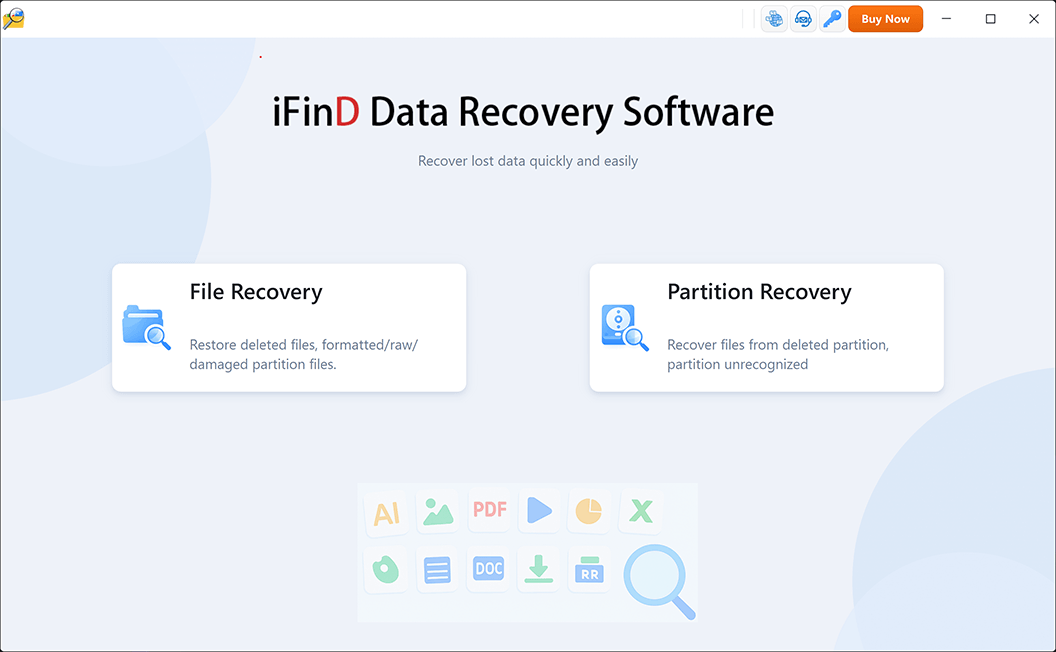
STEP 2 Choose Partition Recovery Mode
Launch iFinD Data Recovery and select the appropriate recovery mode. If the partition is missing, deleted, or no longer recognized by Windows, choose Partition Recovery.
Partition Recovery is designed to scan the entire disk, locate lost partition structures, and find files stored on inaccessible partitions.
If your partition is still visible but files are missing, you can choose File Recovery instead.
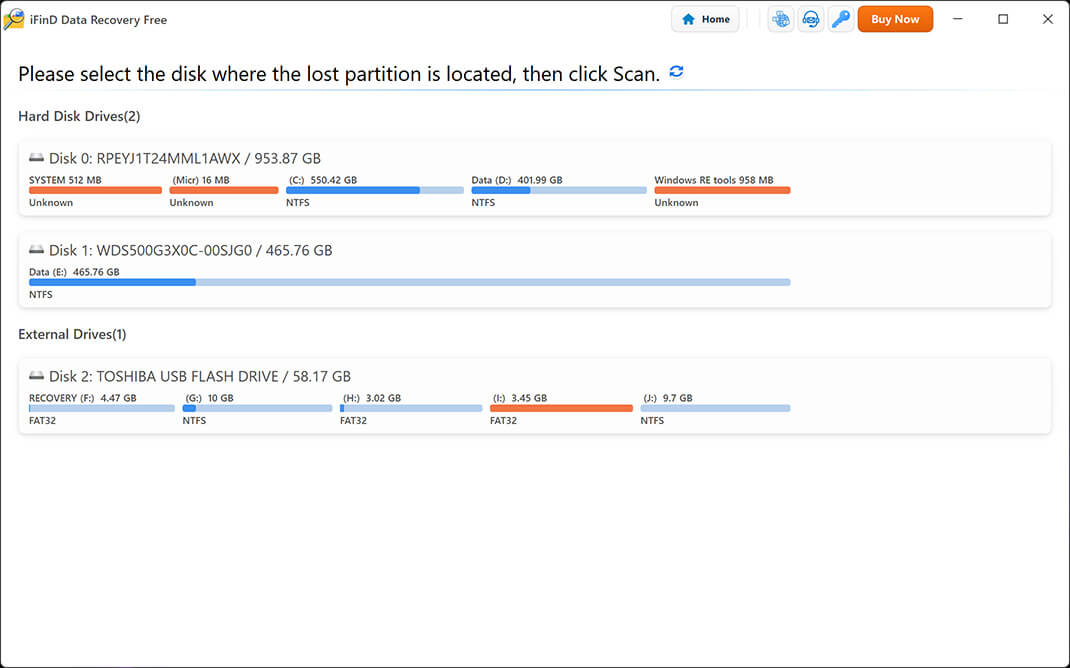
STEP 3 Select the Disk Containing the Lost Partition
Select the hard drive or storage device where the lost partition was located. iFinD Data Recovery will scan the selected disk to search for deleted, damaged, or unrecognized partitions.
Make sure you select the correct physical disk instead of formatting or creating a new partition on the drive before recovery.
STEP 4 Scan and Select the Lost Partition
After scanning, iFinD Data Recovery will display the detected partitions, including lost or deleted partitions that are no longer visible in Windows.
Select the partition you want to recover and preview the files found inside it. You can check documents, photos, videos, and other files before starting the recovery process.
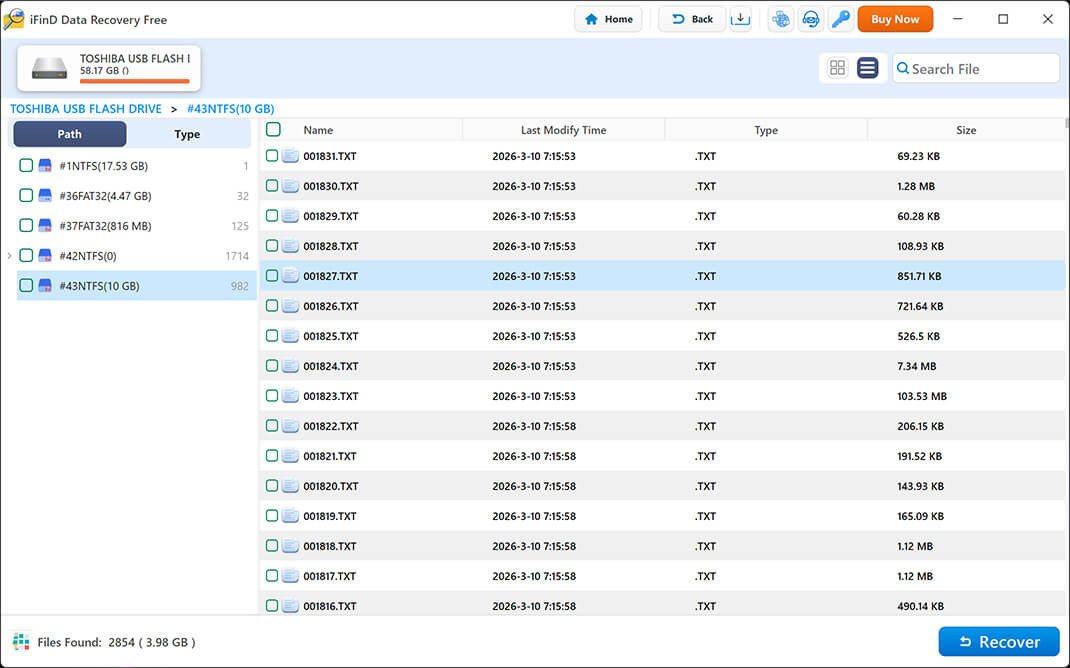
STEP 5 Recover Files to a Safe Location
After selecting the files you need, click the Recover button and choose a safe location to save the recovered data.
⚠️ Important Notice: Do not save recovered files back to the same drive where the lost partition was located. Writing new data to the affected disk may overwrite other recoverable files and reduce the chance of successful recovery.
Once the recovery process is complete, open the destination folder and verify that your recovered files are accessible.
6. Tips to Prevent Partition Loss
Although partition recovery software can help recover lost or inaccessible partitions in many situations, preventing partition loss is always safer than recovering data afterward. The following tips can help reduce the risk of partition-related data loss.
- Keep Regular Backups of Important Files: The most effective way to protect your data is to maintain regular backups. Store important documents, photos, and other files on another storage device or a reliable cloud backup service. A backup allows you to restore your data quickly even if a partition becomes damaged or the storage device fails.
- Be Careful When Managing Disk Partitions: When using tools such as Windows Disk Management or third-party partition software, double-check the selected disk and partition before deleting, formatting, or resizing a volume. Accidentally modifying the wrong partition is one of the common causes of partition loss.
- Avoid Interrupting Disk Operations: Do not force shut down your computer while Windows is modifying partitions, formatting drives, or transferring large amounts of data. Unexpected power loss during these operations may damage the partition structure or file system.
- Safely Remove External Storage Devices: For external hard drives, USB flash drives, and SD cards, always use the safe eject option before disconnecting them. Removing a device while data is being written may cause file system errors and make the partition inaccessible.
- Monitor the Health of Your Storage Devices: A failing hard drive or SSD can cause partition errors and data loss. If you notice unusual symptoms such as slow performance, frequent disconnections, or read/write errors, back up your data as soon as possible.
7. Frequently Asked Questions About Lost Partition Recovery
Can a deleted partition be recovered?
Yes, a deleted partition can often be recovered if the data stored on the drive has not been overwritten by new files.
When a partition is deleted, Windows usually removes the information that identifies the partition rather than immediately erasing all data inside it. A partition recovery tool can scan the disk, locate lost partition structures, and help recover the files stored on the missing partition.
However, recovery success depends on factors such as how much new data has been written to the drive and the condition of the storage device.
Why does my partition not show up in Windows?
A partition may disappear from Windows for several reasons, including accidental deletion, partition table corruption, file system errors, formatting, or storage device problems.
In some cases, the partition may still exist but Windows cannot recognize it. You can check the drive status in Disk Management. If the partition appears as RAW, Unallocated, or is missing completely, a partition recovery solution may be required.
What is the difference between File Recovery and Partition Recovery?
The main difference is whether the partition structure is still available.
- File Recovery is suitable when the partition is still visible in Windows but files are deleted, missing, or inaccessible.
- Partition Recovery is designed for situations where the partition itself is lost, deleted, damaged, or no longer detected by Windows.
If Windows cannot find the partition, recovering individual files directly may not be the best approach. In this case, scanning for lost partitions first can help locate the original data structure.
Can I recover files from an unallocated partition?
Yes, files may still be recoverable from an unallocated partition if the original data has not been overwritten.
When a partition becomes unallocated, Windows no longer recognizes it as a usable volume, but the data blocks containing your files may still remain on the disk.
Using a partition recovery tool can help search the drive for lost partitions and recover the files stored inside them.
Will formatting a lost partition erase all my data?
Not necessarily.
A quick format usually removes file system information and creates a new file structure, but it does not immediately overwrite all existing data on the drive.
However, continuing to use the formatted drive may overwrite the remaining data and make recovery more difficult. If you accidentally formatted a partition, stop using the drive and try recovery as soon as possible.