Last Updated on July 20, 2026 by andy woo
Have you accidentally deleted RAW photos from your camera or SD card?
RAW files contain original image data captured by professional cameras, including Canon CR2/CR3, Nikon NEF, and Sony ARW formats. Losing these files can be frustrating, especially when they contain important photos from professional shoots or personal memories.
Fortunately, deleted RAW photos are not always permanently lost. If the storage device has not been overwritten, you may still be able to recover RAW files using professional data recovery software.
This guide explains how to recover deleted camera RAW files with iFinD Data Recovery and restore lost photos from different devices.
- 01 1. Can Deleted RAW Photos Be Recovered?
- 02 2. What Are RAW Photos and Why Are They Important?
- 03 3. Supported RAW Photo Formats from Popular Camera Brands
- 04 4. How to Recover Deleted RAW Photos with iFinD Data Recovery
- 05 5. Recover RAW Files from Different Storage Devices
- 06 6. Tips to Prevent RAW Photo Loss in the Future
- 07 7. Frequently Asked Questions About RAW Photo Recovery
1. What Are RAW Photos and Why Are They Important?
RAW photos are unprocessed image files that contain the original data captured by a digital camera’s image sensor. Unlike JPEG images, which are automatically compressed and processed by the camera, RAW files preserve much more image information, giving photographers greater flexibility when editing exposure, colors, details, and image quality.
Professional cameras from brands such as Canon, Nikon, Sony, Fujifilm, and Panasonic use different RAW file formats, including CR2, CR3, NEF, ARW, RAF, and RW2. These files are commonly used by professional photographers because they provide higher image quality and more editing possibilities compared with standard JPEG images.
However, RAW files are also more vulnerable to data loss because they are usually stored on SD cards, CFexpress cards, or other removable storage devices. Accidental deletion, formatting errors, corrupted memory cards, or interrupted file transfers can cause important RAW photos to disappear.
Fortunately, deleted RAW photos are not always permanently lost. As long as the original storage space has not been overwritten by new data, professional data recovery software like iFinD Data Recovery may help recover lost RAW image files from cameras, SD cards, and other storage devices.
2. How Does RAW Photo Recovery Actually Work?
3. Supported RAW Photo Formats from Popular Camera Brands
iFinD Data Recovery supports a wide range of RAW image formats from popular camera manufacturers. Whether you use a DSLR, mirrorless camera, drone, or professional photography equipment, the software can scan and recover many commonly used RAW file types.
All RAW formats listed above are supported by iFinD Data Recovery, allowing users to recover deleted, formatted, or lost RAW photos from different camera systems.
For photographers who need to recover RAW images from SD cards, choosing professional SD card recovery software with RAW format support is important.
4. How to Recover Deleted RAW Photos with iFinD Data Recovery
Step 1 Install iFinD Data Recovery
The first step is to run the software iFinD Data Recovery on your computer; its easy-to-use interface will help you complete your task successfully from the beginning to the end.
Professional Data Recovery Shouldn’t Cost a Fortune.
iFinD delivers the exact same industry-leading recovery rates as the most expensive competitors, but at the market’s most affordable price. Start free with 1GB, and upgrade for less.
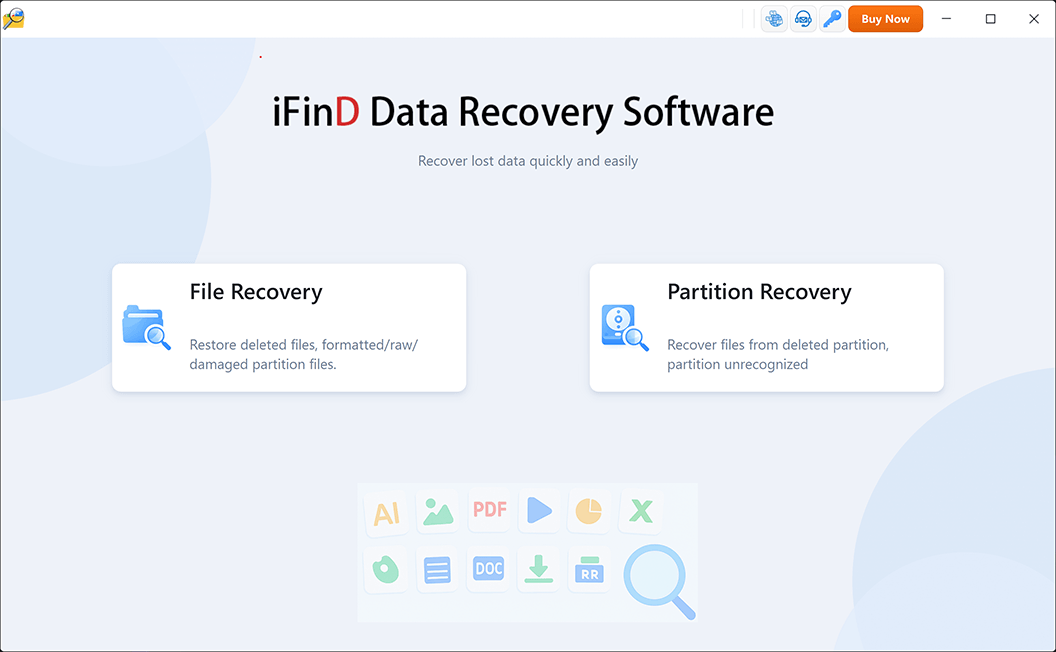
Step 2 Select File or Partition Recovery
Your data recovery choices are “File Recovery” or “Partition Recovery.”
If the partition where your files were stored is still visible and can be recognized by Windows, choose “File Recovery” mode.
This mode is designed to scan the selected drive or partition for deleted files and recover files that are no longer accessible but have not been overwritten.
However, if the partition or drive is missing, damaged, or cannot be detected by Windows, choose “Partition Recovery” instead.
In this situation, your first goal is not to recover individual files, but to restore the lost partition structure. Once the missing partition is recovered, you can access and recover the files stored on it.
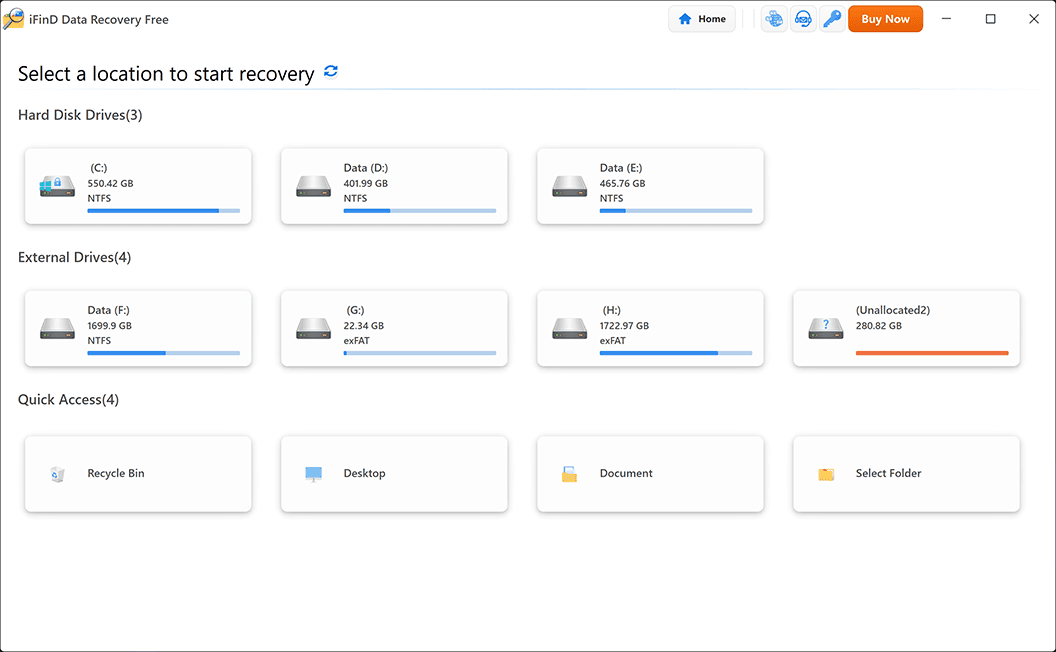
Step 3 Select the Location Where RAW Photos Were Lost
Next, locate and choose the drive or external device where your deleted photos were saved – such as USB flash drives or digital camera memory cards – where they were stored. iFinD Data Recovery supports many devices to ensure smooth recovery due to compatibility issues.
Step 4 Scan and Preview Deleted Files
iFinD Data Recovery can recover not only deleted RAW photos, but also videos, documents, audio files, and other lost data from the same storage device.
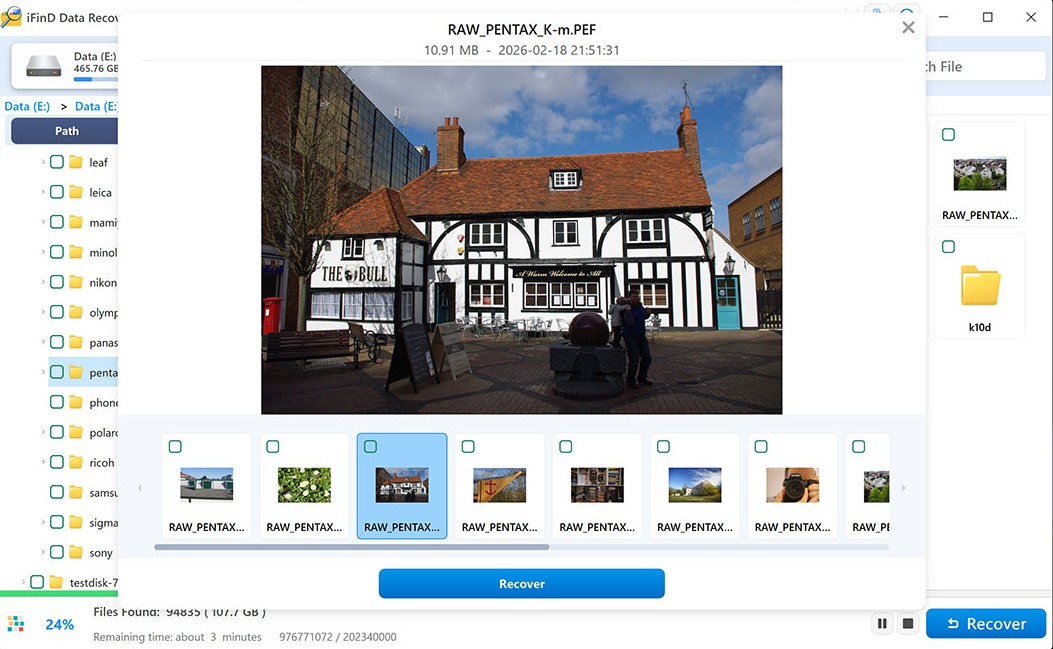
Step 5 Recover Lost Files to a Safe Location
After previewing and selecting the RAW photos you want to recover, click the Recover button and choose a safe location to save the recovered files.
Important: To avoid overwriting other lost data, do not save the recovered videos back to the same drive or storage device where they were originally lost. For example, if you are recovering videos from an SD card, save them to your computer’s hard drive or another external storage device instead.
Once the recovery process is complete, you can open the selected folder and check your recovered RAW photos.
5. Recover RAW Files from Different Storage Devices
RAW photos can be lost from different storage devices, including camera memory cards, hard drives, SSDs, and external storage devices. The recovery method depends on where your RAW files were originally stored.
Recover RAW Photos from SD Cards and Memory Cards
SD cards are the most common storage media for DSLR and mirrorless cameras. Accidental deletion, formatting, corruption, or interrupted file transfers may cause RAW photos to disappear. If you lose photos from a memory card, you can also follow our SD card recovery guide
To recover lost RAW photos from an SD card, connect the card to your computer using a card reader and scan it with iFinD Data Recovery.
Avoid saving new photos to the card before recovery, because overwritten data may become permanently unrecoverable.
Recover RAW Files from Hard Drives and External Drives
Many photographers transfer RAW files from cameras to computers or external drives for editing and backup. If these files are deleted or lost due to drive errors, iFinD Data Recovery can scan the storage device and search for recoverable RAW images.
Recover RAW Photos After Formatting or File System Errors
Formatting a storage device does not always erase RAW photos immediately. If new data has not overwritten the original files, recovery software may still locate and restore lost RAW images.
6. Tips to Prevent RAW Photo Loss in the Future
RAW photos contain original sensor data and are often irreplaceable, especially for professional photographers. Although recovery software can help restore lost RAW files in many situations, preventing data loss is always the best solution.
Follow these tips to keep your RAW photos safe:
1. Back Up RAW Photos Regularly
Create multiple copies of your RAW files instead of storing them in only one location. A reliable backup strategy is to keep your photos on different storage devices, such as an external hard drive, NAS, or cloud storage.
The 3-2-1 backup rule is recommended:
- Keep at least 3 copies of your photos
- Store them on 2 different types of storage media
- Keep 1 copy in a separate location
This helps protect your RAW files from accidental deletion, hardware failure, or device damage.
2. Avoid Formatting Memory Cards Before Backup
Camera memory cards can contain hundreds or thousands of RAW photos. Before formatting an SD card, always confirm that all important photos have been successfully transferred and backed up.
If you accidentally format a memory card, stop using it immediately to prevent new data from overwriting your lost RAW files.
3. Use High-Quality Memory Cards
Low-quality or damaged memory cards are more likely to cause file corruption or unexpected data loss.
Choose reliable SD cards with sufficient storage capacity and avoid using cards that frequently show errors or slow performance.
4. Safely Transfer RAW Files
Do not disconnect your camera, SD card, or external drive while transferring RAW photos. Interrupting the transfer process may result in corrupted or incomplete files.
Always safely eject storage devices after file transfers are completed.
5. Keep Multiple Storage Devices for Important Photos
For valuable photography projects, such as weddings, travel photos, or professional shoots, avoid keeping all RAW files on a single device.
Saving copies on both local storage and cloud backup can significantly reduce the risk of permanent photo loss.
7. Frequently Asked Questions About RAW Photo Recovery
Can deleted RAW photos be recovered?
Yes, deleted RAW photos can often be recovered if the storage space has not been overwritten by new data.
When a RAW file is deleted from a camera SD card, hard drive, or other storage device, the file itself is usually not immediately erased. Instead, the system marks the space as available for new data.
Using professional RAW photo recovery software like iFinD Data Recovery can help scan the storage device and locate recoverable RAW image files.
Can I recover RAW photos from a formatted SD card?
Yes, RAW photos from a formatted SD card may still be recoverable if new data has not overwritten the original files.
Quick formatting usually removes the file system information rather than immediately destroying all photo data. iFinD Data Recovery can scan formatted SD cards and search for recoverable RAW files from supported camera formats.
For the best recovery results, stop using the SD card immediately after formatting.
What RAW file formats does iFinD Data Recovery support?
iFinD Data Recovery supports many RAW image formats from popular camera brands, including:
- Canon: CR2, CR3, CRW
- Nikon: NEF, NRW
- Sony: ARW, SR2, SRF
- Fujifilm: RAF
- Panasonic: RW2
- Olympus: ORF
- Pentax: PEF, PTX
- Leica: DNG, RWL
It can help recover RAW photos from DSLR cameras, mirrorless cameras, drones, and other professional photography devices.
Can I recover RAW photos from a damaged or corrupted SD card?
Yes, iFinD Data Recovery can help scan some corrupted SD cards and storage devices to find recoverable RAW photos.
RAW files may become inaccessible due to file system errors, interrupted transfers, improper ejection, or storage device problems.
However, if the SD card has physical damage, recovery success depends on the condition of the hardware.
How can I recover deleted RAW photos from my camera?
To recover deleted RAW photos from a camera:
- Remove the memory card from your camera immediately.
- Connect the SD card to your computer using a card reader.
- Launch iFinD Data Recovery and select the storage device.
- Scan for lost RAW files.
- Preview and recover the found photos to another location.
Avoid taking new photos after data loss because new files may overwrite the deleted RAW images.
How can I prevent RAW photo loss in the future?
The best way to prevent RAW photo loss is to maintain regular backups and handle storage devices carefully.
Recommended practices include:
- Back up RAW files to multiple locations.
- Avoid formatting memory cards before confirming your photos are backed up.
- Use reliable SD cards from trusted brands.
- Safely eject storage devices during file transfers.
- Keep important photography projects on both local storage and cloud backup.
Professional Data Recovery Shouldn’t Cost a Fortune.
iFinD delivers the exact same industry-leading recovery rates as the most expensive competitors, but at the market’s most affordable price. Start free with 1GB, and upgrade for less.
Leave A Comment