Last Updated on July 13, 2026 by andy woo
SD Card repair can be a very agonizing question for most of us, but we are really using memory cards all day alone, for the android phone, camera, mp3 and more. So we will show you how to repair damaged or Corrupted sd card with some easy and multi-angle tips.
what is a corrupt sd card?
If you saw some of these signs, you are dealing with a corrupted memory card repair problem.
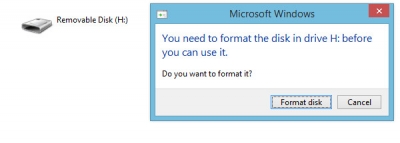
You need to format the disk in (your sd card drive) before you can use it.
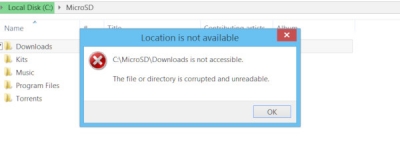
(Your sd card drive) is not accessible
And there are some other warnings like “write protected“, “Please insert a disk into drive” or “cannot recognize (your sd card)“.
how to repair damaged sd card without formatting
To fix a corrupted SD card, you can follow the next tips and see what’s works for you.
Device hardware environment check
First, let’s check if there is something wrong around your sd card which cause the problem.
Put your Sd card to another card reader and see if it works.
Put your SD card to another android phone and see if it works.
Connect your SD card to another USB port of your computer and see if it works.
Connect your SD card to another computer and see if it works.
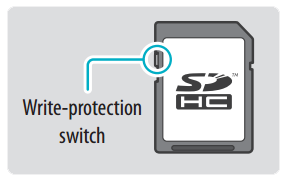
Check your sd card write protection switch
Check if you use the windows file system in Mac or opposite. Such as Mac can’t write NTFS and windows even can’t read HFS+ drives.
Check the drivers for your SD card device, and Reinstall the driver to see how it works.
how to repair corrupted sd card
If there is nothing wrong with the device, to fix the damaged sd card, you can try the next tips.
Give the SD card drive another drive letter
Sometimes there is a problem for windows system about drive letter assignment. It means when you connect your SD card device to the computer, windows can’t assign the right letter for the new device and cause the device can’t read, and sometimes with a warning message like Please insert the disk into drive X. To solve the problem, you can assign a new letter to your memory card device with the following steps:
- Connect the sd card device to your windows and make sure the device driver is OK.
- Right-click the computer icon on desktop and choose the “Manage”
- Hit the “Disk Management” at the left of Manage window, can you can see all the drives on the right within seconds
- Find your SD card device, Right-click on it, and then select “Change drive letter and paths”.
- Select the current letter and hit change, choose a new letter in the next window and click OK
Then check how the device works now.
Use chkdsk command to fix SD card errors
CHKDSK is a Windows built-in command which can be used to fix all the file system errors including sd card device.
Notice:
You need Administrators Permission to run chkdsk to fix your device, which means you should open the CMD as an administrator.
- Connect your SD card device to your PC
- Click the Windows Start and type “CMD” for search
- As we mentioned, Run cmd as administrator
- Open your Windows Explorer and find the letter of your memory card drive
- In the command prompt, input “chkdsk [your memory card drive letter]: /f “, If your sd card drive letter is E: then the final command will be “”chkdsk E: /f“
- Then wait and see chkdsk fix your drive errors, it maybe takes a while, and may ask you for some more actions until finished.
Notice:
Do NOT Interrupt or terminate the command prompt when it’s running.
Use Windows Explorer to repair corrupted SD card
If you are not a fan of the command prompt, you can also use windows explorer. To repair your damaged SD card with Windows Explorer, you can follow the next steps:
Step 1: Connect your SD card device to your computer
Step 2: Open Windows Explorer and click computer on the left bar.
Step 3: Find the drive letter with your SD card device, Right-click it and Select Properties
Step 4: Choose “Tool” on the top then click the “Check now” in Error-checking.
Step 5: Click Start in the next window and wait Windows scan and fix your SD card.
Tips:
How to Repair Damaged SD Card using SD Card Recovery Software
OK, if you still can’t fix the problems without format your SD card, the next move is using our free sd card recovery software to fix the error and restore your data on SD card. You can follow our step by step guide to recover all the photos, files on your SD card.
Related: How to Recover Deleted Photos/Pictures from SD Card?
More Tips for Keep your Sd card safe and healthy
Backup
Data is Priceless. To protect your files and images, you should back up the SD card from time to time, especially when there are any kinds of warning message we talk about in the begin of this article, you should back up all the data ASAP!
Warranty
Even you fixed the problem (nice job by the way), you should know there also have a chance your SD card has some physical damage. Check your warranty first, and if it’s still in the guarantee period, it’s better to contact the manufacturer to replace a new one. Of cause, Remember to backup your data first!