Last Updated on August 2, 2026 by andy woo
- 01 1. What Is Data Recovery and How Does It Work?
- 02 2. Common Causes of Data Loss (Logical vs. Physical)
- 03 3. Data Recovery Solutions by Storage Device
- 04 4. Data Recovery Solutions by File Type
- 05 5. DIY Recovery Software vs. Professional Cleanroom Services
- 06 6. How to Choose the Best Data Recovery Software
- 07 7. Step-by-Step Data Recovery Process
- 08 8. Expert Tips to Prevent Future Data Loss
- 09 9. Frequently Asked Questions (FAQ)
That split second when you realize a crucial file is gone—or when your entire hard drive suddenly shows up as "RAW"—is pure panic.
Whether it’s years of family photos on an SD card, a critical business database, or a hardware RAID array that just crashed, data loss feels like an absolute disaster.
But before you try to format the drive, run random repair commands, or pack it up to ship to a $2,000 professional cleanroom, take a deep breath.
💡 The Technical Truth: Your Data Hasn't Vanished
When you delete a file, format a partition, or experience a logical crash, the operating system simply deletes the pointers to your files. It marks that storage space as "available."
However, the actual raw data remains perfectly intact on the physical sectors of your disk. As long as you do not overwrite it with new files, that data can be fully reconstructed.
This guide isn't just another generic list of software tools. It is a comprehensive, continuously updated roadmap for 2026. Whether you are trying to recover an unsaved Word document, bypass a dead external drive controller, or extract files from a failing SSD, we will help you identify your exact problem and navigate directly to the safest, most effective recovery solution for your specific device.
Let's get your files back.
1. What Is Data Recovery and How Does It Work?
1. Before deletion: file is accessible
Raw sector data on disk
2. After deletion: only the index entry is removed
Blocks are marked "free" but content is untouched
3. Recovery: software rescans disk, rebuilds index
The file can be restored if not yet overwritten
At its core, data recovery is the process of salvaging inaccessible, lost, corrupted, or formatted data from secondary storage, removable media, or files, when the data stored in them cannot be accessed in a normal way.
To understand how recovery software works, you need to know how a computer stores files. Hard drives and SSDs use File Systems (like NTFS, FAT32, exFAT on Windows, or APFS on Mac) as a master index table.
When you permanently delete a file (using Shift+Delete) or empty the Recycle Bin, Windows does not actively erase the file's binary data from the disk sectors. It simply removes the file's entry from the master index table.
Professional data recovery algorithms bypass the broken or modified operating system index. Instead, they scan the raw physical sectors of the drive, identifying file signatures. Think of these signatures as unique digital fingerprints (such as the specific hex header FF D8 FF E0 for a JPEG) to rebuild and extract the lost files, even if the file system is completely destroyed.
2. Common Causes of Data Loss (Logical vs. Physical)
Before attempting any recovery method, it is crucial to determine if your storage device is suffering from logical corruption or physical damage. Using the wrong approach on a physically failing drive can cause permanent data destruction.
Logical Damage (Software-Level Issues)
This is the most common type of data loss. The physical hardware is perfectly healthy, but the file system or data structure is messed up. In the vast majority of these software-level incidents, you can successfully extract the files yourself without needing laboratory services.
- Accidental Deletion: You mistakenly emptied the Recycle Bin or used Shift+Delete.
- Formatting Errors: You accidentally formatted the wrong drive, or Windows prompts you to format a disk before you can use it. (Note: Never format a drive if you want to keep the data. Read our guide on formatted drive recovery instead).
- RAW File System: The drive shows up in Disk Management, but the file system is listed as "RAW" instead of NTFS or FAT32, making the volume inaccessible.
- Lost or Deleted Partitions: A sudden power outage or improper unplugging can corrupt the partition table, making the entire drive disappear. When this happens, you must rely on specialized lost partition recovery techniques to rebuild the volume.
Physical Damage (Hardware-Level Issues)
Physical damage means the mechanical components (like the read/write heads in an HDD) or the electronic components (like the controller chip in an SSD or flash drive) are broken.
- Mechanical Failures: The hard drive makes clicking, grinding, or beeping noises.
- Electronic Failures: The drive smells like burnt plastic, or it does not spin up or receive power at all.
- Severe Bad Sectors: The computer completely freezes or bluescreens (BSOD) the moment the drive is plugged in.
⚠️ Critical Warning: If your hard drive is making a ticking or clicking sound, power it off immediately. Software cannot fix broken hardware. Continuing to run a clicking drive will cause the read/write heads to scratch the magnetic platters, turning a recoverable situation into permanent data loss.
3. Data Recovery Solutions by Storage Device
Different storage media use different file systems and hardware controllers. We have categorized our most comprehensive recovery guides based on the specific device you are trying to restore:
Internal Hard Drives (HDD & SSD)
Whether your internal drive failed to boot, crashed, or was accidentally formatted. Learn the specific nuances of recovering data from traditional platters versus modern SSDs with TRIM enabled.
Read Hard Drive Guide →External Hard Drives
External drives are prone to physical drops and improper ejection. Discover how to bypass dead USB controllers and fix RAW partition errors on your portable HDD or SSD.
Read External Drive Guide →USB Flash Drives
Fix unrecognized USB sticks, corrupted file systems, and "Please insert a disk into USB drive" errors without losing your important documents or projects.
Read USB Recovery Guide →SD & Memory Cards
Tailored for photographers and videographers. Recover lost media from corrupted SD, MicroSD, and CF cards used in cameras, drones, and smartphones.
Read SD Card Guide →RAID & NAS Arrays
Reconstruct broken RAID 0, 1, 5, or 10 configurations. Expert techniques to extract business-critical data from failed NAS enclosures and degraded servers.
Read RAID Recovery Guide →Recycle Bin & Local Folders
Accidentally emptied your Recycle Bin or used the Shift+Delete shortcut? Find out how to quickly restore deleted files from your PC's local drives before they are overwritten.
Recover Deleted Files →4. Data Recovery Solutions by File Type
If you know exactly what type of file you lost, specialized carving algorithms can help locate those specific file signatures much faster.
Office Documents
Accidentally closed a Word document without saving? Or deleted an Excel spreadsheet? Learn the difference between recovering unsaved drafts and permanently deleted files.
Recover Word & Excel →Photos & RAW Images
Restore permanently deleted JPEG, PNG, and professional RAW formats (CR3, NEF, ARW) from emptied recycle bins, formatted camera storage, or corrupted drives.
Recover Photos Guide →Video Files
Large video files (MP4, MOV) are often severely fragmented across a drive. Discover advanced recovery techniques for drone footage, Sony camera clips, and even YouTube videos.
Recover Videos Guide →Emails & Archive Files
Retrieve permanently deleted Outlook emails (PST/OST files) and corrupted compressed archives (ZIP, RAR) that refuse to extract or open normally.
Recover Emails & Archives →5. DIY Recovery Software vs. Professional Cleanroom Services
Once you have identified whether your data loss is due to logical corruption or physical damage, you face a critical decision: should you run recovery software at home, or ship your device to a professional lab?
Making the wrong choice here can either cost you thousands of unnecessary dollars or permanently destroy your remaining data.
When to Use DIY Data Recovery Software
If your storage device still receives power, spins up without abnormal noises, and is recognized by your computer's BIOS or Disk Management (even if it shows the wrong capacity or is marked as unallocated), software is your best and first option.
- Safe & Non-Destructive: Professional software operates in a strict read-only mode. It will never write new data to your damaged drive.
- Immediate Results: You can start scanning instantly without waiting weeks for shipping and lab evaluations.
- Ideal For: Accidental deletion, formatting, OS crashes, virus attacks, and RAW file systems.
When to Hire a Professional Cleanroom Lab
If your device has suffered severe physical trauma—such as being dropped on concrete, submerged in water, or subjected to a power surge that fried the PCB—software cannot help. You need a Class 100 (ISO-5) cleanroom.
- Hardware Surgery: Engineers must open the drive in a strictly dust-free environment to physically swap broken read/write heads or transplant flash memory chips onto a donor board.
- Specialized Equipment: Labs use expensive hardware-level imaging tools (like PC-3000) to bypass failing firmware and extract raw hex data sector by sector.
💰 The Cost Factor: What Should You Expect?
The financial difference between these two paths is massive. While a lifetime license for top-tier recovery software typically costs under $100 (with many offering free tiers), professional lab services involve hourly engineering labor and the purchase of identical "donor" parts. Before deciding to send your drive away, we highly recommend reading our transparent breakdown of how much professional data recovery costs, which can range from several hundred to well over two thousand dollars depending on the severity of the damage.
6. Choosing the Right Data Recovery Software
Full disclosure: We are the engineering team that builds iFinD Data Recovery. Because we sell recovery software, we obviously have a horse in this race. However, we have spent years reverse-engineering file system structures and studying how different software algorithms behave under stress, and we want to share that engineering criteria with you.
When evaluating any recovery tool (including ours), you should look for three non-negotiable technical features:
- Deep RAW Carving: Basic tools only scan the Master File Table (MFT). If the MFT is destroyed, they find nothing. Advanced software must be able to scan the raw physical sectors and reconstruct files using their unique hexadecimal signatures.
- Strict Read-Only Execution: The software must never attempt to "repair" or write data back to the damaged drive during the scanning process.
- True File Preview: A reliable tool will let you preview the hex data or visual thumbnail of a file before you commit to saving it. If the preview fails, the recovered file will likely be corrupted.
Why We Built iFinD Data Recovery
We developed iFinD to solve a specific frustration in the industry: forensic-level recovery algorithms were often locked behind overly complex, expensive enterprise suites. We wanted to wrap deep-scan technology into a UI that anyone could navigate.
Our proprietary engine excels at handling highly fragmented media—particularly large video files (MP4, MOV) and professional RAW camera formats. By utilizing intelligent block-reassembly, iFinD pieces together fragmented data streams, ensuring a much higher integrity rate for complex multimedia where standard tools frequently output unplayable, broken files.
📊 How Do We Stack Up Against the Competition?
As the makers of iFinD, we are naturally biased. But instead of just telling you our software is great, we prefer to show you the receipts. We put our engine head-to-head against other popular industry tools using heavily corrupted SD cards to see who could recover actual playable files rather than broken fragments.
See the side-by-side screenshots and our full SD Card Recovery Tool comparison →
7. How to Recover Lost Data Using iFinD (Step-by-Step)
Ready to put our engine to the test? When files are deleted, formatted, or become inaccessible, the binary data still remains on the physical disk sectors until it is overwritten. Here is how to safely use iFinD Data Recovery to extract your files.
STEP 1 Isolate the Device and Stop All Write Operations
Immediately stop saving new files, installing software, or taking new photos on the affected storage device. Any new data written to the drive can permanently overwrite your lost files, rendering them unrecoverable even by our advanced algorithms.
Connect the affected hard drive, USB, or SD card to your Windows computer and ensure the physical connection is stable.
STEP 2 Launch iFinD Data Recovery
Download and install iFinD Data Recovery on a healthy partition (never install the software on the drive you are trying to recover). Launch the program to view all detected storage devices.
STEP 3 Choose the Correct Recovery Algorithm
Select the recovery mode based on how your device appears in Windows:
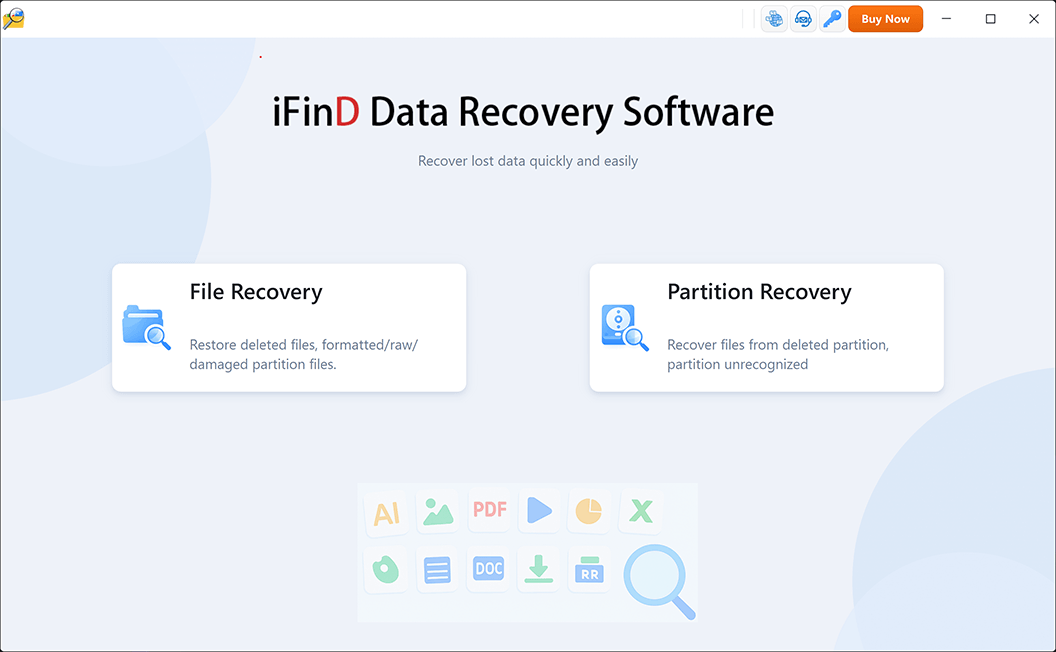
Option 1: File Recovery (For Accidental Deletion & Formatting)
If the partition where your files were stored is still visible in Windows and has a drive letter, choose File Recovery. This mode scans the selected partition structure to quickly rescue deleted, formatted, or emptied recycle bin files.
Option 2: Partition Recovery (For Missing Drives & RAW Errors)
If your drive has disappeared, shows as “Unallocated Space”, or prompts a RAW formatting error, choose Partition Recovery. Our engine will bypass the corrupted file system and rebuild the partition map directly from the hex data.
STEP 4 Execute Deep Scan on the Target Drive
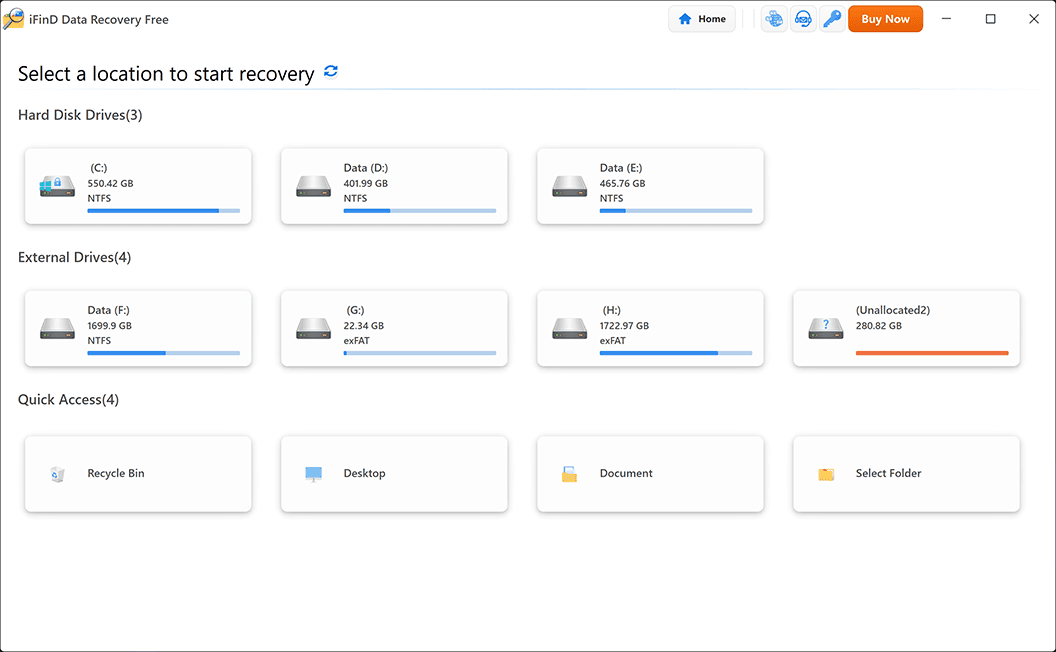
Select the specific drive letter or missing partition and initiate the scan. iFinD will perform a read-only sweep, starting with the MFT (Master File Table) and falling back to deep RAW sector carving for severely damaged file structures.
Tip: You can pause or save the scan session at any time if you are scanning a large-capacity hard drive.
STEP 5 Verify Integrity with True Preview and Recover
Once the scan finishes, use the built-in filters to locate your documents, photos, or videos. Double-click any file to trigger our True File Preview. If the preview displays correctly, the file is 100% recoverable.
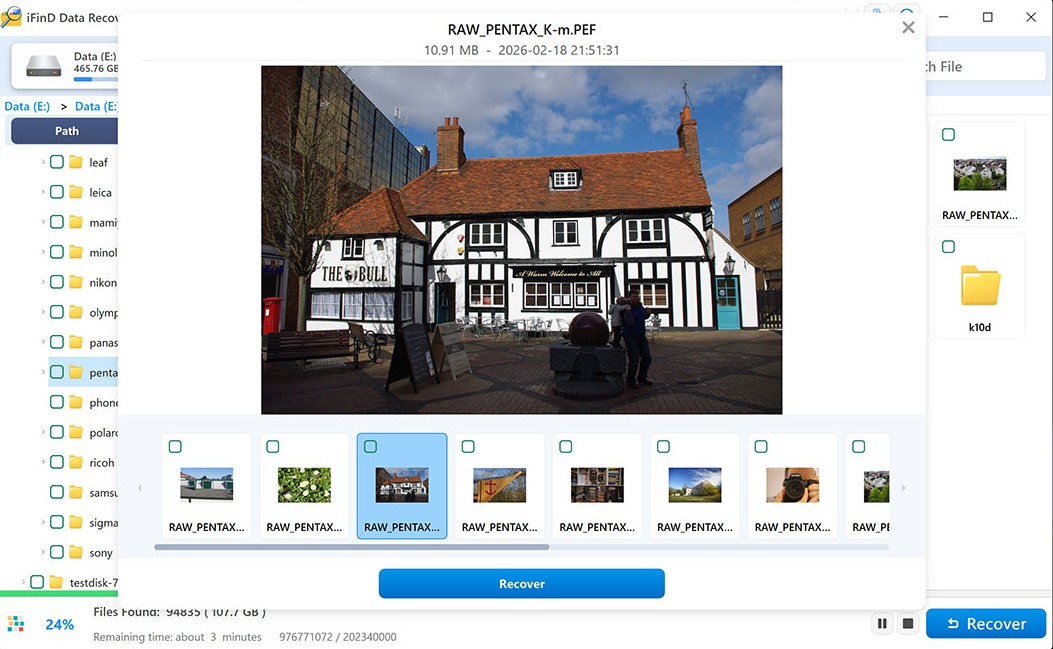
⚠️ Critical Engineering Rule: Never save the recovered files back to the original corrupted drive. Always export them to a different physical disk to prevent sector overwriting.
8. Expert Tips to Prevent Future Data Loss
As data recovery engineers, we often joke that our ultimate goal is to put ourselves out of a job. While iFinD is always here to rescue your files when disaster strikes, the absolute best recovery strategy is a bulletproof prevention plan. Here are four professional habits you should adopt today.
1. Adopt the 3-2-1 Backup Rule
This is the golden standard of data protection used by IT professionals worldwide. Never rely on a single copy of your important files.
- 3 Copies of your data: The original working file, plus two independent backups.
- 2 Different storage media: For example, keeping one backup on your internal SSD and another on an external HDD or NAS.
- 1 Offsite backup: A cloud service (like Google Drive, OneDrive, or Backblaze) to protect against local disasters like fire, flood, or theft.
2. Monitor S.M.A.R.T. Drive Health
Storage devices rarely die without warning. They have a built-in self-monitoring system called S.M.A.R.T. Use free monitoring tools like CrystalDiskInfo to occasionally check your drive's health.
For mechanical HDDs, watch out for "Reallocated Sectors." For modern SSDs, keep an eye on the "Media Wearout Indicator" or "Percentage Used." If you see yellow or red warnings, back up immediately. Do not wait for the drive to fail.
3. Use a UPS (Uninterruptible Power Supply)
Sudden power outages or voltage spikes are the leading causes of corrupted Master File Tables (MFT) and RAW partition errors. A UPS acts as a battery buffer, giving you enough emergency power to safely save your work and shut down your computer gracefully.
4. Enable Built-in OS Snapshots
Do not ignore the free, powerful tools your operating system already provides. Enable File History (on Windows 10/11) or Time Machine (on macOS). These tools automatically create periodic shadow copies of your working folders, allowing you to instantly roll back a document to a previous version if you accidentally overwrite it.
💡 Already Lost Your Data? Don't Panic.
If these prevention tips came a little too late, we've still got your back. Jump back to Chapter 7 to start your recovery process, or run a free deep scan with iFinD Data Recovery to see exactly which files can still be salvaged from your drive right now.
9. Frequently Asked Questions (FAQ)
Even with a comprehensive guide, data loss scenarios can be highly specific. Here are the technical truths behind the most common questions our engineering team receives.
Can overwritten data be recovered?
No. Once new data is physically written over the exact disk sectors containing your old files, the original binary data is permanently destroyed. Neither commercial software nor $2,000 professional cleanrooms can reverse overwriting. This is why you must stop using the affected drive immediately after data loss.
How long does a deep data recovery scan take?
Scan times depend entirely on the drive's capacity, read speed, and physical health. A quick scan of a healthy 64GB SD card might take 5 minutes. However, a deep RAW sector scan on a failing 2TB mechanical hard drive (HDD) with bad sectors can take anywhere from 10 to over 24 hours. Patience is crucial.
Can I recover files after a factory reset?
It depends on the device. For older traditional hard drives, recovery is often possible. However, for modern smartphones and computer SSDs, a factory reset typically triggers a TRIM command and wipes the hardware-level encryption keys. Once this happens, the data becomes permanently unrecoverable.
Is it safe to use free data recovery software?
Legitimate free tools (or the free preview tiers of professional software like iFinD) are completely safe because they operate in a strict read-only mode. However, you should never use "cracked" or pirated recovery software from unverified forums. They frequently contain ransomware that will encrypt your remaining healthy files.