Last Updated on August 6, 2026 by andy woo
RAID array crashed? Volume showing as degraded, offline, or RAW? Stop. Don't touch anything. What you do in the next few minutes determines whether your data is recoverable or gone for good.
This RAID data recovery guide covers exactly what to do—and what not to do—when a RAID 0, RAID 1, RAID 5, or RAID 10 array fails. You'll learn how to diagnose the problem, when to use recovery software, and when the only safe option is a professional cleanroom service.
- 011. Crucial Steps When Your RAID Array Fails (Stop Immediately!)
- 022. Common RAID Failure Symptoms (What Are You Seeing?)
- 033. Can You Recover Data from a Failed RAID Array?
- 044. How to Recover RAID Data with iFinD Data Recovery
- 055. Software Recovery vs. Professional RAID Recovery Services
- 066. Related Recovery Scenarios
- 077. How to Prevent RAID Data Loss
- 088. Frequently Asked Questions
1. Crucial Steps When Your RAID Array Fails (Stop Immediately!)
RAID arrays split data across multiple disks. When the array goes offline, the wrong move—like forcing a rebuild or running a repair tool—can permanently destroy your files. Here's what to do, and what to avoid at all costs.
⚠️ Critical Warnings—Do NOT Do the Following:
- Do Not Force a Rebuild: Inserting a new drive into a degraded RAID 5 or RAID 1 array triggers intense read/write stress on the remaining old drives. If a second drive fails during rebuild, your data is gone.
- Do Not Run CHKDSK or FSCK: These tools are built for single drives, not RAID arrays. Running them on a broken array destroys parity data and corrupts the file system.
- Do Not Initialize or Format: If Windows prompts you to "Initialize Disk" or format a RAW volume, click Cancel. Formatting wipes the metadata needed for reconstruction.
- Do Not Change the Drive Order: If you remove physical drives from a server or NAS, label them immediately (Drive 1, Drive 2, etc.). The exact sequence is mandatory for recovery software to reassemble the data.
Power down the NAS or server, label the drives, and prepare for a read-only recovery attempt. If you're dealing with a single failed drive rather than an entire array, our hard drive recovery guide may be a better starting point.
2. Common RAID Failure Symptoms (What Are You Seeing?)
Before you can fix a RAID problem, you need to know what you're dealing with. Here are the symptoms most users search for—and what each one typically means:
- RAID volume not detected by Windows: Usually a controller failure, a lost RAID configuration, or a degraded array that has dropped offline. The drives themselves may still be healthy.
- RAID shows as RAW or Unallocated: The file system or partition table is corrupted, often from a power outage or improper shutdown. The data stripes are still on the drives.
- RAID controller reports degraded status: One drive has failed, but the array is still running on redundancy. Replace the failed drive immediately, but back up your data before initiating a rebuild.
- RAID rebuild failed mid-process: A second drive dropped during the rebuild, crashing the array. Stop immediately—further rebuild attempts will destroy remaining data. This is the most common RAID 5 disaster.
- Multiple drives show as offline or failed: If more drives failed than your RAID level allows, the array collapses. Recovery depends on whether the failures are logical (bad sectors, timeout errors) or physical (mechanical damage).
- NAS enclosure powers on but won't boot: The NAS hardware failed, but the drives inside may be fine. Remove the drives, label their order, and connect them to a PC for recovery.
3. Can You Recover Data from a Failed RAID Array?
In most cases, yes—but your chances depend on the RAID level and what actually caused the failure. RAID failures fall into two categories: logical errors (drives are healthy, but the file system or configuration is corrupted) and physical damage (hardware is broken).
Recovery Odds by RAID Level
- RAID 0 (Striping): No fault tolerance. If one drive fails mechanically, the entire array's data is permanently lost. But if the array dropped offline due to a controller error or lost partition, recovery software can reassemble the data stripes.
- RAID 1 (Mirroring): Excellent recovery chances. Data is written identically to two drives. If one fails or the enclosure breaks, connect the healthy drive directly to a PC and scan it—no RAID reconstruction needed.
- RAID 5 (Parity): Designed to survive one drive failure. But if two drives drop offline—which frequently happens during a rebuild—the array crashes. Recovery is still possible with software if the failures are logical (bad sectors, timeout errors) rather than severe mechanical damage. This is the most common RAID recovery scenario.
- RAID 10 (Stripe of Mirrors): Very high recovery chances. Unless both drives in the same mirrored pair fail simultaneously, the data remains accessible and can be reconstructed from the surviving drives.
Logical vs. Physical RAID Failures
Logical failures—accidental formatting, deleted files, lost partitions, RAID configuration loss—are the best-case scenario. All drives are physically healthy, and recovery software handles these efficiently. For reformatted drives specifically, our formatted drive recovery guide covers the scan process in detail.
Physical failures—clicking noises, burnt components, multiple dead drives—require a different approach. If drives are making mechanical sounds, stop immediately and consider professional data recovery services. Software cannot fix broken hardware.
How RAID Recovery Software Works: Virtual Reconstruction
Professional RAID recovery software uses a read-only process to locate and restore data from failed arrays. For Windows dynamic disks, the software automatically detects the original RAID parameters—RAID type, stripe size, and disk sequence—directly from the remaining metadata on the drives. For NAS-based arrays using Linux file systems (EXT4, Btrfs), the software reads across the physical drives and reconstructs the file structure from the surviving data and parity information. In all cases, the original drives are never written to during the scan.
4. How to Recover RAID Data with iFinD Data Recovery
When a RAID array collapses due to a logical failure, iFinD Data Recovery can scan individual drives and virtual dynamic volumes to locate and restore lost files. It's designed for scenarios where the physical drives are still functional but the array structure is broken—such as accidental formatting, lost partitions, controller failures, or degraded volumes that won't mount.
STEP 1 Connect the RAID Drives and Prevent Overwriting
If the NAS or RAID controller failed, power down the system and remove the physical drives, labeling them in exact sequence (Drive 1, Drive 2, etc.). Connect them to a Windows PC—if prompted to "Initialize Disk" or format, click Cancel. Initializing will destroy the RAID metadata.
STEP 2 Launch iFinD Data Recovery and Verify Detection
Launch iFinD Data Recovery and check whether the software recognizes your connected drives.
For Windows dynamic disks: iFinD can detect degraded or inaccessible dynamic volumes (Simple, Spanned, Striped, Mirrored, RAID-5) even when they show as offline or RAW in Disk Management.
For NAS drives (Synology, QNAP, etc.): Connect the drives to your Windows PC. If prompted to initialize or format, click Cancel. iFinD can scan the drives individually to locate lost partitions and recover files from EXT4, Btrfs, and other Linux file systems. For a complete guide on handling individual drives, see our hard drive recovery guide.
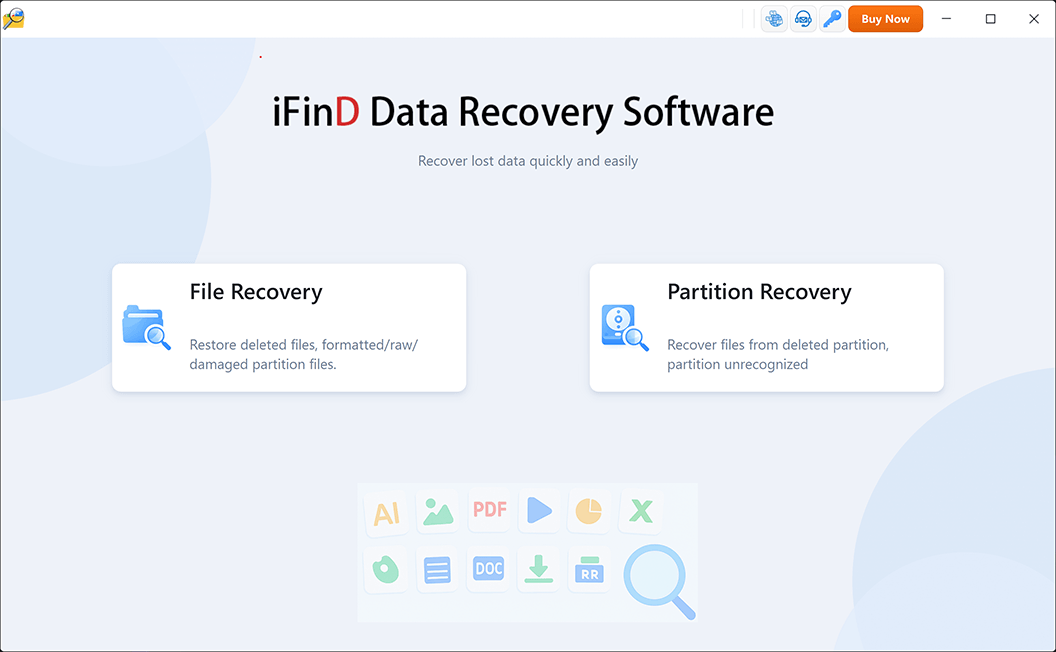
STEP 3 Choose File Recovery or Partition Recovery Mode
Pick the recovery mode that matches your situation:
Option 1: File Recovery
Use this if the RAID volume is still mounted and accessible, but specific files were accidentally deleted or disappeared. File Recovery scans the existing file system to extract lost data quickly.
Option 2: Partition Recovery
Use this if the RAID volume shows as RAW, Unallocated, or has a missing partition table. Partition Recovery performs a deep analysis of the physical drives to locate and virtually rebuild the damaged volume.
STEP 4 Select and Scan the Failed RAID Volume
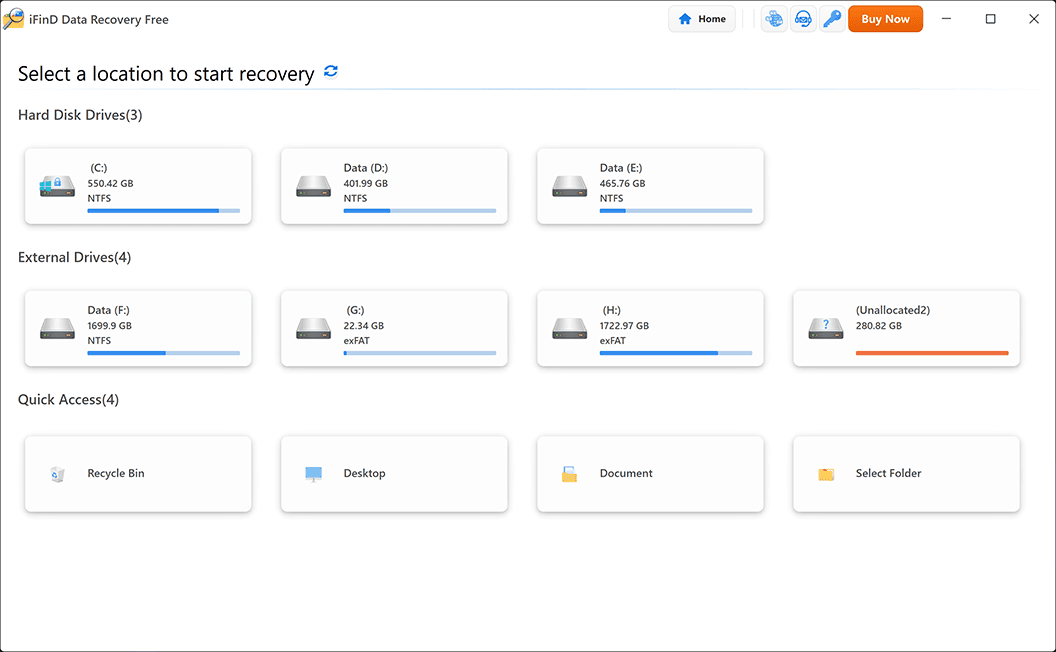
Select the crashed RAID array or dynamic volume from the device list and start the scan. If the array was originally created as a Windows dynamic disk (Simple, Spanned, Striped, Mirrored, or RAID-5), iFinD automatically detects the RAID type, stripe size, and disk order—no manual configuration is needed. For NAS-based Linux RAID arrays, connect the drives in their original order and the software will attempt to parse the remaining file system structure directly.
STEP 5 Preview and Recover Your RAID Data
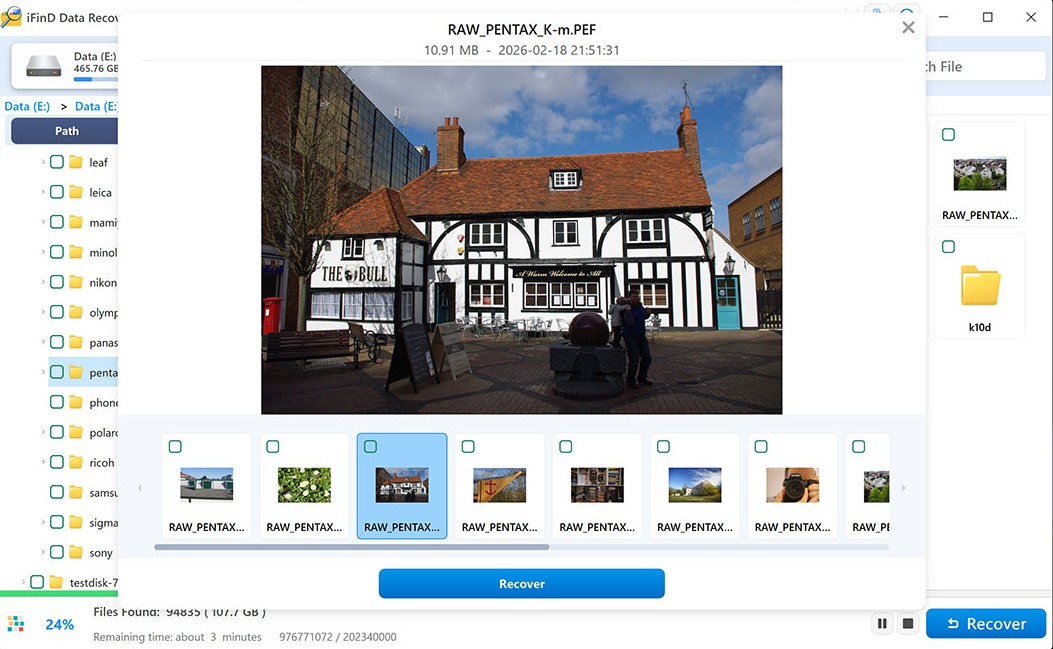
After the deep scan completes, preview the detected files to confirm they're intact. Select the databases, documents, or media files you need, and click Recover.
⚠️ Important: RAID arrays often contain massive amounts of data. Make sure you have a separate, healthy external drive with enough capacity to save the recovered files. Never save recovered data back to the original degraded RAID drives—this overwrites remaining recoverable data.
5. Software Recovery vs. Professional RAID Recovery Services
Your choice comes down to the physical health of the drives. If any drive is making clicking, grinding, or beeping noises, or has suffered fire or water damage, software cannot help—stop immediately and contact a professional service. Opening a hard drive outside a certified cleanroom destroys it permanently.
If the drives are physically healthy but the array is inaccessible due to logical errors, software recovery is the most efficient and cost-effective path. Here's how to decide:
| Failure Scenario | Recommended Solution | Time | Cost |
|---|---|---|---|
| Accidental format, deleted files, or lost partition | Data Recovery Software | Hours | Low |
| Dead NAS enclosure or failed RAID controller | Data Recovery Software | Hours to Days | Low |
| Multiple degraded drives (bad sectors or timeout errors) | Data Recovery Software | Days | Low |
| Clicking noises, motor failure, or physical damage | Professional Cleanroom Lab | Weeks | Very High |
6. Related Recovery Scenarios
RAID failures often overlap with other storage recovery needs. Depending on your specific situation, these guides may help:
Hard Drive Recovery
Recovering data from individual drives that were part of a RAID array.
Formatted Drive Recovery
Accidentally formatted a RAID volume? Learn how to recover before overwriting.
SSD Data Recovery
If your RAID array includes SSDs, TRIM and wear leveling add complexity.
Data Recovery Guide
Complete overview of recovery methods for all storage devices and scenarios.
7. How to Prevent RAID Data Loss
Recovery software can pull you out of a RAID failure, but preventing the crash is always the better option. Here's the single most important rule: RAID is not a backup. It protects against hardware downtime—your server keeps running if a drive dies—but it does nothing against accidental deletion, formatting, ransomware, or power surges. Always keep a separate backup of critical files.
- Use a UPS (Uninterruptible Power Supply): Sudden power outages are the top cause of logical RAID failures, lost partitions, and corrupted file systems. A UPS gives your NAS or server enough time to shut down safely.
- Monitor S.M.A.R.T. health status: Don't ignore warning lights or email alerts from your NAS or RAID controller. If a drive reports bad sectors, replace it immediately—before a second drive fails.
- Avoid using drives from the same batch: Four identical drives manufactured on the same day often share the same mechanical lifespan. If one fails, the others may fail during the rebuild. Mix drive batches to reduce this risk.
- Never force a rebuild on degraded drives: If the array drops offline, pushing a rebuild without cloning the failing drives first will usually destroy the remaining data. Back up first, rebuild second.
8. Frequently Asked Questions (FAQs)
Can I just plug a NAS RAID drive directly into my Windows PC to read the files?
No. Most NAS enclosures (Synology, QNAP, etc.) format drives with Linux file systems like EXT4 or Btrfs, and stripe data across multiple disks. Windows can't read these formats natively and may prompt you to initialize the drive—which would destroy the data. You need data recovery software to virtually rebuild the RAID structure and extract files in Windows.
Can data be recovered if 2 drives fail in a RAID 5 array?
RAID 5 is built to survive only one drive failure. If a second drive fails, the array goes offline. Recovery is still possible with software if the failures are logical—bad sectors, timeout errors, or controller glitches—rather than severe mechanical damage. If both drives have physical mechanical failure, you'll need a professional cleanroom service. Check our guide on data recovery costs for what to expect.
What is a RAID rebuild, and is it safe?
A rebuild regenerates missing data from a failed drive onto a new replacement using parity information. It's not safe without a backup. Rebuilding puts heavy, continuous read/write stress on the remaining aging drives. If a second drive fails mid-rebuild—a common RAID 5 scenario—the array crashes permanently. Always recover and back up your data before initiating any rebuild.
Can I recover files if I accidentally formatted my RAID array?
Yes. A quick format only deletes the file system directory—the actual data stripes remain on the drives. Stop using the array immediately, don't write new files to it, and use data recovery software to scan the formatted volume. For detailed steps, see our formatted drive recovery guide.
How long does RAID data recovery take?
It depends on total capacity, drive speed, and failure type. For logical errors, software scanning takes a few hours to a couple of days for multi-terabyte arrays. If drives need physical repair in a cleanroom, expect several weeks. For a broader overview of recovery timelines across all storage types, see our data recovery guide.
Professional Data Recovery Shouldn’t Cost a Fortune.
iFinD delivers the exact same industry-leading recovery rates as the most expensive competitors, but at the market’s most affordable price. Start free with 1GB, and upgrade for less.