Last Updated on August 4, 2026 by andy woo
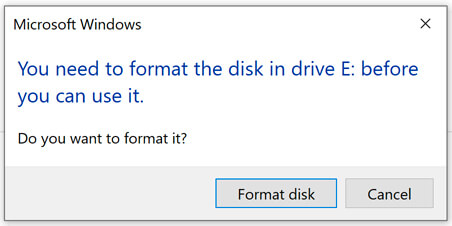
If your external disk or USB suddenly prompts you to format, you need a safe and reliable raw drive recovery solution. You plug in your external hard drive, USB flash drive, or SD card, and your blood runs cold. Instead of showing your files, Windows throws a terrifying popup warning:
"You need to format the disk in drive before you can use it. Do you want to format it?"
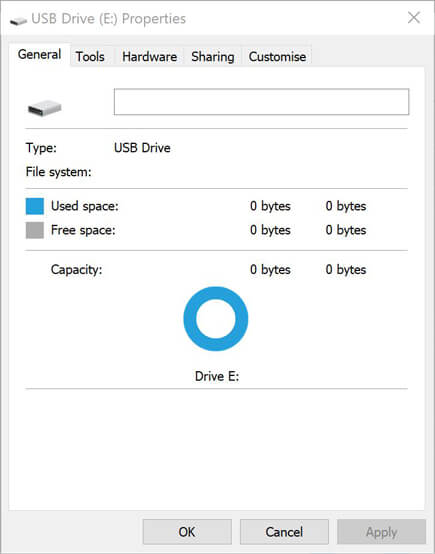
If you check the drive's Properties, it shows 0 bytes of used space and lists the File System as RAW. If you try to run a repair command, the command prompt coldly states: "The type of the file system is RAW. CHKDSK is not available for RAW drives."
🛑 RULE #1: DO NOT CLICK FORMAT!
Ironically, while a drive is in a RAW state, it is actually protected from background wiping processes. However, clicking "Format disk" creates a brand new file system and can instantly trigger the TRIM command on SSDs, permanently destroying your data (learn why here). Click "Cancel" immediately.
1. What Does "RAW" Actually Mean in RAW Drive Recovery?
To understand why a RAW drive is rarely a death sentence for your files, you need to understand how operating systems read data.
Think of your hard drive as a massive library. The "File System" (like NTFS on Windows or APFS on Mac) is the library's cataloging system and front desk. For a deeper understanding of volume structures, you can reference the official Microsoft Disk Management documentation. When a drive turns "RAW," it simply means the cataloging system has been corrupted or destroyed. Windows looks at the drive, doesn't recognize the catalog, panics, and asks if you want to bulldoze the library and build a new one (Formatting).
However, in most logical corruption scenarios, all the books (your binary data) are still sitting perfectly intact on the shelves. The operating system just doesn't know how to find them anymore.
Note: While a RAW status is most commonly a logical issue, it can occasionally be a symptom of physical bad sectors or a failing hardware controller. If your drive is making clicking noises, taking exceptionally long to mount, or repeatedly disconnecting, it points to physical degradation requiring a different professional evaluation approach.
For the vast majority of logical RAW errors, this is exactly what professional raw drive recovery software is designed for. Instead of relying on the broken catalog at the front desk, specialized algorithms bypass the file system entirely. They perform a "deep carve," walking through every single physical sector of the drive, identifying files by their unique hexadecimal signatures (like a book's ISBN), and pulling them out safely.
2. Four Common Scenarios That Result in a RAW Drive
A file system does not just vanish into thin air. In most cases, a RAW error is the result of a specific event that either scrambled the partition table or interrupted the drive while it was trying to update its index. However, sometimes it is not a failure at all. Here are the four most common scenarios:
- Unsafe Ejection and Power Outages (The #1 Cause): The Master File Table (MFT) in NTFS drives or the File Allocation Table (FAT) is constantly being updated in the background by the operating system. If you yank a USB drive out of your computer without using the "Safely Remove Hardware" option, or if your PC suffers a sudden power failure during an active write-cycle, the file system index is left partially overwritten or corrupted. The next time you plug it in, Windows sees a broken index and defaults to labeling it RAW.
- Bad Sectors at Critical Locations: Over time, mechanical hard drives and cheaper USB flash memory can develop "bad sectors"—microscopic physical areas that can no longer retain data. If a bad sector happens to develop exactly at the physical location where the partition table or file system directory is stored, the OS cannot read the catalog. After multiple failed read attempts and severe system freezing (often throwing CRC data errors), the OS eventually gives up and drops the drive into a RAW status, even if 99% of your actual data on the rest of the drive is perfectly fine.
- Malware or Boot Sector Virus Attacks: Certain malicious scripts and boot sector ransomware variants can potentially target the Master Boot Record (MBR) or the GUID Partition Table (GPT). By deliberately altering or encrypting just a few kilobytes of these critical boot sectors, the malware effectively blinds the operating system, causing the entire partition structure to collapse into an inaccessible RAW state.
✅ The "False Alarm": Cross-Platform Incompatibility
Sometimes, a drive is not corrupted at all. If you format a portable drive on a Mac using Apple's native APFS or HFS+ formats, and then plug it directly into a Windows PC, Windows lacks the native drivers to read it. While it may prompt you to format the drive or fail to show a recognized file system, this is not actual corruption. Your data is completely safe. You simply need to plug it back into a Mac or install third-party driver software (like Paragon APFS for Windows) to read it.
3. How to Safely Recover Data from a RAW Drive (5 Steps)
Since Windows can no longer read the broken file system catalog, successful raw drive recovery requires a specialized tool that can bypass the OS entirely.
iFinD Data Recovery operates in a strict read-only environment. Its deep-carving algorithms read the physical sectors of your RAW drive to locate and reconstruct your files based on their unique hexadecimal signatures.
STEP 1 Isolate the Drive and Secure the Connection
Ignore all Windows prompts asking you to format the drive. If your RAW drive is an external USB device or SD card, ensure it is firmly connected directly to your computer’s motherboard USB port. Avoid using faulty or cheap USB hubs, which can cause connection drops during the intensive deep-scanning process.
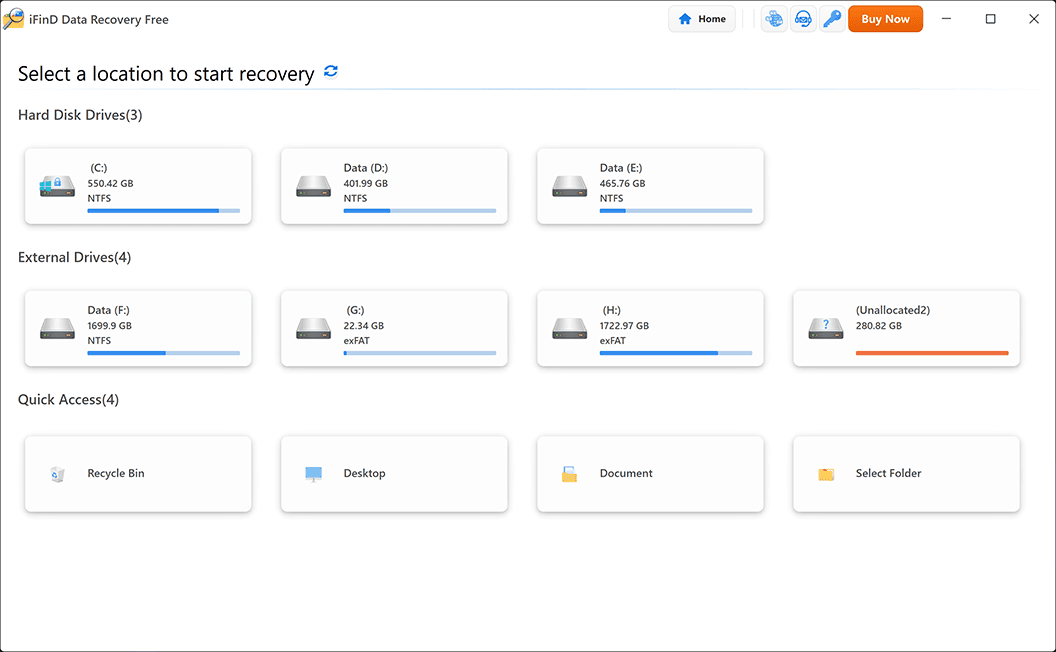
STEP 2 Launch iFinD Data Recovery Safely
Download and install
iFinD Data Recovery
on a healthy drive (such as your main C: drive). Never download or install the software onto the RAW drive itself. Launch the program to access the main interface.
STEP 3 Choose Partition Recovery Mode
Because a RAW status means the partition table or file system directory is corrupted, standard file recovery methods may fail to recognize the drive’s structure. You need a recovery mode that ignores standard file structures entirely:
Why Partition Recovery?
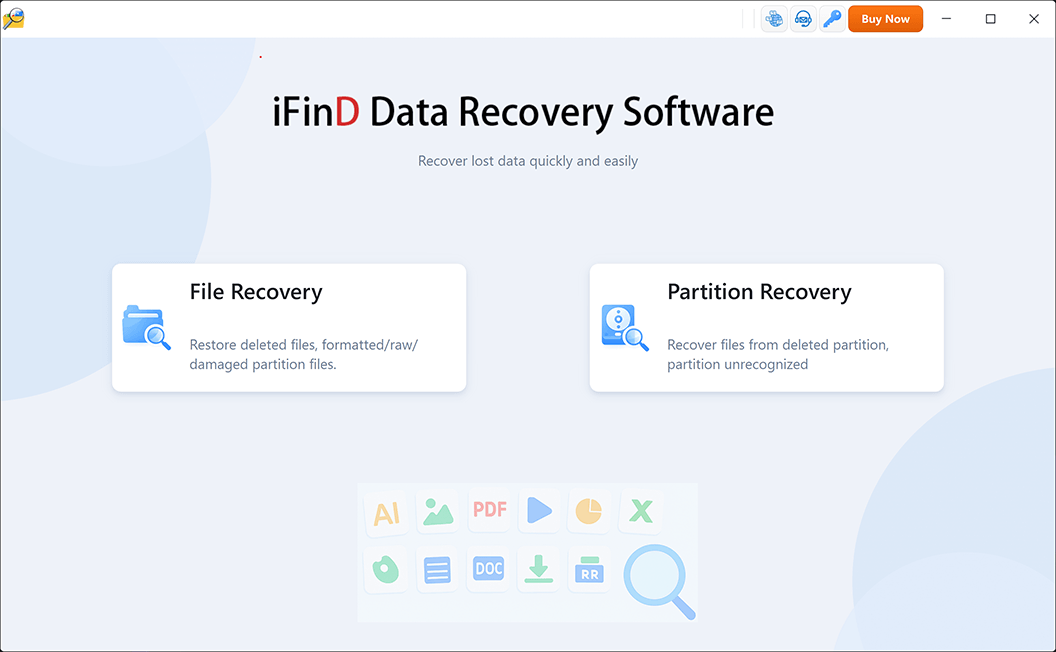
Select Partition Recovery. Unlike standard file recovery that relies on a healthy index, this mode is the core engine for raw drive recovery. It is specifically engineered to search for missing or severely damaged partitions and rebuild the file map from scratch.
STEP 4 Select the RAW Partition and Scan
Locate your RAW drive in the device list. It will often appear as “Unallocated Space,” “Lost Partition,” or display no recognizable file system type. Select the affected drive block and click the scan button. The software will perform a deep, read-only sweep across the raw NAND or magnetic sectors to locate your lost data.
STEP 5 Preview Integrity and Recover Files
Once the deep scan is complete, you will see a structured list of recoverable files. Use the built-in True File Preview feature by double-clicking your photos, documents, or videos. If the visual preview displays correctly, the binary data is perfectly intact and successfully carved from the RAW sectors.
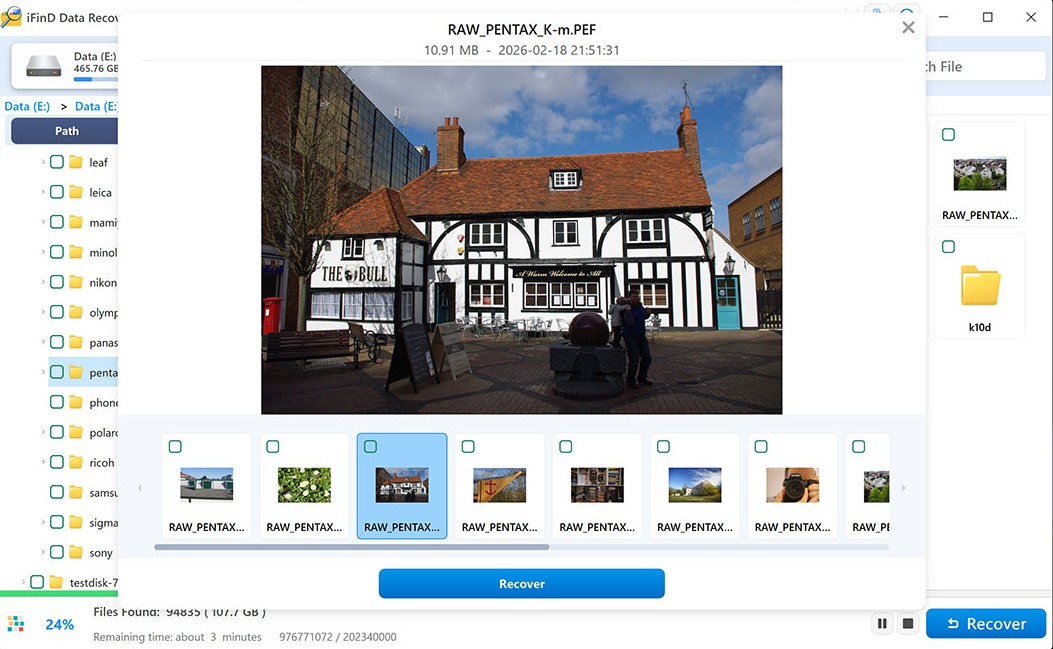
⚠️ Critical Saving Rule: Do not save the recovered files back to the RAW drive! You must export them to a completely different, healthy hard drive. Writing data back to the RAW drive before repairing it will permanently overwrite the very files you are trying to rescue, instantly failing your raw drive recovery attempt.
4. How to Fix and Format the Drive After Recovery
⚠️ FINAL WARNING: Formatting the drive will wipe the corrupted file system and create a clean slate. Do not proceed with this section until you have successfully recovered and backed up your files using Step 3.
Once your data is completely safe and verified on a different hard drive, you have successfully completed your raw drive recovery. Now, you can repair the drive so it can be used normally again. Windows offers two built-in tools to rebuild the file system.
Method 1: Using Windows Disk Management (Recommended)
This is the safest and most visual way to format a partition after a successful raw drive recovery, bypassing the generic Windows error popups.
- Right-click the Windows Start button and select Disk Management.
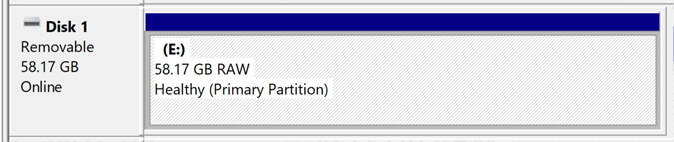
- Locate your RAW drive in the visual drive map. The partition will likely be labeled as "RAW" or have no file system listed.
- Right-click directly on the affected partition block and select Format... from the context menu.
- In the formatting window, assign a new name in the Volume label box.
- Check the box for Perform a quick format, then click OK to execute.
Which File System Should You Choose?
- NTFS: Choose this if you are repairing an internal hard drive or an external drive that will only be used on Windows computers.
-
exFAT: Choose this if you have just finished an SD card recovery process and need to format the card to work on both Windows and Mac computers.
Note: exFAT lacks the built-in journaling feature of NTFS, making it more prone to corruption if the drive is unexpectedly unplugged. Always use "Safely Remove Hardware" with exFAT drives to prevent another RAW error. - FAT32: Only choose this after a USB drive recovery on older, smaller flash drives (under 32GB), or for specific devices like digital cameras that require legacy formats.
Method 2: Force Repair using DiskPart (Advanced)
Sometimes, the logical corruption is so severe that Windows Disk Management throws an error stating, "Windows was unable to complete the format." You can force the drive to wipe clean using the Command Prompt.
Hardware Warning: If DiskPart also hangs indefinitely, freezes your computer, or throws an "I/O device error," this strongly indicates underlying physical hardware damage (like bad sectors), not just logical corruption. In this case, further formatting attempts will fail and you may need professional hardware evaluation.
- Press Windows Key + S, type cmd, right-click "Command Prompt", and select Run as administrator.
-
Type
diskpartand press Enter. -
Type
list diskand press Enter. Carefully look at the storage capacities to identify which disk number is your RAW drive.
Pro Tip: If you are unsure which disk number corresponds to your RAW drive, unplug all other non-essential external drives first. You can also cross-reference the capacity shown with your drive's known size (e.g., a 32GB USB stick will show as roughly 29-30 GB usable). -
Type
select disk X(replace X with your RAW drive's exact number) and press Enter.
⚠️ DANGER: Double- and triple-check you selected the correct disk number! The next command is irreversible and will erase ALL partitions on the selected disk, not just the RAW one. -
Type
cleanand press Enter. This completely obliterates the broken partition table. -
Type
create partition primaryand press Enter to create a fresh partition block. -
Type
format fs=ntfs quick(or replacentfswithexfat) and press Enter. -
Type
assignand press Enter to give the drive a new letter. Your drive is now completely repaired and ready to use.
5. Frequently Asked Questions About RAW Partitions
When facing a RAW drive error, trying random fixes from the internet can lead to permanent data loss. Here are the precise, technical answers to the most common questions regarding RAW file systems.
Can CHKDSK fix a RAW drive?
No. CHKDSK (Check Disk) is designed to repair minor structural errors within recognized file systems like NTFS or FAT32. If the drive is RAW, the operating system cannot read the file system catalog at all. Running the command will simply return the error message: "The type of the file system is RAW. CHKDSK is not available for RAW drives."
Will formatting a RAW drive erase my data?
Yes. Formatting a drive creates a brand new file system and wipes the existing partition table. While some data might technically survive a "Quick Format" on mechanical hard drives, formatting an SSD can trigger the TRIM command, which may quickly and permanently destroy your files. You must always extract your data before clicking format.
How can I fix a RAW external hard drive without formatting?
You cannot permanently repair a severely corrupted RAW drive without eventually formatting it to rebuild the file system index. However, you can bypass the need to format immediately by using professional partition recovery software to safely read the raw sectors and extract your files first. Once your data is secured on another drive, you must format the RAW drive to make it functional again.
Why does my USB flash drive suddenly show 0 bytes?
When a drive turns RAW, its main directory (like the Master File Table) is missing or corrupted. Because the operating system relies on this directory to calculate storage space, it doesn't know how much data is stored or what the total capacity is. Therefore, it defaults to displaying 0 bytes, even though your binary data is still physically stored on the memory chips.