Last Updated on August 4, 2026 by andy woo
If you need to repair corrupted SD card safely, you must extract your files before trying any fixes. Seeing the dreaded "You need to format the disk" error is a nightmare, but clicking "Format" instantly will permanently destroy your photos and videos.
In this engineer-level guide, we will show you the exact sequence to handle a failing memory card. You will learn how to safely extract your raw data first, and then apply 5 proven methods to fix the underlying file system structure.
- 011. Common Signs of a Corrupted SD Card
- 022. What Causes SD Card Corruption?
- 033. Check Physical Damage vs. Logical Corruption
- 044. How to Recover Data from a Corrupted SD Card (Safe Extraction)
- 055. 5 Ways to Repair a Corrupted SD Card Without Formatting
- 066. The Final Fix: Format the Corrupted SD Card
- 077. How to Prevent SD Card Corruption
- 088. FAQ: SD Card Repair & Recovery
1. Common Symptoms of a Corrupted SD Card
Corruption rarely happens without warning. Before an SD card completely dies, the operating system and the camera firmware will usually display specific behavioral symptoms. Recognizing these early signs can help you rescue your data before a complete hardware failure:
- The "Format" Prompt: Windows immediately asks you to format the drive as soon as you plug it in.
- RAW File System: In Windows Disk Management, the SD card's file system shows up as "RAW" instead of FAT32 or exFAT.
- Missing or Scrambled Files: Your folders turn into weird, unopenable shortcuts, or file names are replaced with random gibberish characters (e.g.,
µ¥#$%.jpg). - Read/Write Freezes: The computer completely hangs or File Explorer crashes when you try to open the SD card folder, and only recovers when you physically unplug the card reader.
- Read-Only Mode: You can see your files, but you cannot delete them, modify them, or save new data to the card.
2. What Causes SD Card Corruption?
SD cards use NAND flash memory, which operates differently than traditional spinning hard drives. When corruption occurs, it is usually triggered by a specific event that interrupts how the card reads or writes data. The most common culprits include:
- Unsafe Ejection (The #1 Cause): Pulling the SD card out of your camera, phone, or card reader while it is still actively saving a file or updating the directory will instantly scramble the file system index.
- Power Loss or Battery Failure: If your camera dies from a low battery exactly at the moment it is writing a heavy 4K video file to the card, the file header gets corrupted, often taking the folder structure down with it.
- Cross-Platform Firmware Conflicts: Frequently swapping the same SD card between devices with different operating systems (e.g., macOS and a digital camera) can cause issues. Computers often write hidden indexing files (like macOS's
.Spotlight-V100) that can occasionally confuse camera firmware and trigger logical read errors. - Cheap or Faulty Card Readers: Low-quality USB card readers can cause power surges or unstable connections, silently corrupting data blocks during large file transfers to your PC.
- Flash Memory Degradation: SD cards have a limited number of read/write cycles (P/E cycles). Over time, the memory chips naturally degrade. Modern controllers try to remap these bad blocks, but severe degradation can lead to isolated corrupted files, directory errors, or the card permanently locking itself into a "read-only" mode to protect existing data.
3. Check Physical Damage vs. Logical Corruption
Before moving on to the recovery and repair steps, you must determine whether the corruption is a software issue (logical) or a hardware failure (physical). Professional data recovery software can only rescue files from logically corrupted or degrading drives.
Physical Damage (Hardware Failure)
Inspect the SD card carefully. Are the golden contact pins on the back scratched or bent? Is the plastic casing cracked? Does the card get dangerously hot (painful to touch immediately upon insertion, even when idle)?
Warning: If you notice any of these signs, or if your PC completely freezes the exact moment the card is inserted, the internal controller or NAND chips are dead. Software cannot fix this. You must immediately unplug the card and seek a professional cleanroom data recovery service.
Logical Corruption (Software Failure)
If the card looks physically pristine, operates at a normal temperature, and triggers a prompt in Windows (like the "RAW" or "Format" error), you are dealing with logical corruption. The actual binary data of your photos and videos is still safely stored on the memory chips; the directory mapping is just broken.
⚠️ The "Grey Area": CRC Errors and Read Failures
If your card looks physically perfect but consistently throws Cyclic Redundancy Check (CRC) errors during file copying, this indicates early-stage physical NAND degradation. You can still use data recovery software to rescue your files, but you must avoid repeated scanning or running repair commands, as stressing the failing sectors will accelerate the card's death.
For both logical corruption and early-stage CRC degradation, our immediate goal is identical: bypass the broken directory to safely extract your files, then attempt a Windows repair later. Here is how to safely extract your data first.
4. How to Recover Data Before You Repair Corrupted SD Card
As established in the previous sections, the most important step is to extract your files before attempting any repairs.
iFinD Data Recovery can bypass the broken directory and deep-scan the NAND flash memory to rescue lost photos, videos, and documents directly from the raw sectors.
STEP 1 Stop Using the SD Card and Connect It
Immediately stop saving new photos or videos to the SD card. Writing new data to a failing or corrupted card will permanently overwrite the original file content and destroy any chance of recovery.
Insert the SD card into a reliable card reader and connect it to your Windows computer. If Windows instantly throws a “Format Disk” popup, click Cancel immediately.
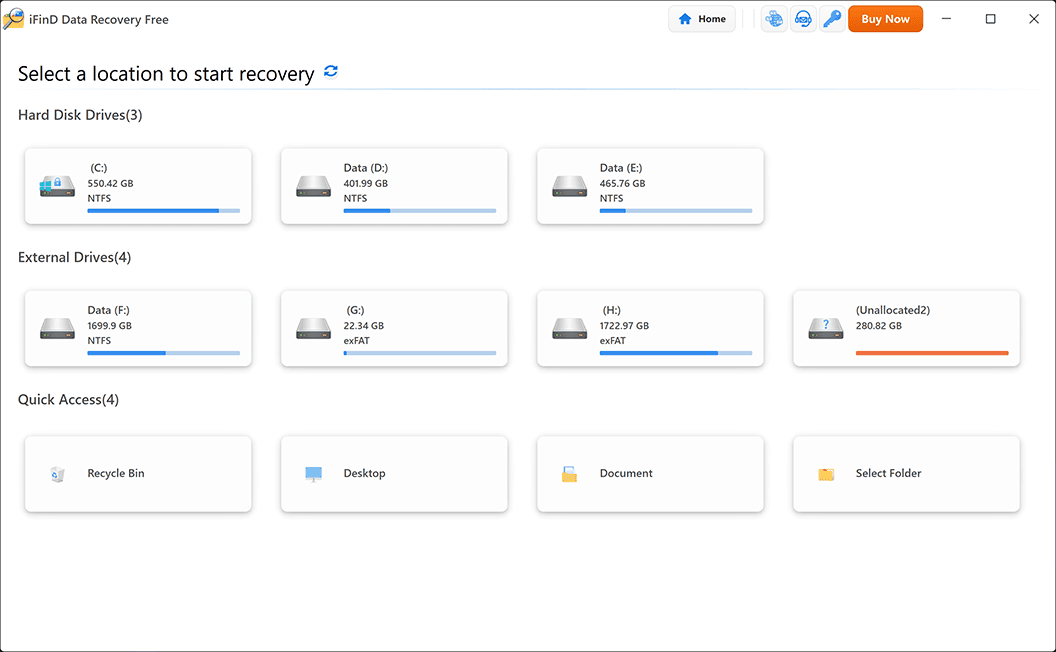
STEP 2 Launch iFinD Data Recovery
Launch
iFinD Data Recovery
on your computer and select your corrupted SD card from the available external storage devices.
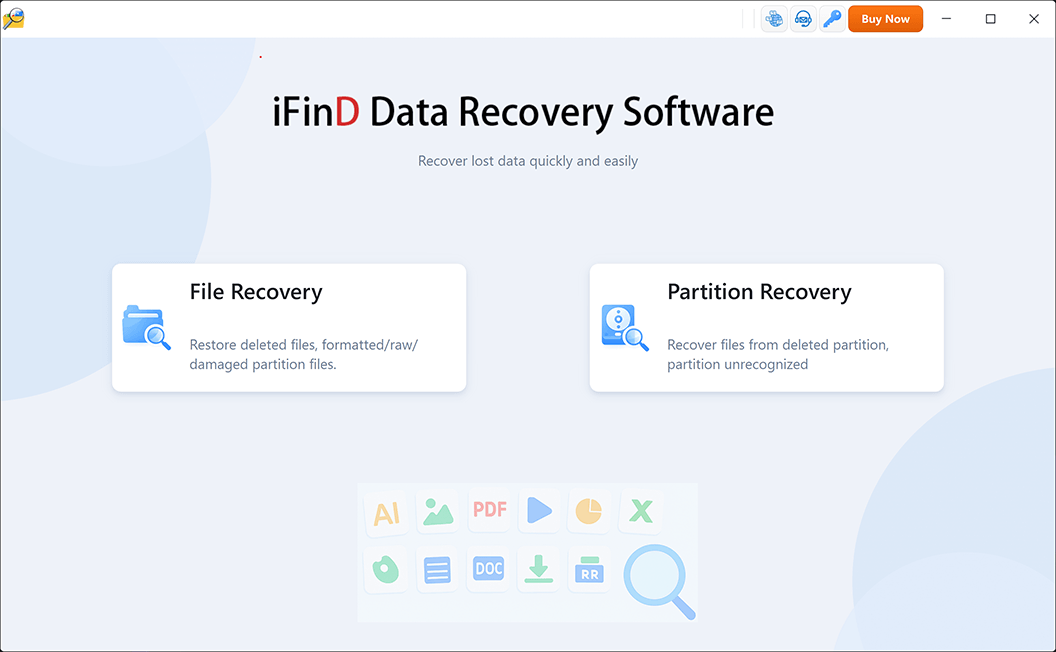
STEP 3 Choose File Recovery or Partition Recovery Mode
Select the recovery mode based on how your computer recognizes the corrupted SD card:
Option 1:
File Recovery
If the SD card still shows a normal drive letter in Windows, but your folders are missing, scrambled, or throwing read errors, choose File Recovery. This mode scans the existing file system to reconstruct the damaged directory tree.
Option 2:
Partition Recovery
If Windows asks you to format the SD card, or it shows up as “RAW” or “Unallocated” in Disk Management, choose Partition Recovery. This mode directly targets the underlying flash memory blocks, completely ignoring the broken file system.
STEP 4 Scan the SD Card for Recoverable Files
Select the target partition or the physical SD card drive and start scanning. iFinD Data Recovery will perform a thorough, sector-by-sector scan to locate orphaned file signatures (such as JPG, MP4, or professional camera RAW files).
STEP 5 Preview and Extract the Data
After the scan is complete, use the directory tree to browse through the detected files. You can double-click photos and videos to preview them in real-time. This guarantees the media is intact and not just an empty, corrupted placeholder.
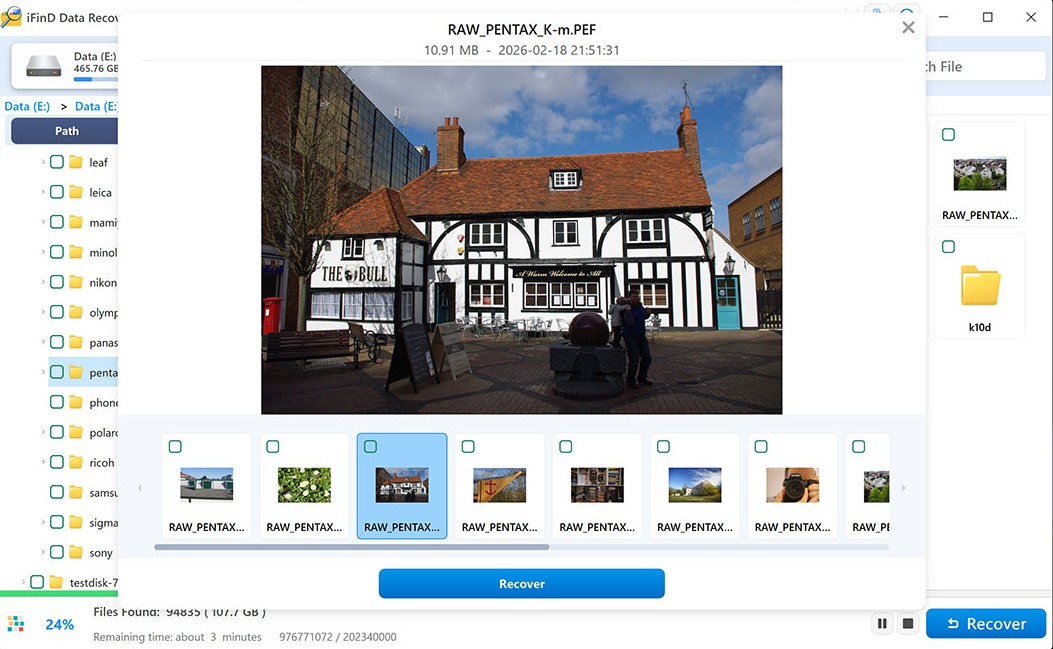
⚠️ CRITICAL WARNING: Do not save recovered files back to the corrupted SD card. Choose a safe destination, such as your computer’s internal hard drive, to ensure you do not overwrite the remaining fragile data.
5. 5 Ways to Repair Corrupted SD Card Without Formatting
With your files safely extracted, you can now focus on fixing the SD card itself. Here are five non-destructive methods to repair corrupted SD card without formatting.
Method 1: Try a Different USB Port or Card Reader
Don't jump into software fixes just yet. A faulty USB port or a failing card reader can look exactly like a corrupted file system.
- Plug the card reader directly into the motherboard's USB ports (on the back of a desktop PC) rather than a front panel hub.
- Test the SD card using a completely different card reader or PC to see if the error persists.
Method 2: Assign a New Drive Letter
If you hear the Windows chime when you plug the card in but nothing shows up in File Explorer, you might just have a drive letter conflict with other connected USB drives. Forcing a new letter can instantly bring it back.
- Right-click the Windows Start button and select Disk Management.
- Locate your SD card in the visual volume list.
- Right-click the SD card partition block and select Change Drive Letter and Paths...
- Click Change, assign a new, unused letter (like X or Z), and click OK.
Method 3: Update or Reinstall SD Card Drivers
If your computer completely ignores the SD card or shows a yellow exclamation mark in Device Manager, the issue isn't the file system—it's a driver glitch. Reinstalling the driver forces Windows to recognize the hardware again.
- Press Windows Key + X and select Device Manager.
- Expand the Disk drives or Universal Serial Bus controllers category.
- Right-click your SD card reader and choose Uninstall device.
- Unplug the reader, restart your computer, and plug it back in. Windows will reinstall a fresh driver automatically.
Method 4: Use the Windows Error Checking Tool
Windows has a built-in diagnostic tool hidden in the disk properties that can fix minor directory errors without any command-line knowledge.
Important: This tool only works if Windows still recognizes your card as FAT32 or exFAT. If it shows up as RAW, the "Check" button will be grayed out—skip straight to Chapter 6.
- Open File Explorer and right-click your corrupted SD card.
- Select Properties and navigate to the Tools tab.
- Under the Error checking section, click the Check button.
- Select Scan and repair drive and let the process run.
Method 5: Run CHKDSK to Repair File System Sectors
When the graphical tool fails, Command Prompt offers a more aggressive fix. For a deeper understanding of command parameters, you can reference the official Microsoft CHKDSK documentation. Because this command physically writes to the disk to rebuild sectors, you should only run it if you have already extracted your files using data recovery software. Like Method 4, CHKDSK cannot run on RAW drives.
- Press Windows Key + S, type cmd, right-click "Command Prompt", and select Run as administrator.
- Type
chkdsk X: /f /x(replace X with your SD card drive letter). - Press Enter. The
/fparameter fixes structural file system errors, and/xforces the drive to dismount before scanning.
Pro Tip (Why we don't use /r): You may see other guides recommending chkdsk X: /f /r. Do not use the /r switch on a failing SD card. The /r parameter forces intense, repeated reads on damaged sectors. If your card has physical bad blocks, this stress can overheat the controller and permanently kill the hardware. Sticking to /f safely fixes logical directory errors without stressing the memory chips.
⚠️ When to Stop Trying and Format:
If your card is locked in a RAW state, or if the CHKDSK prompt returns the fatal error "The type of the file system is RAW. CHKDSK is not available for RAW drives," your directory tree is beyond repair. To make the SD card usable again, you must rebuild it from scratch by formatting.
6. The Final Fix: Format to Complete SD Card Repair
When Windows tools fail or the card is locked in a RAW state, the existing directory structure is completely unrecoverable. While this step erases data, it is the only way to successfully repair the file system structure and make the SD card usable again.
Disclaimer: Formatting fixes software corruption (the file system), but it cannot repair physical hardware damage (bad blocks). If the format fails or Windows cannot complete it, the card is physically dead.
Because this is a destructive process, only proceed if you have successfully extracted your files in Step 4.
(If you accidentally used Diskpart 'clean' or formatted by mistake before rescuing your data, standard file recovery won't work—you will need to follow our lost partition recovery guide.)
Option 1: Standard Format via File Explorer
For cards that still manage to show up with a visible drive letter, this is the quickest route.
- Open File Explorer, right-click the SD card, and select Format...
- Under File system, choose FAT32 if your card is 32GB or smaller. Choose exFAT if it is 64GB or larger.
- Check the Quick Format box and click Start.
Option 2: Format via Disk Management (For RAW Cards)
When the card refuses to appear in File Explorer or constantly throws a "Windows was unable to complete the format" error, Disk Management is your next stop.
- Right-click the Windows Start button and select Disk Management.
- Locate the SD card volume. It will likely show as RAW or Unallocated.
- Right-click the corrupted volume space and select Format... (or New Simple Volume... if unallocated).
- Follow the wizard.
Note: If creating a New Simple Volume, ensure the "Simple volume size in MB" is left at its maximum default value, otherwise you will lose part of your storage capacity. - Select the appropriate file system (exFAT/FAT32) and complete the format.
Option 3: Force Format Using Diskpart (Command Line Failsafe)
If the graphical interfaces completely freeze or throw unexpected errors, it means the corruption is stubborn. The command-line diskpart utility acts as the final failsafe to forcefully wipe the partition table.
- Press Windows Key + S, type cmd, right-click "Command Prompt", and select Run as administrator.
- Type
diskpartand press Enter. - Type
list diskand press Enter. Identify your SD card by its exact storage capacity (e.g., Disk 1 or Disk 2). - Type
select disk X(replace X with your SD card's disk number) and press Enter.
⚠️ WARNING: Be absolutely certain you select the correct number, or you will permanently wipe the wrong drive! - Type
cleanand press Enter. This wipes the corrupted partition data. - Type
create partition primaryand press Enter. - Type
format fs=exfat quick(usefs=fat32for smaller cards) and press Enter. - Type
assignto give it a drive letter, then typeexit. Your SD card now has a fresh, healthy file system and should mount normally.
7. How to Prevent SD Card Corruption
Data recovery is not something you want to do twice. To avoid future logical corruption and extend the lifespan of your SD card's NAND flash memory, adopt these strict habits:
- Always Safely Eject: Pulling an SD card out while the operating system is still quietly updating the hidden File Allocation Table in the background is the fastest way to turn your card RAW. Always use "Safely Remove Hardware" on Windows or "Eject" on Mac.
- Format in Your Camera, Not on Your PC: If you use the SD card in a digital camera, you should format it using the camera's internal menu. This ensures the directory structure is perfectly optimized for the device's firmware.
Note: Formatting in the camera will wipe all files. Make sure your photos are already backed up to your hard drive. - Leave 10% to 15% of the Card Empty: While modern SD card controllers have hidden over-provisioning blocks for wear leveling, packing the user-visible storage to exactly 100% forces the file system to constantly juggle metadata in a highly fragmented space. This causes severe write amplification and drastically increases the chance of directory corruption during heavy transfers.
- Stop Using Cheap, Unbranded Card Readers: A low-quality USB card reader often has unstable power delivery. A sudden voltage drop during a heavy 4K video transfer will corrupt the active data blocks.
- Swap Batteries Early: Never let your camera or drone battery die while actively recording. When power cuts out mid-write, the video file header is left incomplete, frequently corrupting the entire parent folder.
8. FAQ: How to Repair Corrupted SD Card
Quick answers to the most common technical questions about SD card repair.
Can a corrupted SD card be repaired?
Yes, provided the damage is logical. For minor structural errors, tools like CHKDSK can fix the directory. However, if the corruption is severe and the card has turned RAW, CHKDSK will not run. In that case, formatting is the only way to repair the card.
Can I repair an SD card without formatting?
Yes. For minor errors, you can use the Windows Error Checking tool or CHKDSK (see Chapter 5 for steps). However, if your card shows as RAW in Disk Management, these non-destructive tools will fail, making a format mandatory.
Can CHKDSK repair a corrupted SD card?
Yes, but only if the card still has a recognized file system (FAT32/exFAT). As explained earlier, CHKDSK is a write-intensive command that can permanently overwrite fragmented files during the repair process. Always extract your data first.
Why does Windows ask me to format my SD card?
Windows throws this prompt when it can no longer read the file system index. Since the OS doesn't know how to navigate the broken directory, its automated response is to wipe it and build a new one. Always click Cancel to avoid permanently overwriting your files.
Can data be recovered after formatting an SD card?
Yes, if you performed a "Quick Format". A quick format only deletes the index. If you unchecked "Quick Format" (a Full Format), Windows forces a wipe across the flash memory cells, making recovery impossible. For step-by-step instructions, see our formatted drive recovery guide.