Last Updated on August 3, 2026 by andy woo
1. The Brutal Truth: SSDs and the TRIM Command
To understand why SSD data recovery is a frantic race against time, you must first understand a background maintenance protocol called TRIM.
When you delete a file on a standard mechanical hard drive, the operating system does not actually destroy the file. It simply deletes the index pointer, marking the space as "available." The physical data remains completely intact on the magnetic platters until new files overwrite it. This is why traditional hard drive recovery has such an exceptionally high success rate.
Solid-State Drives (SSDs) operate on completely different hardware physics. They use NAND flash memory chips. Because of how flash memory is engineered, a data block must be completely erased before new data can be written to it. To maintain high-speed read/write performance, modern operating systems (like Windows 10/11 and macOS) rely on the TRIM command.
When you empty the Recycle Bin or quick-format an SSD, the OS is designed to queue a TRIM command to the drive's controller. This command flags the deleted space so that the SSD's internal Garbage Collection algorithm can physically wipe those memory blocks in the background, typically during idle time.
⚠️ The Point of No Return: Here is the brutal truth: Once the Garbage Collection process actually executes and physically wipes those memory blocks, the data is gone forever. Neither commercial software nor $2,000 professional cleanrooms can extract data from fully erased NAND chips. This is why speed matters so much more with SSDs—and why your immediate next steps will dictate whether you can still save your files.
2. Five Scenarios Where Your SSD Data is Highly Recoverable
Do not lose hope yet. The TRIM command is not a magic bullet, and it does not trigger in every single situation. Because TRIM execution requires specific conditions from both the operating system and the hardware controller, your data is likely still fully intact and recoverable if you fall into one of these five categories:
- External USB SSDs: Most standard USB bridge controllers (used in hard drive enclosures and portable SSDs) do not pass the TRIM command through the USB protocol. If you deleted files from an external portable SSD, the garbage collection is usually bypassed, making your files highly recoverable.
- Logical Corruption (RAW Drives): If a partition was lost, corrupted, or suddenly turned "RAW" due to a sudden power outage or a virus attack, the OS cannot send a TRIM command because it no longer recognizes the file system. The underlying raw data blocks remain untouched. For a deeper understanding of this specific error, see our guide on how to fix and recover RAW drives.
- Specific File Systems & Environments: While modern systems are expanding TRIM support, it is still less consistently applied to older formats like FAT32 or exFAT compared to native NTFS or APFS, especially when accessed via older operating systems or external interfaces.
- Immediate Shutdown: As we established in Chapter 1, the TRIM command is queued, and the physical wipe happens in the background. If you powered off the machine or disconnected the drive instantly, you may have successfully interrupted the Garbage Collection process before it could execute the wipe.
- Quick-Formatted SSDs (Under Specific Conditions): While modern Windows versions do attempt to send a full-volume TRIM command during a Quick Format, this command frequently fails to reach the drive if it is connected via USB, or if the drive's firmware is older. In these specific cases, the system merely creates a new, blank file system table without physically erasing the blocks. Our algorithms can bypass the new blank table and deep-scan the physical sectors to maximize data retrieval. For a deeper dive, read our comprehensive formatted drive recovery guide.
3. How to Safely Recover SSD Data Using iFinD Data Recovery (5 Steps)
If your data loss scenario falls into one of the highly recoverable categories mentioned above, you need a tool that can bypass the damaged OS index.
iFinD Data Recovery operates in a strict read-only environment, scanning your SSD’s flash memory blocks without triggering further TRIM commands or overwriting your remaining files.
STEP 1 Isolate the SSD and Stop All Write Operations
Immediately stop saving new files, installing applications, or running operating system updates on the affected SSD. Any background write operation can trigger the Garbage Collection process and permanently erase your data.
If the data loss occurred on an external SSD, connect it directly to your Windows computer and ensure the connection is stable before proceeding.
STEP 2 Install and Launch iFinD Data Recovery Safely
Crucial Rule: Never download or install the recovery software onto the exact same SSD you are trying to recover data from. Install iFinD Data Recovery on a separate healthy drive (like a USB flash drive or a secondary D: drive), then launch the program.
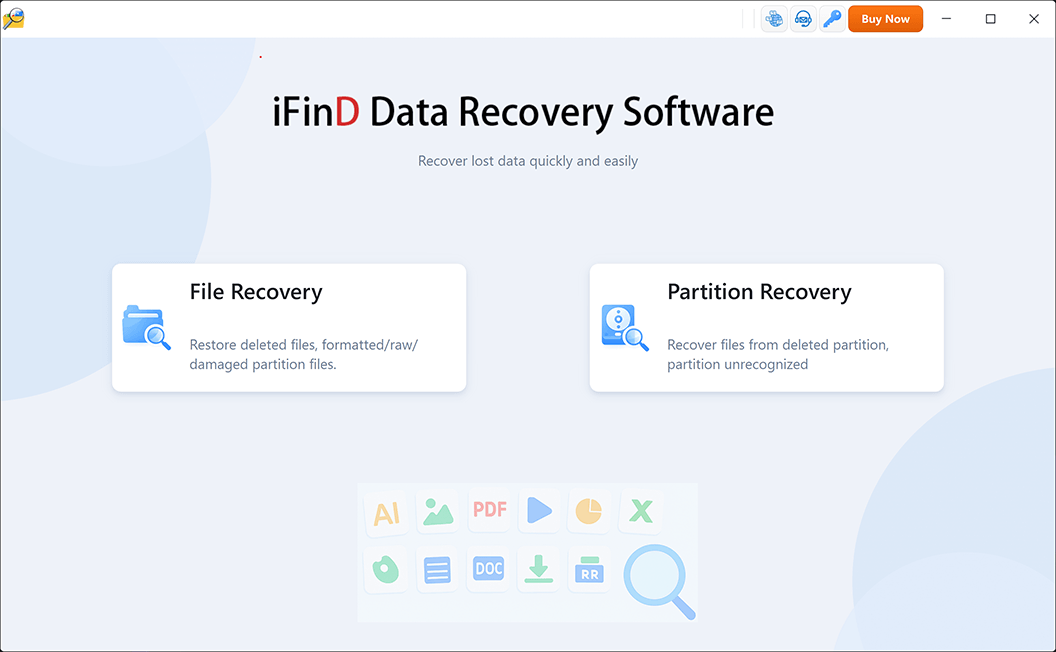
STEP 3 Choose File Recovery or Partition Recovery Mode
Select the recovery algorithm based on how your SSD is currently behaving in Windows:
Option 1:
File Recovery
If the SSD partition is still visible in Windows and has a valid drive letter, choose File Recovery. This mode scans the existing file system structure to quickly rescue accidentally deleted or quick-formatted files before they are wiped by TRIM.
Option 2:
Partition Recovery
If your SSD partition has disappeared, shows as “Unallocated Space”, or prompts a RAW formatting error, choose Partition Recovery. Our engine will bypass the corrupted partition table and rebuild the file map directly from the raw hex data.
STEP 4 Scan the SSD for Recoverable Files
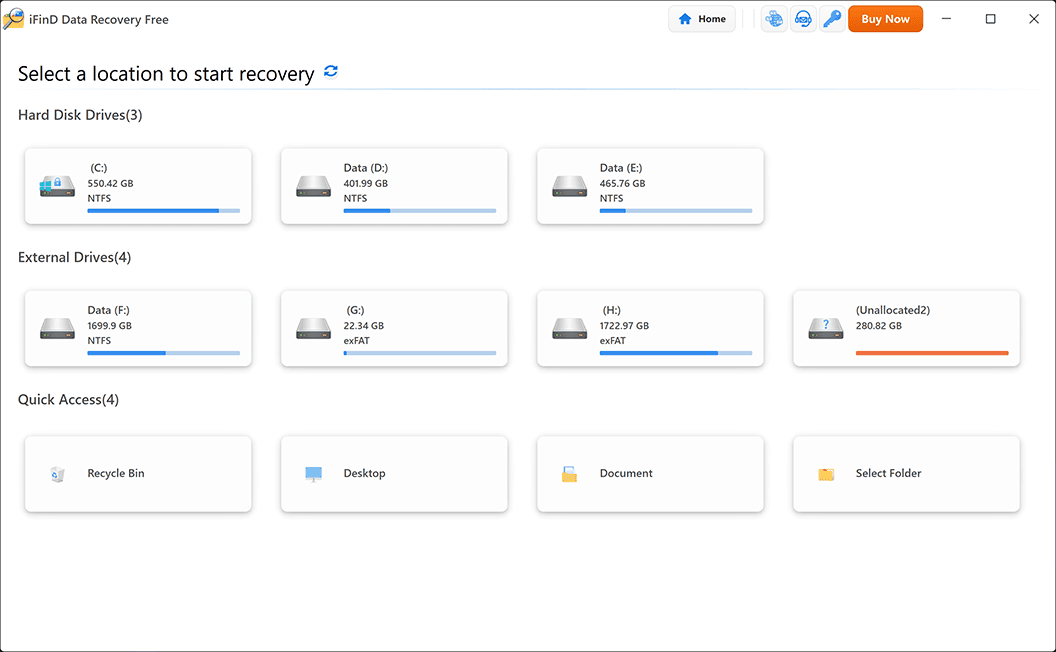
The following step applies to File Recovery. Select your affected SSD partition and start scanning. iFinD Data Recovery will perform a deep read-only sweep across the NAND flash sectors to locate recoverable data signatures.
If your SSD partition is missing or unrecognized, return to Step 3 and choose Partition Recovery instead.
STEP 5 Preview Integrity and Recover Lost Files
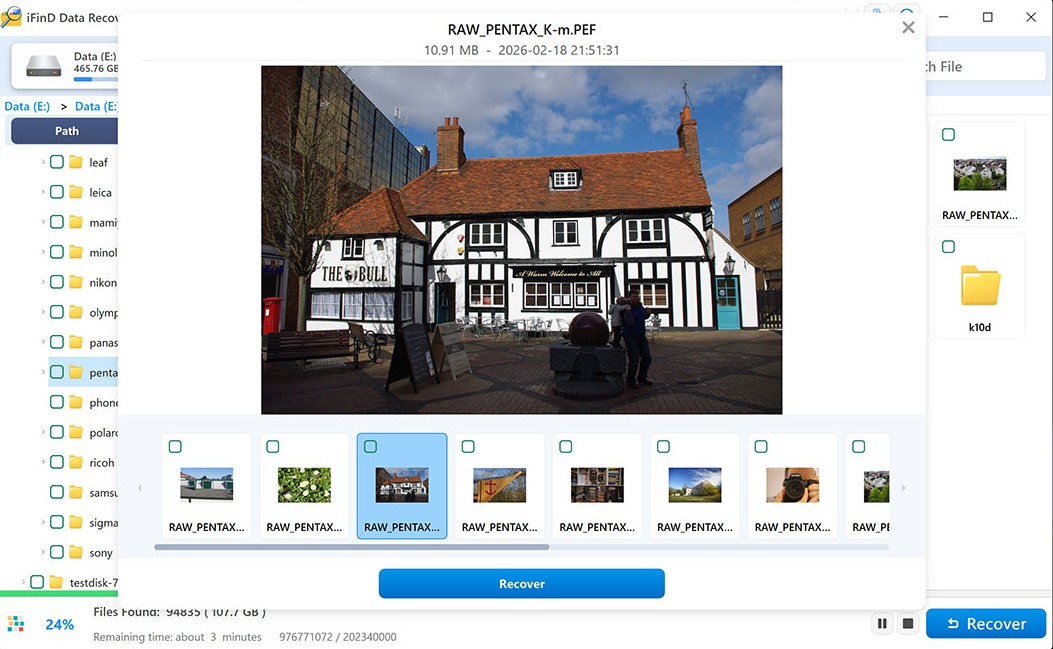
After the scan completes, use the built-in filters to locate your documents, photos, or videos. Double-click the files to use the True File Preview feature. If the visual preview or hex data displays correctly, the file has not been destroyed by TRIM and is fully recoverable.
⚠️ Important: Do not save the recovered files back to the affected SSD. Export them to a completely different physical storage device (like an external HDD or another healthy drive) to prevent sector overwriting.
4. How to Tell if Your SSD is Physically Failing
Unlike traditional mechanical hard drives that give you clear physical warnings—like clicking, ticking, or grinding noises—an SSD usually dies in absolute silence. Because there are no moving mechanical parts, the controller chip or NAND flash memory degrades without any acoustic clues.
If your SSD exhibits any of the following behaviors, you are likely dealing with a hardware-level physical failure rather than a simple logical error or accidental deletion:
- The "Read-Only" State (Panic Mode): Many modern SSDs with advanced controllers have a built-in self-preservation feature. When the controller chip detects that the flash memory cells have exhausted their maximum write-cycles, it locks the drive into a strict "Read-Only" mode. You can still view your files, but you cannot modify, format, delete, or save anything new to the drive.
- Disappearing from the BIOS/UEFI: Your computer suddenly crashes with a Blue Screen of Death (BSOD), and upon rebooting, the system displays a "No Bootable Device Found" error. When you check the BIOS or UEFI settings, the SSD is completely invisible.
- Extreme System Freezing: The computer works perfectly fine until you attempt to open a specific large file or access a certain folder on the SSD. At that exact moment, the entire operating system locks up completely and remains frozen until the SSD is forcibly disconnected or powered off.
⚠️ Expert Note on Hardware Failures: If your drive is electrically dead and completely invisible to the BIOS, data recovery software (including iFinD Data Recovery) cannot communicate with it. In these extreme hardware-failure scenarios, your only option is to send the drive to a professional cleanroom lab. Engineers there will use specialized hardware tools (like PC-3000) to bypass the dead controller or perform a "chip-off" extraction directly from the NAND chips.
5. Frequently Asked Questions About SSD Recovery
When dealing with solid-state drives, misinformation can permanently cost you your files. Here are the honest, technical answers to the most common SSD recovery questions we receive.
Will turning off my computer stop the TRIM command?
Yes. The SSD's internal Garbage Collection algorithm requires electrical power to physically wipe the NAND flash cells. By immediately shutting down your computer or unplugging the external SSD after an accidental deletion, you effectively "freeze" the drive's state. This prevents the queued TRIM command from executing and maximizes your chances of a successful software recovery.
Can I recover data from an SSD that will not boot?
It depends on the cause. If the operating system is simply corrupted (a logical failure), the data is perfectly safe. You can remove the SSD, connect it to a working computer via a USB enclosure, and use recovery software. However, if the drive has suffered a severe physical hardware failure (as detailed in Chapter 4), software cannot access it.
Why is data recovery on a Mac SSD so difficult?
Modern Mac computers use a highly secure, hardware-encrypted storage architecture tied to Apple's Secure Enclave. When a file is deleted on an APFS volume, the system often performs a "crypto-shred," instantly destroying the specific decryption keys for those data blocks. This encryption design, combined with aggressive background TRIM, makes recovering deleted files on modern Macs virtually impossible for consumer software.
How much does professional SSD data recovery cost?
For logical errors like accidental deletion or RAW partitions, professional software like iFinD Data Recovery typically costs under $100. For severe hardware failures requiring a professional cleanroom lab and "chip-off" extraction, expect to pay between $700 and $2,500 depending on the complexity of the hardware encryption.