Last Updated on August 5, 2026 by andy woo
- 01 1. Why Excel Files Get Deleted, Unsaved, or Corrupted
- 02 2. Can You Recover a Deleted, Unsaved, or Corrupted Excel File?
- 03 3. Method 1. Recover Lost Excel Files with iFinD Data Recovery
- 04 4. Method 2. Recover Deleted Excel Files from Recycle Bin
- 05 5. Method 3. Recover Unsaved Excel Files Using AutoRecover
- 06 6. Method 4. Recover Unsaved Excel Files from Temporary Files (.tmp)
- 07 7. Method 5. Recover an Overwritten Excel File (Previous Versions)
- 08 8. Method 6. Repair Corrupted Excel Files with Open and Repair
- 09 9. Method 7. Fix Disk Errors That Cause Excel File Corruption (CHKDSK)
- 10 10. How to Prevent Excel File Loss
- 11 11. Conclusion
- 12 12. FAQ
1. Why Excel Files Get Deleted, Unsaved, or Corrupted
When a crucial spreadsheet suddenly vanishes or refuses to open, your first instinct is panic. But before you rush to recover an Excel file, you need to pinpoint exactly what went wrong. Different data loss scenarios require completely different fixes.
Here is a quick breakdown of the usual suspects:
- Accidental Deletion: Hitting
Shift + Delete, emptying the Recycle Bin, or mistakenly formatting the USB drive holding your workbooks. - Unexpected Crashes (Unsaved Data): The Excel app freezes, your computer throws a Blue Screen of Death (BSOD), or a power outage hits before you click Save.
- File Corruption: Yanking out a flash drive while the workbook is still saving, bad disk sectors, or a corrupted VBA project in an
.xlsmfile that prevents the spreadsheet from opening. - Overwritten Files: Accidentally saving a blank or modified sheet over your original file with the exact same name.
In almost all of these situations, the raw binary data hasn't actually been erased from your drive yet. Let's look at the exact steps for successful Excel file recovery based on your specific problem.
2. Can You Recover a Deleted, Unsaved, or Corrupted Excel File?
Yes. Unless your hard drive has been physically destroyed or the data has been severely overwritten, Excel file recovery is almost always possible. To understand why, you just need to know how Windows actually handles your data.
The exact same rules apply whether you need to recover Word files or rescue a lost Excel workbook:
- When a file is permanently deleted: Emptying the Recycle Bin doesn't wipe the actual binary data. Windows simply deletes the file's directory index and marks that storage space as "available." As long as you don't save new files to that drive, the original Excel data is still sitting on the disk sectors.
- When Excel crashes without saving: Microsoft Office constantly generates temporary drafts while you type. If a sudden power outage or BSOD occurs, these hidden files are left orphaned on your C: drive, waiting to be restored.
- When an
.xlsxfile corrupts: Modern Excel files are essentially zipped XML containers. Usually, only the outer formatting shell or file header is damaged. The actual raw data (your numbers, text, and formulas) is often completely intact inside, meaning you can strip away the broken shell to extract the contents.
Now that you know the data isn't gone forever, let's move on to the actual recovery steps—starting with the most direct method for rescuing permanently deleted or formatted files.
3. Method 1. Recover Lost Excel Files with iFinD Data Recovery
Deleted an Excel spreadsheet? Formatted the wrong drive? Even if a workbook shows corruption errors, the raw data—or an older temporary version—usually still exists on your hard drive. iFinD Data Recovery can deep-scan your storage device to rescue permanently deleted .xlsx or .xls files, or find hidden .tmp backups of corrupted spreadsheets.
STEP 1 Stop Using the Drive Where the Excel File Was Stored
If you keep using the drive—saving files, downloading programs—you risk overwriting the exact data you're trying to recover. So stop immediately. Don't save anything new to that disk.
If the lost spreadsheet was on an external USB flash drive or SD card, connect it to your computer now.
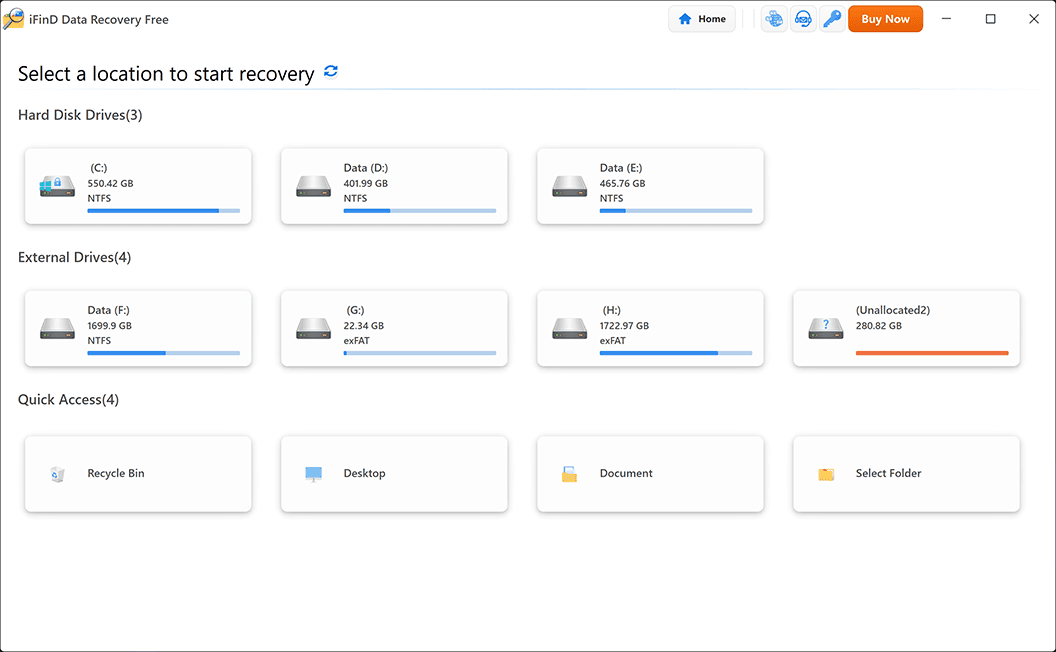
STEP 2 Launch iFinD Data Recovery and Select the Location
Launch iFinD Data Recovery on your Windows PC. From the main interface, select the specific hard drive partition, USB drive, or even the Recycle Bin where you last saved the Excel workbook.
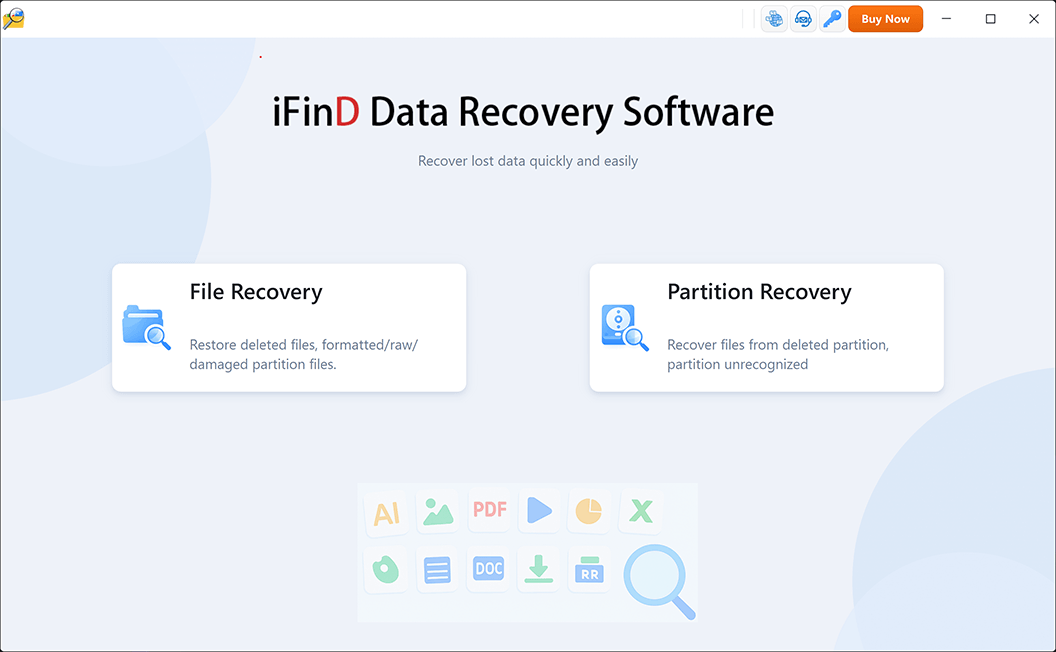
STEP 3 Choose File Recovery or Partition Recovery Mode
Select the recovery mode based on how you lost the Excel file:
Option 1: File Recovery (Recommended)
Choose File Recovery if you accidentally deleted the Excel file, emptied the Recycle Bin, or if you are looking for an older, uncorrupted version of a damaged spreadsheet. This mode performs a deep scan for specific file signatures.
Option 2: Partition Recovery
Choose Partition Recovery if your entire drive letter has disappeared, or if the USB drive storing your Excel files is now asking to be formatted (RAW drive error).
STEP 4 Scan for Missing Excel Spreadsheets
Start the scan. iFinD will dig through the drive to find recoverable spreadsheets. To speed things up, use the built-in filter to show only Document types (like .xls, .xlsx), or type a file name into the search bar.
STEP 5 Preview Spreadsheet Content and Recover
One thing that makes this step less stressful: iFinD lets you preview the actual data grid inside a recovered Excel file before you restore it. Double-click any found file to check the numbers and text—this way you know for sure it's the right draft and not corrupted.
Once you've confirmed it's the right file, select it and click Recover.
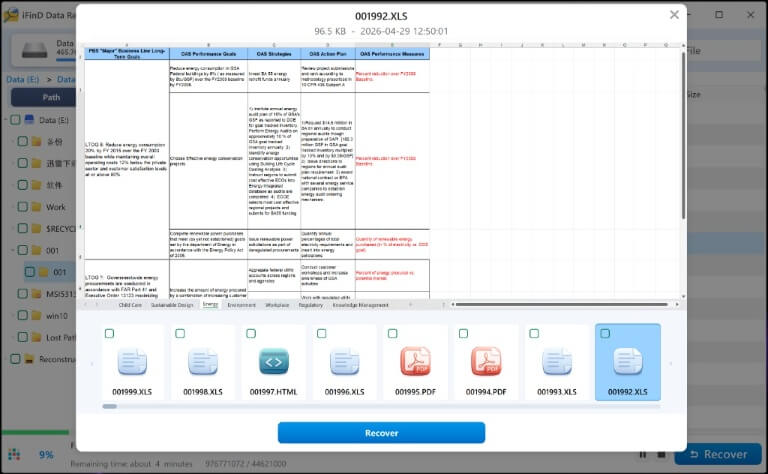
⚠️ Important: Do not save the recovered Excel files back to the same partition where they were lost. Always choose a different drive or an external USB to prevent overwriting.
Besides Excel spreadsheets, iFinD Data Recovery can also help you restore other Office files when important business data goes missing. If you also lost important emails, see our guide on deleted email recovery to learn how to restore missing messages. If you've lost vital text documents, you can use the same deep-scan approach to recover Word files. The same goes for presentations—check out our guide on how to recover PowerPoint files for step-by-step instructions tailored to that format.
4. Method 2: Recover Deleted Excel Files from Recycle Bin
Before panicking over a lost spreadsheet, always look in the Windows Recycle Bin first. A standard deletion doesn't wipe your data; it simply moves the document into this temporary holding zone. Checking here is the fastest way to recover deleted files without needing any extra tools.
Here's how to restore a deleted Excel workbook:
- Double-click the Recycle Bin icon on your Windows desktop.
- Locate your missing Excel file.
Pro Tip: If your Recycle Bin is cluttered with old items, right-click any empty space, select Sort by, and choose Date Deleted to bring the most recently deleted spreadsheets to the top. - Right-click the
.xlsxor.xlsfile and select Restore. The workbook will instantly reappear in the exact folder where it was originally saved.
⚠️ What if the Excel file isn't in the Recycle Bin?
If the file is missing, you likely used Shift + Delete, emptied the bin, or deleted the file directly from a USB flash drive (which usually bypasses the Recycle Bin). But don't panic—"permanently deleted" doesn't mean the data is gone forever. The underlying spreadsheet is likely still on your drive. Stop saving new files to that disk right away to prevent overwriting, and use Method 1 (iFinD Data Recovery) to deep-scan the drive and pull the file back.
5. Method 3: Recover Unsaved Excel Files Using AutoRecover
When Excel closes unexpectedly without saving, looking in the Recycle Bin is a dead end. To successfully restore unsaved data, you will need to rely on Microsoft's built-in AutoRecover feature, which quietly captures temporary drafts of your active workbooks in the background.
The trick is knowing exactly where to look. Your recovery path changes based on one simple detail: whether or not you ever clicked "Save" on this specific document.
Scenario A: Recover an existing Excel file after a crash
If you were working on a document that you had already named and saved to your drive, Excel usually handles the heavy lifting for you:
- Simply reopen the Excel application or double-click your original file.
- Look at the left side of your screen. A Document Recovery pane should appear automatically.
- This pane will list available recovered versions with timestamps. Click on the most recent version to open it.
- Once you confirm your recent edits are there, immediately click Save.
Scenario B: Recover a brand new, unsaved Excel file
If you created a fresh workbook and accidentally clicked "Don't Save" when closing it, you need to dig into Excel's hidden backup folders:
- Open a blank Excel workbook.
- Click the File tab in the top-left corner.
- Select Info from the left-hand menu.
- Click the Manage Workbook icon, then select Recover Unsaved Workbooks from the dropdown menu.
- A folder window will pop up showing your unsaved drafts. Select your missing spreadsheet and click Open.
- Click the Save As button in the yellow warning bar at the top of the screen to permanently secure your file.
💡 Pro Tip:
To minimize future data loss, go to File > Options > Save and change the "Save AutoRecover information every X minutes" setting to 5 minutes. Setting it any lower might cause large files to freeze during the auto-save process. For more robust backup strategies, jump to our prevention guide at the end of this article.
⚠️ What if the Document Recovery pane didn't appear or the folder is empty?
If Excel failed to generate a draft, or a system cleaner wiped your temporary folder, you won't find the file here. Don't worry—your system likely still holds fragments of those unsaved edits. Jump to Method 1 (iFinD Data Recovery) to deep-scan your hard drive and rescue your Office files before those invisible data blocks get overwritten by new data.
6. Method 4: Recover Unsaved Excel Files from Temporary Files (.tmp)
When AutoRecover fails to recover your lost files, you still have one backdoor option left. Even if the official recovery pane didn't trigger, Microsoft Office constantly generates invisible temporary files while you type.
Note: If you run automated disk-cleanup tools like CCleaner or Windows Storage Sense, this folder might already be wiped. If so, skip straight to the software method below.
Assuming your system hasn't cleared them yet, let's dive into the Windows directory and see if we can manually salvage one of these drafts:
- Press the Windows + R keys on your keyboard to open the Run dialog box.
- Type
%temp%into the box and press Enter to open the hidden Windows Temp folder. - Right-click an empty space, select Sort by, and choose Date modified (or Date created) to push the most recent files to the top.
- Look for files created around the exact time your Excel crashed. They usually have random, unreadable names ending in
.tmpor starting with a tilde (~). - Copy the likely candidate and paste it onto your Desktop (never modify the original file inside the Temp folder).
- Instead of simply renaming the file extension (which often causes format errors), open a blank Excel workbook.
- Go to File > Open > Browse.
- Change the file type dropdown menu in the bottom right of the window from "All Excel Files" to "All Files (*.*)".
- Select the temp file on your Desktop and click Open. This forces Excel to parse the internal XML structure even without a standard file extension.
⚠️ What if the temporary file won't open or displays gibberish?
Because these are raw intermediate files, forcing Excel to read them doesn't always work perfectly. If you get a format mismatch error or the spreadsheet is full of unreadable characters, stop trying to manually force it. Go straight to Method 1 (iFinD Data Recovery) to scan your drive, or check Microsoft's official documentation on how Excel saves files to understand why the temporary data might be incomplete.
7. Method 5: Recover an Overwritten Excel File (Previous Versions)
Accidental overwriting is often harder to fix than a simple deletion, and the Recycle Bin won't help you here. When you hit Save on the wrong draft, Windows updates the file index to point to your new data. While the original spreadsheet data often still exists in unallocated disk sectors—similar to when you need to recover permanently deleted files—basic undelete utilities won't know how to piece it back together.
Depending on where you keep your spreadsheets, you have two ways to find an older backup.
Scenario A: The file was saved locally (Windows Previous Versions)
If you save your spreadsheets directly to your Desktop or a local C: drive folder, Windows might have captured a snapshot of the file—but only if you previously enabled the File History or System Protection feature.
Note: On newer Windows 11 updates, the "Previous Versions" tab is sometimes hidden in the Properties menu. If you don't see it in the steps below, search for the standalone "File History" app in your Windows Start menu instead.
- Open File Explorer and locate your overwritten Excel file.
- Right-click the file itself (not the folder) and select Properties.
- Click the Previous Versions tab at the top of the window.
- If the feature was active, you'll see a list of timestamps. Select the version dated right before you accidentally hit save.
- Click Restore to replace the current broken file, or click Copy to save the older version in a safe new location.
Scenario B: The file is synced to OneDrive or SharePoint
If you use Microsoft 365 and have the AutoSave toggle turned on, Excel continuously uploads version histories to the cloud. This makes restoring a previous version incredibly simple directly from the app:
- Open the overwritten file in Excel.
- Click on the filename at the very top of the Excel window (in the title bar).
- Select Version History from the dropdown menu (alternatively, go to File > Info > Version History).
- A panel will slide out on the right showing all recent edits. Click Open version on the timestamp you want to inspect.
- Once you verify the data grid is correct, click the Restore button in the ribbon at the top of the file.
⚠️ What if it says "There are no previous versions available"?
If Windows File History was turned off and the file wasn't synced to OneDrive, you cannot simply click a button to undo the save. Stop saving anything new to that drive immediately. The only remaining option is to use Method 1 (iFinD Data Recovery). While software cannot magically reverse an overwrite, a deep scan can often locate older temporary fragments (.tmp) of the spreadsheet that were left behind in different physical sectors, similar to how it recovers lost Word documents.
8. Method 6: Repair Corrupted Excel Files with Open and Repair
Finding your missing spreadsheet is only half the battle. If Excel throws a "found unreadable content" or "file is corrupted" error when you double-click it, the save process was likely interrupted by a sudden crash or a disconnected USB drive.
Fortunately, an .xlsx file is actually a compressed package holding separate components. If the style sheets or chart structures get scrambled, your core data—the actual grid of numbers and formulas—is usually intact. You can use the built-in repair utility to strip away the broken parts.
Instead of double-clicking the file normally, follow these steps to trigger the manual repair tool without crashing the app:
- Open a new, blank Excel workbook.
- Click File > Open > Browse.
- In the file browser window, navigate to your corrupted Excel file and click it once to select it.
- Look at the Open button in the bottom right corner of the window. Click the small downward arrow right next to it.
- Select Open and Repair... from the dropdown menu.
- A dialog box will appear. Click Repair first. This prompts Excel to recover as much of your formatting and data as possible.
- If the standard repair fails, or if the button is grayed out, repeat these steps but click Extract Data instead. This strips away all formatting, charts, and macros, but it will rescue your raw values and formulas.
⚠️ What if the file is completely unreadable or shows as 0 KB?
If the file size has suddenly dropped to zero bytes, it usually means the save process was abruptly interrupted before the data could be written, leaving an empty shell. In other cases, persistent read errors might point to physical bad sectors on your storage device. In either scenario, you should use Method 1 (iFinD Data Recovery) to scan your drive for an older, uncorrupted temporary version of the spreadsheet. If you suspect your hard drive or USB is starting to fail, continue to the next method to scan for disk errors.
9. Method 7: Fix File System Errors That Make Excel Files Vanish (CHKDSK)
A single corrupted spreadsheet is usually just a save error, which the previous method handles perfectly. But if entire folders are acting strange, files keep vanishing, or your USB asks to be formatted every time you plug it in, you are looking at a bigger issue: a damaged file system.
To fix the drive itself, you will need CHKDSK. This command-line utility forces Windows to inspect the storage device for physical bad sectors and directory errors, essentially cordoning off the dead zones so your system stops writing data to them.
⚠️ Critical Warning: Recover your data BEFORE running CHKDSK!
CHKDSK is designed to fix the drive's architecture, not rescue your files. If it finds orphaned Excel data during the scan, it will aggressively convert those fragments into unreadable .chk files inside a hidden folder to stabilize the file system. This can make a recoverable spreadsheet permanently lost. Always use Method 1 (iFinD Data Recovery) to safely extract your important workbooks to a different drive first, and only run CHKDSK to repair the broken drive afterward.
After you have secured your workbooks on a separate, healthy drive, here is how to run the repair scan:
- Type cmd into your Windows search bar.
- Right-click on Command Prompt and select Run as administrator.
- Take note of the drive letter that contains the errors (for example, your corrupted USB drive might be
E:). - In the command window, type
chkdsk E: /f /r(be sure to replace the letter E with your actual drive letter) and hit Enter. - Windows will lock the drive and begin repairing the file system. Depending on the size of the storage device, this scan can take anywhere from a few minutes to several hours.
10. How to Prevent Excel File Loss in the Future
Relying on recovery methods should always be your backup plan. To keep your spreadsheets safe from sudden crashes or accidental overwrites, you just need to adjust a few native settings:
- Turn on AutoSave: If you use Microsoft 365, save your workbooks directly to OneDrive or SharePoint. This unlocks the AutoSave toggle in the top-left corner of Excel, which uploads your edits in real-time.
- Tweak AutoRecover: Go to File > Options > Save and reduce the AutoRecover interval to 5 minutes (refer back to Method 3 for the recovery path). Make sure the box for "Keep the last AutoRecovered version if I close without saving" is always checked.
- Save new versions before major edits: Before completely restructuring a massive dataset or running complex macros, use Save As to create a fallback file (for example, Financial_Report_v2.xlsx). This guarantees you always have a clean baseline to return to.
11. Conclusion
Tracking down a missing spreadsheet usually comes down to knowing exactly where Windows hides its temporary background files. As long as you act quickly and check the standard Recycle Bin or Office recovery folders before the physical disk gets overwritten, you have a high chance of getting your work back.
💡 Final Advice: If those native tools fail, or if you are dealing with a formatted USB drive and corrupted file systems, manual digging will not be enough. For reliable Excel file recovery, install iFinD Data Recovery to safely scan your raw disk sectors and pull those lost workbooks back to safety.
12. Frequently Asked Questions (FAQs)
Where do permanently deleted Excel files go?
When you empty the Recycle Bin or use Shift + Delete, the Excel file does not actually leave your hard drive. Windows simply removes the directory pointer and marks that physical storage space as "available." The underlying spreadsheet data remains on the disk until a new file is saved over it. If you act fast, you can use data recovery software to rebuild it.
Can I recover an Excel file I accidentally saved over?
Yes. If your file is synced to OneDrive, use Excel's built-in Version History (File > Info > Version History) to roll back. If you save locally on a PC, right-click the file, select Properties, and check the Previous Versions tab. If you are on a newer Windows 11 update and do not see this tab, jump to Method 5 to see the File History workaround.
Will AutoRecover work if my computer forces an update and restarts?
Usually, yes. Excel's AutoRecover directories are saved directly on your hard drive. As long as you do not open Excel and click "Don't Save" on the recovery prompt after the reboot, your drafts should survive. However, if the crash happens before Excel has a chance to generate that initial background draft, there might not be anything to recover. See Method 3 for exact folder locations.
Can I open a temporary (.tmp) file directly in Excel?
Not by simply double-clicking it or changing the extension to .xlsx. To read a temporary file, you must open a blank workbook first, go to File > Open > Browse, and change the file type filter to "All Files (*.*)". This forces the application to parse the raw data. Check Method 4 for the step-by-step process.
Why did my recovered Excel file open as 0 bytes?
A 0-byte file means the operating system created the file name, but crashed or was interrupted before any actual data could be written to the disk. The file itself is essentially an empty shell. In this scenario, you will need to use Method 6 to scan for older, uncorrupted temporary versions instead.