Last Updated on September 11, 2026 by andy woo
Professional Data Recovery Shouldn’t Cost a Fortune.
iFinD delivers the exact same industry-leading recovery rates as the most expensive competitors, but at the market’s most affordable price. Start free with 1GB, and upgrade for less.

Quick Answer: What should you do when Windows asks to format your disk?
First, click "Cancel"—do NOT click "Format disk". Windows triggers this prompt when the Volume Boot Record (VBR) or partition allocation table corrupts, causing Windows to register the file system as RAW.
Your underlying files remain intact on physical storage clusters. Recover your files first using iFinD Data Recovery, then repair the storage volume using native Windows repair commands or partition rebuilding tools.
Scenario Scope: This guide resolves formatting prompts on USB flash drives, external HDDs, SSDs, and camera SD cards where the drive letter appears but access is blocked.
If your storage drive produces continuous mechanical clicking, scraping, or electrical burning smells, disconnect it immediately. Software cannot repair physical hardware head crashes—consult an ISO-5 cleanroom laboratory.
Overview of the Windows Format Disk Error
Plugging in a USB flash drive, external hard drive, or camera SD card only to be blocked by the prompt "You need to format the disk in drive X: before you can use it. Do you want to format it?" is one of the most common storage alerts in Windows 11 and Windows 10.
If you click "Cancel", Windows typically follows up with a secondary error: "Location is not available. Drive is not accessible. The volume does not contain a recognized file system."
This error does not mean your files have been erased. Instead, it indicates that the partition index has suffered logical corruption, rendering the partition unreadable to the Windows storage subsystem. Following the golden rule—recover data first, repair the drive second—ensures you rescue your documents, photos, and videos without permanent file destruction.
Depending on your storage device, you can also consult our dedicated hardware guides for hard drive data recovery, our comprehensive external hard drive recovery guide, or our field-tested walkthrough for USB flash drive recovery.
- 011. Anatomy of the Error: Why Windows Demands a Format
- 022. The Golden Rule: Why You Must Never Click "Format Disk"
- 033. Phase 1: Rescue Files First via iFinD Data Recovery (Step-by-Step)
- 044. Phase 2: 4 Safe Methods to Fix the Drive Without Data Loss
- 055. Hardware-Specific Troubleshooting (USB, Hard Drive, SSD, SD Card)
- 066. Field-Proven Habits to Prevent Format Disk Prompts
- 077. Frequently Asked Questions (FAQ)
1. Anatomy of the Error: Why Windows Demands a Format
To fix this issue without data loss, you must understand what happens inside the storage structure when this prompt appears. Windows does not check your individual files before popping up this warning; it checks the volume boot sector.
The Storage Architecture Behind the Error
When you connect any storage device, Windows reads Sector 0 (the Master Boot Record or GUID Partition Table) followed by the Volume Boot Record (VBR) of each partition:
- Volume Boot Record (VBR) Damage: The VBR contains the BIOS Parameter Block (BPB), which tells Windows whether the file system is NTFS, exFAT, or FAT32, where cluster sizes begin, and where the allocation table is stored. If the VBR signature bytes (
0x55AA) become unreadable, Windows cannot identify the file system architecture. - File System Marked as RAW: Unable to locate a valid file system driver, Windows falls back to flagging the partition as a RAW partition recovery candidate. Because Windows cannot parse RAW structures, it assumes the disk is completely unformatted.
- The "Dirty Bit" Trigger: Abruptly disconnecting a USB drive while write operations are active sets the file system "dirty bit". On subsequent connections, Windows detects the incomplete transaction log and usually schedules an automatic CHKDSK repair—or, if the corrupted metadata prevents the file system from being parsed, escalates to a format demand.
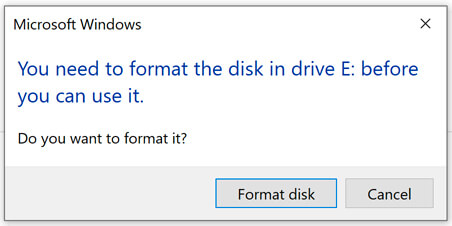
Figure 1: The standard Windows format prompt triggered by corrupted Volume Boot Records.
2. The Golden Rule: Why You Must Never Click "Format Disk"
When faced with the format dialog, clicking "Format disk" is the single most destructive mistake a user can make.
What Actually Happens If You Format
- Allocation Tables Are Overwritten: A high-level format creates an empty Master File Table (NTFS) or File Allocation Table (FAT32/exFAT), wiping file names, directory folder paths, and cluster allocation maps.
- SSD Garbage Collection Risk: If the external device is an SSD or modern flash drive, formatting marks all sectors as available. The drive controller may subsequently perform background garbage collection, permanently erasing deallocated blocks and rendering software recovery impossible.
- Recover First, Repair Second: Always extract your raw files from unallocated clusters before executing partition format commands or disk structure writebacks.
If an accidental format has already occurred, stop using the storage device immediately and review our dedicated guide on recovering data from a formatted drive without backup.
3. Phase 1: Rescue Files First via iFinD Data Recovery (Step-by-Step)
Because Windows cannot traverse a RAW file system, specialized software must query the physical drive blocks directly. iFinD Data Recovery bypasses damaged VBR sectors, parses remaining file system descriptors, and carves files by their unique hexadecimal headers.
1 Connect the Drive & Decline Formatting Prompts
Connect your unrecognized storage drive directly to a motherboard USB 3.0 port. When Windows displays the prompt asking to format the disk, click Cancel. If an access denied popup appears, click Close.
Free Evaluation: iFinD Data Recovery includes 1GB of free data recovery out of the box, allowing you to preview photos, videos, and documents without upfront licensing.
2 Launch iFinD & Select Partition Recovery
Download and open iFinD Data Recovery on your PC.
On the main interface, select Partition Recovery. This mode is specifically engineered for drives showing as RAW, unallocated, or missing their partition boot descriptors.
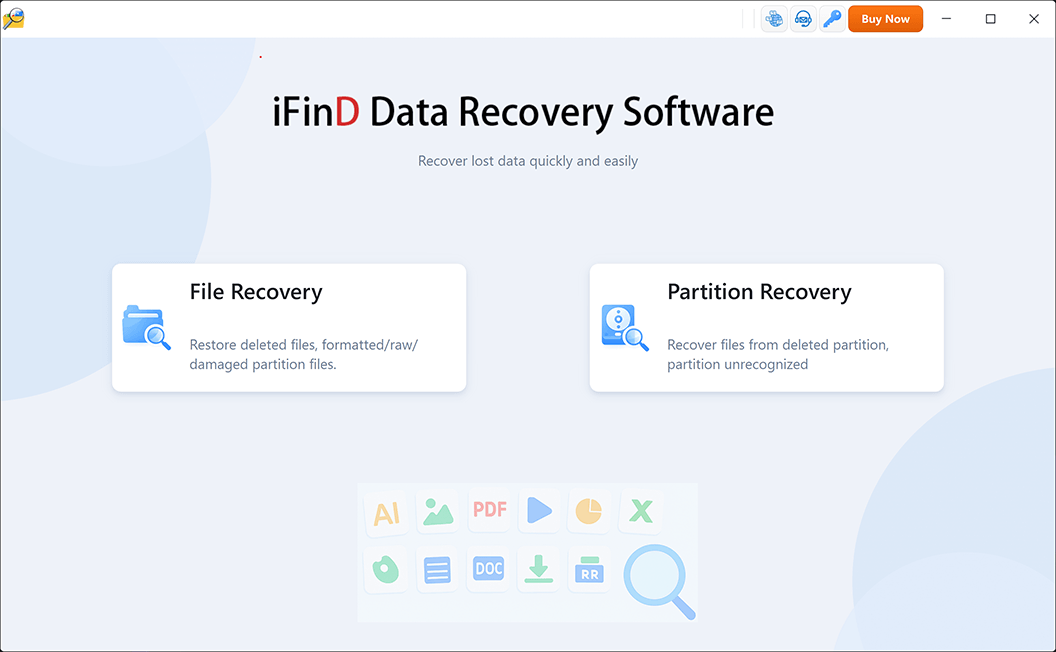
3 Execute Deep Signature Carving
Select your unformatted drive from the device tree and click Scan. iFinD's deep scan engine parses residual directory structures while searching physical sectors for over 1,000 distinct file signatures (including Office documents, ZIP archives, JPEG images, and MP4 videos).

4 Preview Discovered Files & Export Safely
Filter the live scan results by file type or directory tree. Double-click any document, spreadsheet, or photo to launch the built-in previewer and verify file integrity.
Select your required files, click Recover, and specify an internal PC drive or secondary backup drive as the export destination.
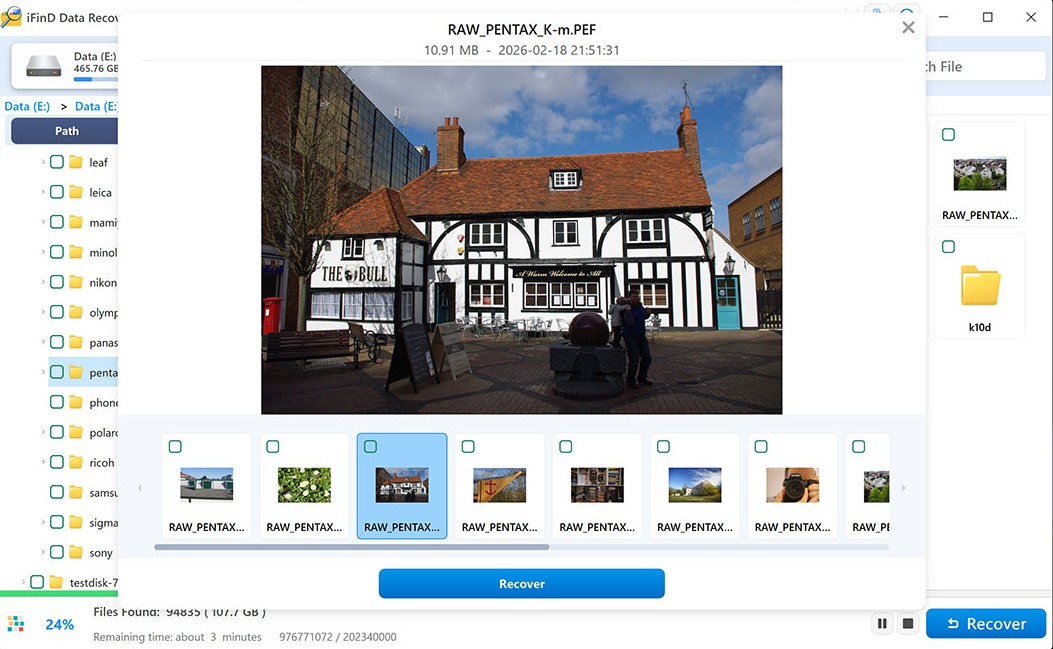
Mandatory Safety Rule: Never export recovered files back onto the same drive asking to be formatted. Writing new data to the affected volume destroys remaining raw clusters.
4. Phase 2: 4 Safe Methods to Fix the Drive Without Data Loss
Once your critical files have been safely extracted and verified on a secondary storage drive, you can proceed to repair the underlying drive structure:
Method A Run CHKDSK to Repair Logical File System Errors
The Windows Check Disk utility can repair corrupted master file tables and volume descriptors:
- Press Win + S, type
cmd, right-click Command Prompt, and choose Run as administrator. - Type the following command (replace
X:with your drive letter) and press Enter:chkdsk X: /f /r
- Allow CHKDSK to verify file allocation tables, validate security descriptors, and remap soft bad sectors. For command parameters, reference the official Microsoft Learn CHKDSK command guide.
Technical Caution: If CHKDSK reports "The type of the file system is RAW. CHKDSK is not available for RAW drives," the volume boot records are completely gone, and file carving via iFinD in Section 3 is your only recovery route.
Method B Reinstall USB Storage Controllers in Device Manager
Corrupted Windows USB bridge driver cache files frequently prevent file system handshakes:
- Press Win + X and select Device Manager.
- Expand Universal Serial Bus controllers.
- Right-click USB Mass Storage Device (or your brand controller) and click Uninstall device.
- Unplug the drive, restart your PC, and reconnect the storage device to let Windows reload clean driver binaries.
Method C Change and Reassign the Drive Letter
A drive letter collision with an internal optical drive, virtual drive, or mapped network share can trigger mount errors:
- Press Win + X and select Disk Management.
- Right-click your unrecognized partition and select Change Drive Letter and Paths...
- Click Change, select an unused letter (such as
X:,Y:, orZ:), and click OK. - Restart Windows File Explorer to verify if the drive opens normally.
Method D Clean Format and Reinitialize the Volume
After your data has been recovered in Phase 1, you can finally format the drive to restore complete read/write capability:
- Open Disk Management.
- Right-click the RAW volume and select Format...
- Choose your preferred file system: select NTFS for dedicated Windows external hard drives; choose exFAT for modern USBs and SD cards requiring cross-platform Mac/PC compatibility with files over 4GB; or use FAT32 if connecting small drives under 32GB to legacy multimedia players.
- Ensure Perform a quick format is checked and click OK.
5. Hardware-Specific Troubleshooting (USB, Hard Drive, SSD, SD Card)
Storage media types fail in distinct ways. Follow these hardware-specific troubleshooting paths:
USB Flash Drives: Controller Sleep & Bad Blocks
USB flash drives generate formatting prompts when NAND flash blocks exceed their write endurance or when aggressive USB selective suspend powers down the bridge chip. Connect the flash drive directly to a rear USB port, and review our dedicated guide on what to do when a USB drive is not recognized.
External Hard Drives: Power Sags & Bridge Failure
Mechanical portable drives require a full 5V / 900mA power supply. Front-panel computer ports and unpowered USB hubs frequently cause voltage sags, forcing the drive heads to cycle repeatedly. Switch to a shorter USB 3.0 Micro-B cable plugged into the motherboard I/O shield.
SSD & NVMe Drives: TRIM-Aware Recovery Constraints
SSDs present a narrower recovery window due to background garbage collection and controller TRIM commands. If your external SSD or NVMe enclosure triggers the format prompt, disconnect it immediately and avoid reconnecting until you are ready to run recovery software. Every mount cycle allows the controller to process pending block deallocations.
Camera SD / MicroSD Cards: Format Incompatibilities
Cameras often use specialized cluster sizes or write protected directory headers. If your camera card prompts to format on your PC, avoid using built-in laptop card readers; use a dedicated USB 3.0 UHS-II card reader and check our guide to repair a corrupted SD card or learn how to recover photos from an SD card.
6. Field-Proven Habits to Prevent Format Disk Prompts
Minimizing disk metadata corruption requires adhering to three fundamental storage hygiene practices:
- Always Use "Safely Remove Hardware and Eject Media": Yanking out a USB drive while write caching is enabled interrupts Master File Table flushes, instantly corrupting the VBR. Click the taskbar USB icon and wait for the "Safe to Remove" notification.
- Avoid Front-Panel USB Hubs for External HDDs: Front-panel case ports rely on long internal unshielded header cables prone to electrical interference and voltage drops. Connect high-capacity drives directly to motherboard rear ports.
- Deploy the 3-2-1 Backup Rule: Maintain 3 copies of vital data across 2 different storage media types, with 1 copy located off-site or in cloud storage. If a drive fails mechanically, consult our transparent breakdown of data recovery costs before paying commercial cleanroom evaluation fees.
7. Frequently Asked Questions (FAQ)
If I accidentally clicked "Format Disk", can I still recover my files?
Yes. A quick format only rewrites the partition file system headers (MFT or FAT directory tables), leaving the underlying data clusters untouched on physical sectors. As long as you have not saved new files to the formatted drive, iFinD Data Recovery can reconstruct your files through deep signature carving.
Why does my USB drive ask to format on PC but works fine on my TV or Mac?
This behavior occurs when a drive is formatted with a file system that Windows does not natively support, such as macOS APFS / HFS+ or Linux EXT4. The drive is not corrupted; Windows simply cannot read the partition headers. Connect the drive back to its native operating system or use recovery software that supports cross-platform file systems.
Will CHKDSK erase my files when fixing the format prompt?
CHKDSK can cause collateral file loss if run on severely degraded drives. When CHKDSK encounters corrupted directory entries, it often truncates orphaned cluster chains and converts broken files into .chk files inside hidden FOUND.000 folders. Always recover files with software before running CHKDSK.
Can free data recovery software fix an unformatted RAW drive?
Data recovery software recovers the files off the RAW drive rather than repairing the broken partition in place. iFinD Data Recovery provides 1GB of completely free data recovery, allowing you to scan the RAW drive, preview documents, and export your files to a safe location before formatting the drive cleanly.
How do I open a drive that says "The volume does not contain a recognized file system"?
This error confirms that the Volume Boot Record has been corrupted and the partition is in a RAW state. You cannot open the drive directly through Windows File Explorer. Use Partition Recovery mode in iFinD Data Recovery to access raw physical sectors and extract your data to another disk.
What should I do if Windows Disk Management shows the drive as "RAW"?
When Disk Management displays a volume as RAW, do not click "Initialize Disk" or "New Simple Volume", as both write new partition headers over Sector 0. Connect the drive, run a read-only partition scan with iFinD Data Recovery to rescue your files, and then reformat the volume using Disk Management.
Scan Your RAW Drive Free Before Spending Money
Do not let a Windows format alert trick you into erasing your files. Scan your USB flash drive, external hard drive, or camera card with iFinD Data Recovery to preview your data in full resolution and restore up to 1GB 100% free.